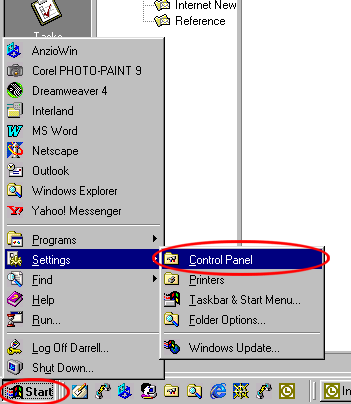
1. Click the Start Button
and select Settings | Control Panel
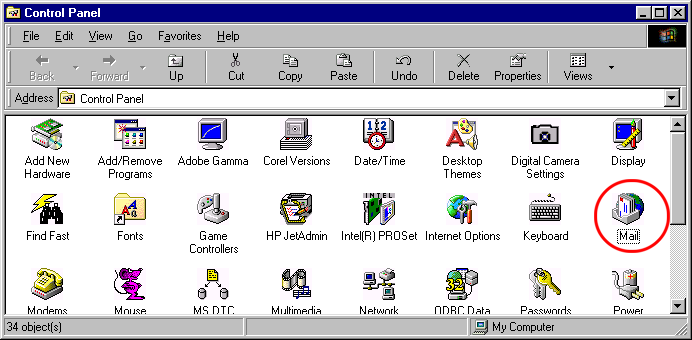
2. In the Control Panel window
double click the Mail icon.
NOTE: the Mail icon is sometimes labeled Mail & Fax
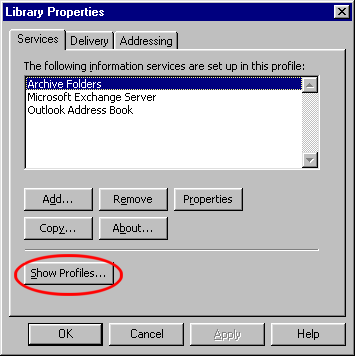
3. Click the Show Profiles button that appears in the pop-up Properties dialog.
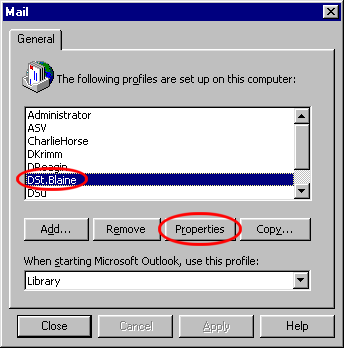
4. Select your profile from the list of names and click the Properties button
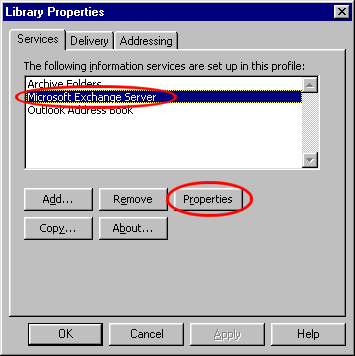
5. Select Microsoft Exchange Server from the list of services and click the Properties button.
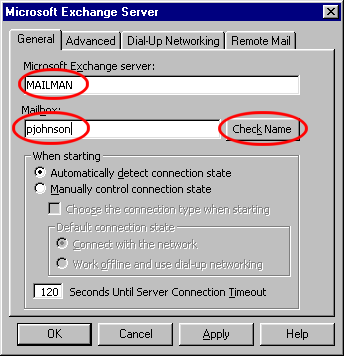
6. Enter MAILMAN as the name of the Microsoft Exchange Server. Enter your mail account name (i.e. first initial entire last last name) in the Mailbox field and click the Check Name button.
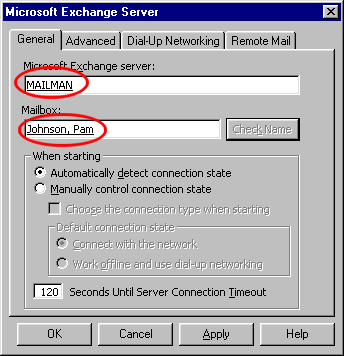
7. Both the Server name should become underlined and your name should now appear as "Last Name, First Name" it will be underlined as well.
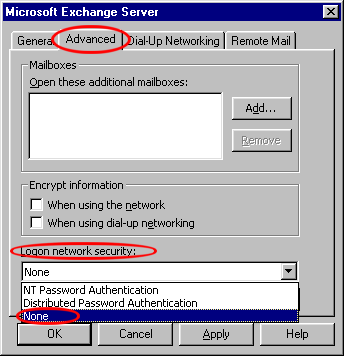
8. Click the Advanced tab
at the top of the dialog and make sure that Login Network Security is
set to None. Click the OK button.
NOTE: on some systems the Login Network Security option appears
as a drop down menu while on others it appears as check boxes
9. Click the OK button again
to close the mail properties dialog. Close the Control Panel window and you're
done. You should now be able to launch Outlook '97 and login into the new mail
server.
If you have problems please contact ASV.