1. Establish the connection
1.1 How to setup the chat server
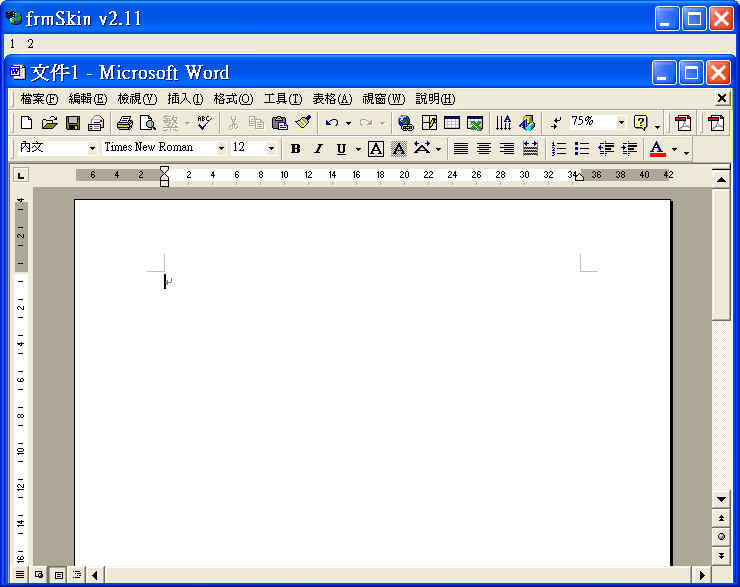
The following screen is the first screen you can see when you start the program, since this example is used MS word as a background picture, so you just look to be using a MS word. Use the mouse right button + left button to active the dialog box.
After actived the dialog box, the screen look like as below .
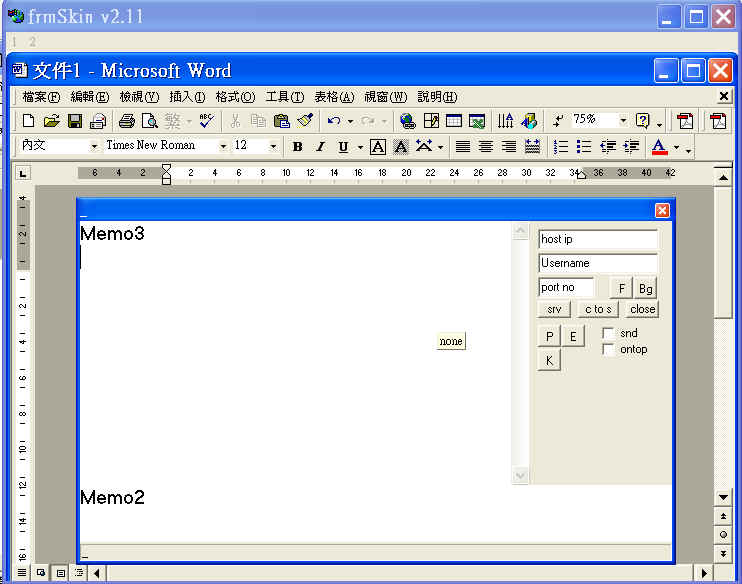
Just type your ip address , user name and port number ( default is 12345) in the corresponding field , and then press the "srv" button to set your computer as a server.
1.2 How to connect to a chat server
At the first time , just input the host ip and port number in the corresponding fields, then click the "c to s" button. Just click at the memo field to disappear the info part and then you can chat with your friends now.
2. Basic Function
The Menu bar "1" --- to select the picture to act as the background picture
The Menu bar "2" --- to paste the screen that saved in the clipboard into the background.
"F" --- to set the fonts characteristic.
"Bg" --- to change the color of the memo fields.
"snd" --- check this to enable the sound when there is new message arrived.
"ontop" --- check this to force the dialog box always on top of other windows.
"close" --- to disconnect the connection.
"K" --- the key that used to encryp the message. ( all the clients should type in the same key , otherwise they can't see the message)
3. Advance Function
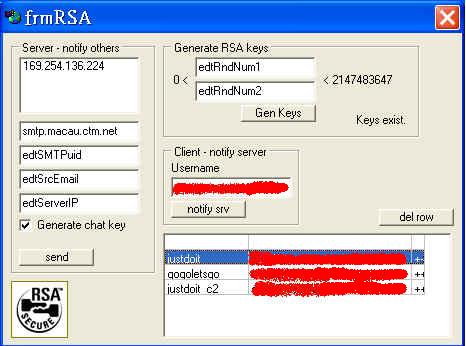
There is a more convenient and security way to send the server ip and port number to the clients after the first connection. During the first connection , Press the "E" button , you should have the following screen.
3.1 Notify the clients
After the server is setup, you should notify the other users to tell them the server is setup, and they can join to the server. You can notice there may contain some ip address in the list box above, it is the public internet address for your machine, you can click on it to fill the edit box to notify others about that ip, but if you are behind firewall, you need to manually enter the ip at the "edtServerIP" field. The default smtp server address (smtp.macau.ctm.net) is wrote in the first fields, you should enter the user id that will be used for the smtp server and the sender's email in the "edtSMTPuid" field and "edtSrcEmail" field correspondingly. After all the fields are filled , you can click the "send" button to send a email to notify the clients the server can be used now. You can also check the "Generate chat key" for generating a key for the encryption of the chat message.
3.2 Notify the server
The client can send their email address to the server in order to received the information (ip address encryp key, port number) for future use. Since the program used the RSA security technology, the client should input two numbers between 0 and 2147483647 in the "edtRndNum1" and "edRndNum2" field to generate the RSA key first by pressing the "Gen Keys". Then type the email address below the user name , send the email address by pressing the "notify srv" button.
3.3 Connect to the server by a simple and secure way
After the client send the email address to the server, whenever the server is setup, the server can just send the needed information to the clients by a encrypted email, then the client just need to open the email and copy the encrypted content , then press the "P" button and "c to s" button to connect to the server.