EBM Picture Viewer and Editor
A collaboration between jur and PDAref
Program: jur
Manual, testing and two-way Windows conversion utility: PDAref
- A powerful picture viewer and editor, handy for viewing family snaps, maps etc. on your ebm.
- View and edit in portrait or landscape mode
- Support for:
- .pic files (PDAref's converter - unlimited file size, fast)
- .fib files (SMC's eView converter - very fast)
- .pai files (David Pankhurst's paPix converter - versatile)
- .pkg files (
 package files are generated by PDAref's Image Converter 2.x) and contain more than just one image - like a photo album. This provides a great way to limit file clutter on your ebm)
- Two modes of operation: Viewing mode, with zoom and drag functions active, and Edit mode, with all the drawing functions active
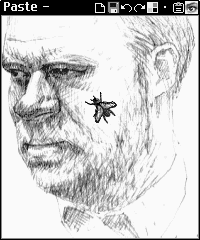
A pen sketch of me drawn by a Chinese sidewalk artist in Beijing, with an image of a fly (copied out of the _GUI.pkg file from the OS) pasted on it. (In Australia you even get virtual flies!)
Download PicDraw 1.2a
Download 1.0 manual
Download two-way Windows image conversion utility V2.1
|
- Viewing mode:
- Open image, and Save as... via menu
- Drag the image around or tap the arrows at the bottom of the ebm to move the image
- Zoom out and back in using the titlebar buttons or the jogwheel (no zooming in beyond 1:1)
- Extra buttons for zoom-to-fit and zoom-to-1:1
- Press the jogwheel to auto-load the next picture in RAM, MMC or picture package
- Edit mode:
- Save images
- Draw with a variety of drawing tools - freehand, line, rectangle, circle etc.
- Visual dynamic feedback while using drawing tools for accurate shape placement
- Choose from 5 brush thicknesses
- Choose from 10 greyscale colors, white to black
- Cut, copy, paste, and crop images
- Dynamic button images show selected drawing tool and brush size
- Paste from one image to another
- Multiple levels of undo and redo, user configurable up to 20
- Start new image, with user definable canvas size
- Editing zoomed images doubles as an image resize function
- Dynamic context-coupled toolbars
- Variety of user preferences
- Maximum picture size only limited by memory - 1024x2048x16 or 2048x1024x16 (1Meg file size) can be specified as new image
- Picture format is standard Franklin Image Binary Format 1 (FIB1) or standard Franklin package format (PKG1)
- For optimal results, convert the pictures you want to view to greyscale first. You may want to adjust the contrast and brightness for better visibility on your ebm. (See the tip on eNote for additional options.)
- After manipulating the bitmap, convert to ebm format using PDAref's conversion utility PicDraw_Image_Converter. His utility will also generate a bitmap from your ebm .seb or .pic file.
- The picture file name extension must be .pic or .fib, and package file name extension must be .pkg. (If you rename a Mahjongg tilefile's extension to .pic, you can edit these on your ebm. Remember to rename them back to .tile afterwards.)
|
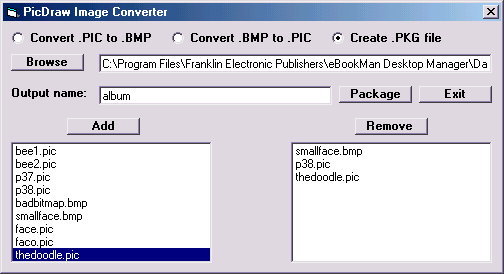
PDAref's image converter. Will convert from Windows bitmap to Franklin FIB1 format and back. Also generates .pkg files, like a photo album with lots of images inside. Accepts 16-color grey-scale images. Use this to convert bitmaps to .pic first, and to convert to bitmaps any .pic from your ebm. Handles .pic as well as "sebbed" pic files. (.seb extension). This utility can also be used for PicView and Mahjongg tile files, as well as for any image to be used in ebm applications.
eView tip: To do a very quick conversion, download and install SoftMine's eView from PDAPointer. The ebm app is cripple/nagware but the Windows conversion app appears to be fully functional.
- This installs a right-click menu item in the Windows shell. This will convert the image directly from the current color depth and image format directly to a Franklin format, and move the sebbed file to your sync folder, cutting out the requirement of manupilating the image beforehand. There is an option to select the number of gray colors for the converted picture.
- Right-click on any image and select 'eView Convert'.
- Select the Color Depth you want. Click OK.
- The file will now be the correct format in your sync folder.
- Be aware that eView's converter has a size limit (unlike PDAref's converter). I could not determine what this limit is from the documentation. It warns you and then lops off a part of the image.
- (I am not suggesting that you use the eView converter forever without paying. However, it is shareware and under that agreement, you can evaluate the software.)
Photoshop Tip: To change an image to 16 colors (4 bit) in Photoshop;
- Click on the toolbar, IMAGE > MODE > GRAYSCALE
- If you are asked to flatten the image or discard color information, click flatten or ok.
- Click on the toolbar, FILE > SAVE AS and choose .BMP from the Format drop-down menu.
- When the BMP Options dialog appears, choose the 4 Bit radio button.
PaintShop Pro Tip: To change an image to 16 colors in PaintShop Pro;
- Click on the toolbar, COLORS > DECREASE COLOR DEPTH > 16 Colors (4 bit)
- If you are loading a 2 color image, you will have to click COLORS > INCREASE COLOR DEPTH > 16 Colors (4 bit)
- Click on the toolbar, FILE > SAVE AS and choose Windows or OS/2 Bitmap (*.bmp) from the Save as type drop-down menu.
Note: Image editing programs are memory hungry beasts due to the large amount of memory needed by images. It is a good idea to free up RAM by moving stuff to the MMC, especially if you have a 900 or 901. Besides freeing up RAM, this also has other benefits - your backup becomes small, backups take less time so losing the OS for whatever reason has less impact. Using your precious RAM for running programs is the way to go - use the MMC like you would use a hard disk. If you try to load an image that requires more RAM than available, you will get an "Out of memory" error and the program will terminate. Unfortunately, the OS does not provide a way to save files to the MMC directly. You will have to move saved images to the MMC manually during syncing.
Release history:
V 1.2a: 26 Feb '03
- Fixed bug with reading pkg files from MMC
- Fixed bug in screen update after using keyboard for file name entry
V 1.2: 14 Feb '03
- Added support for .pai files.
V 1.1: 13 Feb '03
- Added support for .fib files.
- Added zooming on all color modes.
- Files located on the MMC are presented in italics in the file dialog
V 1.0: 7 Dec '02
- First release.