
Lesson 1: Basic features
The features in Word 2007 can make your work easier, make your documents more attractive, and/or enable you to work more efficiently. This Microsoft Word lesson teaches you how to open a file, cut, copy, paste, use AutoText, use spell check, use Find and Replace, and change fonts. All of these features either make your work easier or make your document more attractive.
Open a File
When you do not have time to complete your work or when you finish your work, you can save and close your file. After saving a file, you can later open it to revise or finish it. You learned how to save a file in Lesson 2. In the exercise that follows, you learn how to open the file you saved.
Open a File with Windows Vista
If you are using Windows Vista:
1.Open Word 2007.
2.Click the Microsoft Office button. A menu appears.
3.Click Open. The Open dialog box appears.
4.Locate the folder in which you saved the file. The file is named Lesson Two.docx.
5.Click Lesson Two.docx.
6.Click Open. The file you created during the previous lesson appears.
Open a File with Windows XP
If you are using Windows XP:
1.Open Word 2007.
2.Click the Microsoft Office button. A menu appears.
3.Click Open. The Open dialog box appears.
4.Use the Look In field to move to the folder in which you saved the file. The file is named Lesson Two.docx.
5.Click Lesson Two.docx.
6.Click Open. The file you created during the previous lesson appears.
Alternate Method�Opening a File with Keys
1.Open Word 2007.
2.Press Ctrl+o.
3.Locate the folder in which you saved your file. The file is named Lesson Two.docx
4.Click Lesson Two.docx.
5.Click Open. The file you created during the previous lesson appears.
6.Cut and Paste
You can use Word's Cut feature to remove information from a document. The you can use the Paste feature to place the information you cut anywhere in the same or another document. In other words, you can move information from one place in a document to another place in the same or different document by using the Cut and Paste features. The Office Clipboard is a storage area. When you cut, Word stores the data you cut on the Clipboard. You can paste the information that is stored on the Clipboard as often as you like.
Change the Font Size
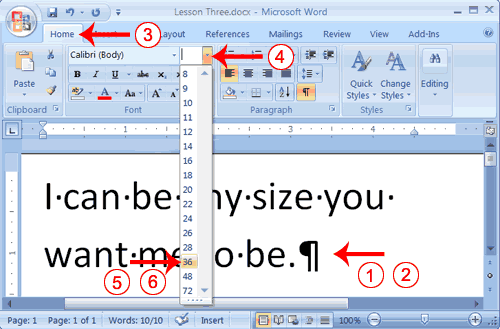
Type the following:
1.I can be any size you want me to be.
2.Select "I can be any size you want me to be."
3.Choose the Home tab.
4.In the Font group, click the down arrow next to the Font Size box. A menu of font sizes appears.
5.Move your cursor over the menu of font sizes. As you do, Word 2007 provides a live preview of the effect of applying each font size.
6.Click 36 to select it as your font size.
Note: If you know the font size you want, you can type it in the Font Size field.
Change the Font with the Ribbon
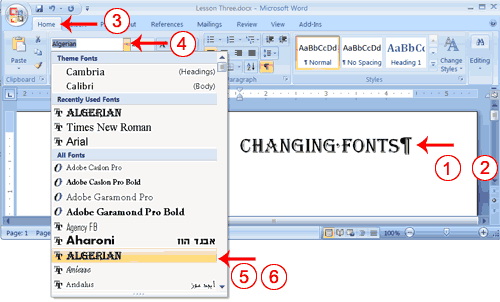
Type the following:
Changing fonts
1.Select "Changing fonts."
2.Choose the Home tab.
3.Click the down arrow next to the Font field. A menu of fonts appears.
4.Move the cursor over the list of fonts. Word 2007 provides a live preview of what the font will look like if you select it.
5.Click the font name to select the font you want.
Alternate Method�Change the Font with the Mini Toolbar
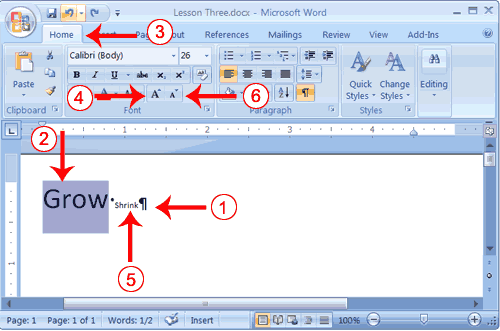
Select "Changing fonts."
1.Right-click. The Mini toolbar and a menu appears.
2.Move to the Mini toolbar.
3.Click the down arrow next to the Font field. A menu of fonts appears.
4.Click the name of the font you want.
