| EnCase Test and Tutorial Page 2 |
|
|
12. - For Test_Folder-V I leave the images where they are.  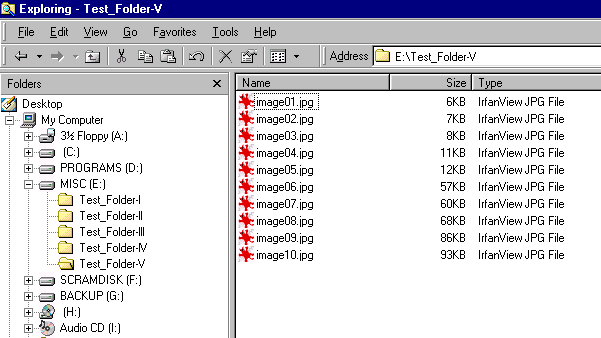 13. - Now I open EnCase v2.09a (Note: This is an earlier version of EnCase but it's also the most user friendly of them all). Next I click onto the "Priview" button. 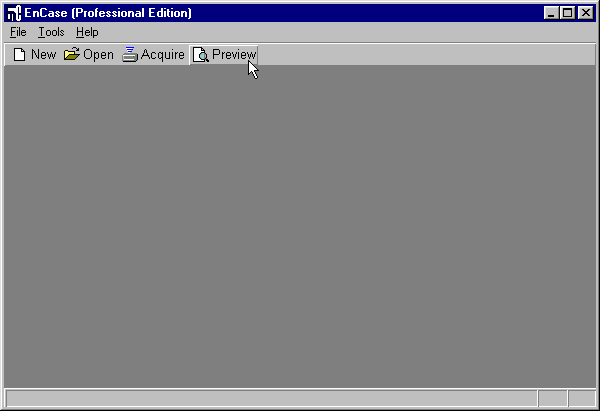 14. - Now I high-light Drive E: -- This is where I have all of my "Test Folders". 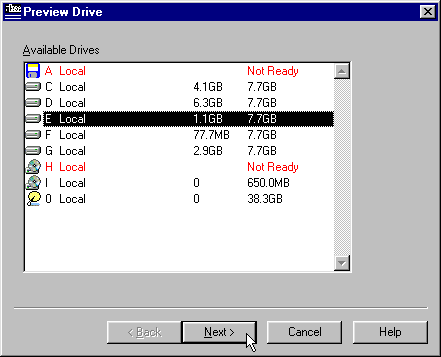 15. - After the "Date and Time" dialog box pops up I click onto "Finish". 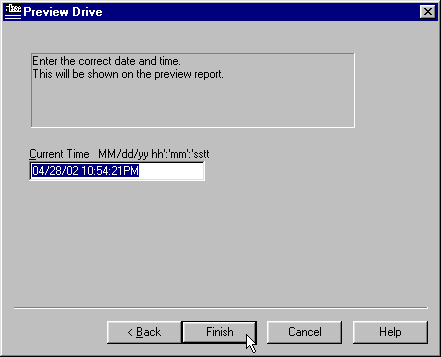 16. - Once EnCase is done previewing the Drive E: this will be the next window to show. Now I place a check mark next to "Recycled", all the "Test Folders", and "Unallocated Clusters" | Then I click onto the "Search" button (top right).  17. - When the "Search Dialog" box pops up I can enter a keyword by clicking onto "Add". 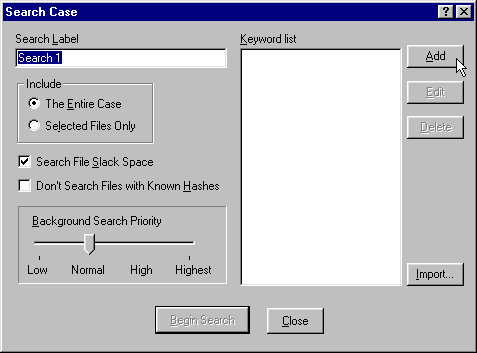 18. - Since I know what I'm trying to look for I'm going to choose the word "image" then click "OK". 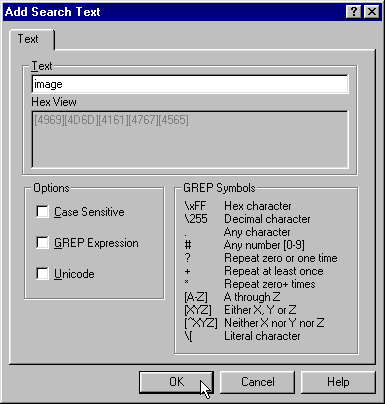 19. - I place a check next to "Selected Files Only" | I leave the "Background Search Priority" set to "Normal" | then click "Begin Search". 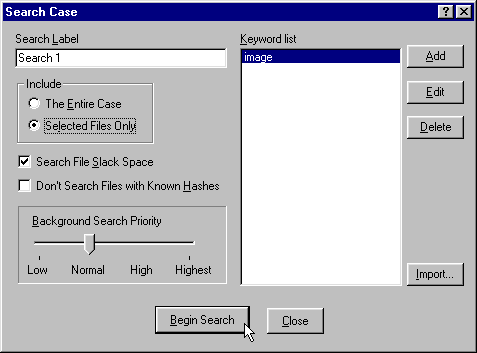 20. - EnCase is now Searching "Recycled", "Test Folders", and "Unallocated Clusters" for any file that has "image" in it's name.  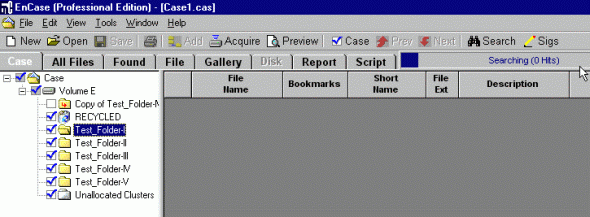 |
  |
| Back up |