Back
Master SMS 1.8
Basic features :
1. Support for message 800 chars long . ( message is divided to 5
SMS messages)
2. Support for delivery report.
3. Write messages, or draft messages, on your Palm and send them later.
4. Support for send SMS messages to multiple recipients (a 'caller
group' )
5. Export/Import message from/to MemoPad
6. Suport for InfoSMS service ( similar to SIM toolkit service)
7. Automatic capitalization of first letter of SMS text
8. Messages which have already been retrieved will not be retrieved
twice
9. Filter messages in inbox( You can filter messages on the phone
number or recipients name )
11. Category support in Inbox - you can create your category in Inbox
and you can select message and move message to to this
category over "move" button now.
12. BlueTooth SDIO card support.
This program is shareware,
demo version of the program has only one limitation: You can send
up to 50 chars long SMS message only. (Message longer than 50
chars are divided to multiple 50 chars long messages.) .
If you like this application you can buy full version MasterSMS
at Kagi Services (www.kagi.com). Registration fee is $16,90.
With the registration you aquire a lifetime update for minor version
guarantee i. e. you will receive any update of Master SMS automatically
via eMail.
This program was tested on the PalmOS 3.1 , 3.5 and 4.0 and was tested with following phones : Nokia 7110, Nokia 6210, Ericcson 320S, Ericcson T28, Motorola Timeport 250 , L7089 and Siemens S35i( for PalmOS lower than 3.3 , you need IrComm library from Palm computing).
When you use the infrared interface with Master SMS under a PalmOS lower
than 3.3 you have to install the
Enhanced Infrared Update
.
Before you buy full version , Please try demo version whether demo version
send and recieve message with your phone.
Feedback
Do you have praises, complains or ideas regarding Master SMS?
Please send me your praises or ideas to my email :
[email protected]
Limitation:
This program supports only 7bit GSM standart now and doesn't
support picture,EMS and sound SMS message.
Download Master SMS demo Kagi Online registration or PalmGear Online registration
Master SMS step by step:
First, after install, you have to create your
provider profile
.
Table Context:
Create provider
Set preference
Write message
Create template of
messages
Create group of users
Work with Outbox
Work with InfoSMS
Work with Inbox
|
|
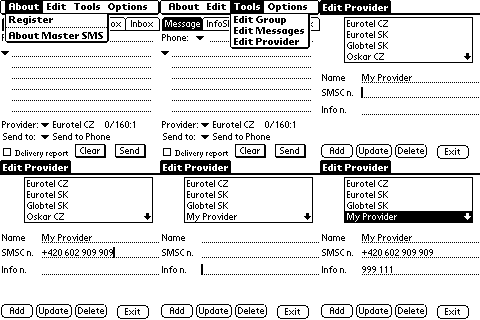
Open menu , select Tools and then
select item Edit Provider. You can insert name of your
mobile provider or any description to field "name" , for
"SMSC n." field insert phone number SMSC center in international
format.( it's very important !! , for example +420
602 909 909 ) and for field "Info n." insert phone number of
info SMS service, and then you have to click to button "add"
. It's All. Back |
|
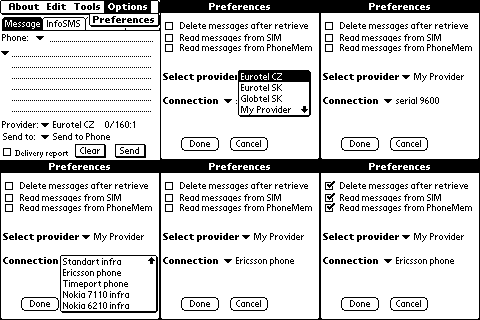
Open menu, select Options and then
select item preference.You can select in list "Select provider"
your default provider, and then in list "connection select
your phone type or connection ( when you cannot find your phone
in the list , select standart infra or serial).When you check
the checkbox "Read messages from SIM" and "Read messages
from PhoneMem", Master SMS tries to read SMS messages from SIM
memory or Phone memory ( yes , you can check this options both
and then program will read SMS messages from bothSIM and Phone memory) CheckBox "delete messages after retrieve" , deletes all messages from phone after receiveing. Back |
|
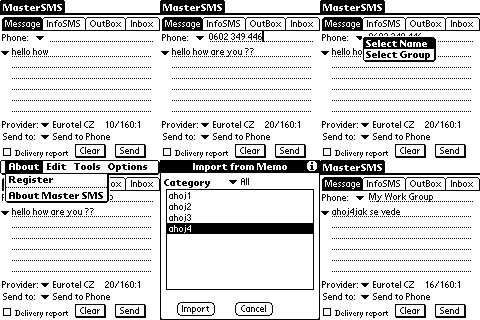
Here you can write text of message
up to 800 char or select message from template or import
message from MemoPad. You can write mobile phone number to
field "Phone" or select mobile phone from address book or select
group of users. Provider list - here you can select provider for this message. Send To list - you cand send message directly to the phone or send message to outbox, or send directly to phone and copy sent to outbox. Delivery report - set whether you want get information about delivery message to recipient. Button "Send" sends message to phone or outbox and button "Clear" sets phone and message field to empty. Back |
4. Create template of message:
|
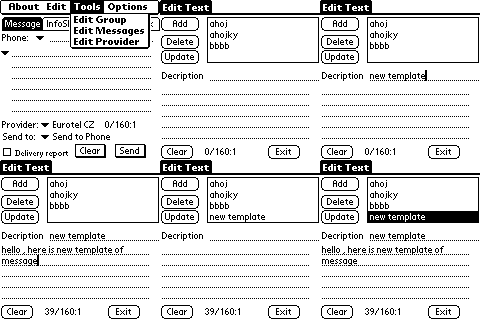
Open menu , select Tools and then
select item "Edit Messages".Here, you can write template
of a message.Description fields - here you write any description
for template. Message field - here you can write a message to up 800 chars.Then you click to "Add" button and new template will add to the list of templates.When you select any template and change it, you can update it over "update" button.Button "Delete" deletes selected template. Back |
|
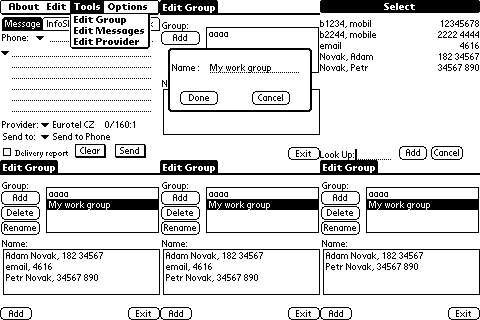
Open menu, select Tools and then select
item "Edit Group".When you press "Add" button, you can
add new group,then you select this group and over bottom "Add"
button you add user from address book to this group.When you
have selected any group, you can delete or rename selected
group, when you have selected any user in selected group, you
can remove it from the group. Back |
|
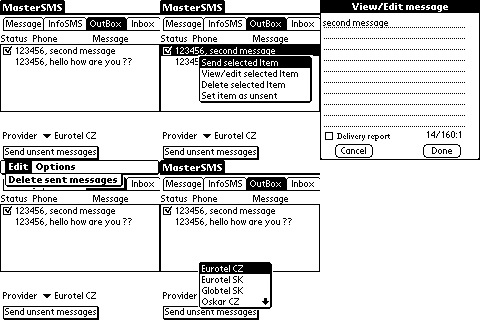
When you press button "Send unsent
messages", all unsent message will be sent to phone, before
sending, you can change or choose provider.When you want delete
all sent messages, click to menu and choose "Delete sent messages"
item.When you select any message, you can send this message to
phone,delete it,view/edit or set this message as unsent. Back |
|
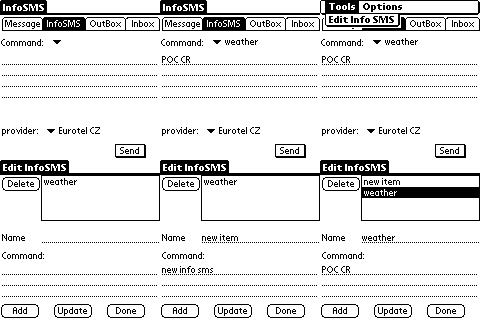
Info SMS is similar to SIM toolkit
service, you can send any preddefined command to any InfoSMS
centrum. Info SMS have two parts, first part you can choose by any preddefined comand from command list and send this command to provider(info SMS number) and second part is available over menu - here you can define,delete or update commands.For example, when I send message POC CR to my info SMS center (999 111), I got information about weather in czech republic. Back |
|
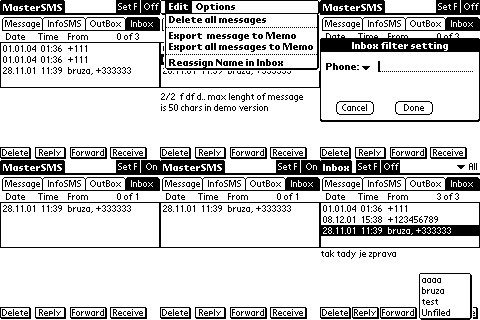
When you press "receive" button,
Master SMS downloads all unread and read messages from phone(from
SIM and Phone MEM , it's depend on the preference settings.)Sent
or stored messages aren't downloaded !!! When you select any message , you can see the body of this message, you can delete,reply or forward select message. Entering to the menu, you can delete all messages from inbox, export select message to MemoPad or export all messages to MemoPad. Back |
