      |
|
 | Name
| Initial page
| Frame size
| Margins
| Alignment
| Scrollbars
| Alternate text
| Show border | |

Use the "Apply XML Formatting Rules" to automatically take an HTML
page and reformat its HTML tags to make them XML-compliant. This is especially
useful when you need your pages to interact with an XML-based publishing system
because the rules governing the syntax of XML tags are stricter than those for
HTML. A missing tag or incorrectly formatted attribute in an XML document
renders the file useless.
When you select the Apply XML formatting rules option, Microsoft FrontPage®
version 2002 searches the XML code for missing or incomplete tags and applies
the correct tags.
To apply XML Formatting Rules to a Web page, open it in FrontPage 2002 and do
the following:
Tip: If you apply XML formatting to a document formatted to exclude selected ending tags (for example, the </P> tag), those tags will likely be applied by this feature.
The process by which files are transferred to the web server is called "FTP" (File Transport Protocol).
Internet providers such as AOL, CompuServe, and Prodigy may have a built-in FTP interface. If you have a PPP internet account and need an FTP program. We suggest that you contact your local internet provider to inquire about compatibility.
*** Microsoft FrontPage users whom have had extensions installed within their web site should use FrontPage to transfer files only!
Configuring Your FTP Software
The following information is contained within your account activation notice and is needed to connect to your web site via FTP:
| USERID
| TEMP PASSWORD
| FTP HOSTNAME | |
The hostname tells your FTP software to connect to the web server upon which your web site resides. In general, the process of configuring the various FTP software is the same. We recommend WS_FTP for PC computer users and will be using it in the upcoming examples.
Each time you run WS_FTP the Session Profile window will be displayed. A profile contains the information needed to connect to your web site. Creating a profile now will eliminate the need for you to configure the software each time you wish to connect to the web server via FTP. To create a new profile, click the "New" button and enter a generic profile name at the top of the Session Profile window. Next, enter the userid, password and hostname for your web site.
Be sure to select "Auto detect" for the Host Type. It is best to select "Save Password" and "Auto Save Config" to maintain these settings for future use. All other fields can be left blank. You are now ready to connect to the web server. Click "Ok" to continue.
All of the .htm, .html, and multimedia files from your content directory.
If you are not sure what local (your computer system) directory your web files are located in, then do the following:
Exceptions (files not to publish):
| Any file in a directory with "_vti_" in the name |
When you connect to the web server, you will connect directly to the root ("home") directory of your account. WS_FTP will display a split screen where files on the left-hand side are within your own computer. You may see several folders on the right-hand side such as cgi-bin and directories your ISP or you created.
You can transfer files directly to the root level and/or create subdirectories. The only system directory that you may need to use is cgi-bin; this directory is reserved for custom scripts.
To upload a file or files, simply highlight the file(s) on the left and click the right-arrow button ("-->") in the center of the screen.
Be sure to upload HTML documents and scripts in ASCII mode and images in BINARY mode. To transfer a file to a subdirectory, double-click the appropriate subdirectory to open it before transferring the desired file(s).
As soon as a file is uploaded to the web server, it is available for all to see. If, after uploading a file, you are still unable to see the updated file via your browser, you need to clear both disk and browser cache. Remember that you must first be connected to the internet through your local internet service provider in order to connect to the web server.
File Extension FTP File Type .AU Binary .AVI Binary .CGI ASCII .Class Binary .CNF ASCII .CSS ASCII .CTL ASCII .forward ASCII .GIF Binary .GRP ASCII .htaccess ASCII .HTM ASCII .HTML ASCII .JPG Binary .MAP ASCII .MID Binary .OCX Binary .PL ASCII .PWD ASCII .RA Binary .SHMTL ASCII .TXT ASCII .WAV Binary
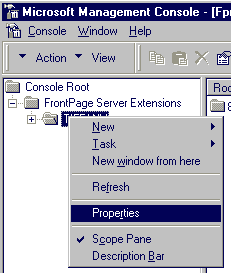
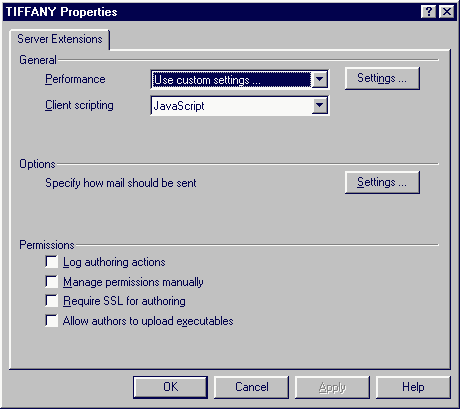
The server extensions for FrontPage® 2000 are a little different in how you set the mail handler to test your forms locally that are configured to send results by email.
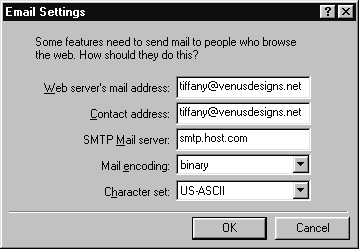
To set your mail handle, SMTP and PWS to handle email transport on your local webs :
You need to specify the Web server's mail address, a contact address, an SMTP host, a mail-encoding scheme, and a mail character set.
Information on this page was taken from the following sites:
| http://search.office.microsoft.com/assistance/producttask.aspx?p=FrontPage |
| http://msfrontpage.net/fp/ftp.htm |
| http://www.at-frontpage.com/2kemailconfig.htm |
