In Partial
Fulfillment
of the
Requirements
on PROLAN
CASE STUDY
MEMBERS: (TEAM
SAWSAW)
Rodolfo
Ponferrada Jr. – Group Leader / Presentation designer &
planner
Dennis Boy
Ferry – Financial and Resources Manager
Voltaire
Garcia - Information compiler / In-charge : Hardcopy
Jeffrey
Jabson – Program designer / developer
MR. J.
GERTES & MS. S. BRILLO
Date Finished :
October 26, 2002
Defense Date :
November 25, 2002
INTRODUCTION:
As computers have become
more powerful, the programs they run have become proportionally
longer and more complex. In the 1950’s a program of 20,000
lines was extremely ambitious. Today, many of the more complex
programs demanded by the scientific and military community
consist of more than one million lines! As the length of a
program grows, it becomes more difficult to plan, code, and debug.
To confront the difficulties inherent in building today’s
programs, it is necessary to plan and organize carefully. To aid
in these efforts, computer scientists have developed structured
programming, which is a set of programming rules that, if
followed, avoid many sorts of programming errors and make
debugging and program maintenance easier.
Object-oriented
programming is another recent development from the computer
scientists. It allows the programmer to reuse code that was
previously developed, usually by another programmer. By making
use of "objects," you can recycle old code even if you
know very little of the details of how the code works. Moreover,
you can even modify the effect of the code to suit your purposes!
And you do this using only the compiled code, not the source code.
HISTORY of
TURBO PASCAL:
- 1967 -
Development on PASCAL started, to be finished in 1971.
Based on ALGOL. Developed by Niklaus Wirth. It's use
exploded after the introduction of Turbo Pascal, by
Borland, in 1984 - a high speed and low cost compiler. It
is used for a wide variety of tasks, it contains many
features, is well structured and easy to learn. Borland
Pascal v7.0 included an implementation of Object-Orientated
programming (similar to C++).
- 1983 - In
November, Borland's Turbo Pascal hits the scene like a
nuclear blast, thanks to an advertisement in BYTE
magazine.
- 1984 - Turbo
Pascal Introduced by Borland
- 1987 -
Turbo Pascal version 4.0 is
released
- Pascal is a
programming language developed by Niklaus Wirth in 1970.
Wirth, a Swiss computer scientist, published the written
standard in 1974 (Jensen and Wirth). The language was
named after Blaise Pascal a 17th century mathematician.
Some accounts of Pascal's life attribute him with
developing the first "calculating machine"
called the Pacaline.
- Pascal was developed
as a teaching language with little or no intention for
commercial use. The language has two characteristics that
made it ideal to teach programming. First, it is a "structured"
language (some say the first such language), and second
it is "strongly typed".
- A structured language
allows the program code to be segmented into self-contained
pieces that can be written independently of the total
application. This allows code to be reused in separate
applications and to be more easily written by teams of
programmers. Pascal first used the concept of a procedure
or function as a separate unit. This idea has culminated
in the modern concept of a program object.
- A language that is
strongly typed demands that each program variable and
data element be declared (i.e., announced to the program)
and that its fundamental characteristics be unchanged
throughout the program. For example a variable declared
as an integer stays an integer, an array remains an array.
This forces the programmer to avoid such traps as
dividing an integer by a real and storing the result in
another integer.
- During the late 1970's
and early 1980's there were several commercial Pascal
compilers available. The most popular version was called
UCSD Pascal developed at the University of California at
San Diego for the early CPM operating system. The UCSD
system distinguished itself by having an editor, compiler,
and linker combined into one unit called an Independent
Development Environment (IDE). Other Pascal compilers
were marketed by Microsoft for the DOS operating system,
and DEC Pascal developed by Digital Equipment Company for
their VAX computers.
- In the mid 1980's a
new company called Borland marketed a derivative of the
UCSD Pascal called Turbo Pascal. This was the among the
first (if not the first) piece of software marketed under
the presumption of selling lots of units at a low unit
price. Turbo Pascal sold for $39.95 where the comparable
MS product sold for ~$300. It turned out the Turbo Pascal
was also smaller, faster, and easier to use than the
larger, more expensive competitors. Turbo Pascal was
built with the IDE structure, compiled at a rate of 1000s
of lines per second, and came in a package under 30K in
size. By contrast the MS Pascal compiler was a 3-pass
plus linkage compiler, compiled at a lethargic "lines"
per second, and filled 3 floppy disks (original 360K
diskettes). The MS compiler also required a separate text
editor which was not easy to come by in 1984. A new
version of a Turbo Pascal program could be edited,
compiled, linked, and rerun in seconds; while the
equivalent steps using the MS compiler could take as long
as 5 minutes.
- Turbo Pascal soon
dominated the PC market in terms of Pascal. Dr. Wirth
never actively maintained his Pascal standard and slowly
Borland introduced several extensions, exceptions, etc.,
which seemed appropriate for a commercial rather than
teaching language. Eventually, these Borland introduced
extensions have become the de facto standard for Pascal
languages, at least for the PC environment.
- Borland eventually
developed Turbo Pascal through version 6.0 for DOS, an
advanced Borland Pascal aimed at developers through
version 7.0, and a Turbo Pascal for Windows version 1.5.
Borland (now known as Inprise) stopped direct development
of Pascal with Turbo Pascal for Windows.
- The next development
from Borland (Inprise) has been Delphi which is the
programming equivalent of a Visual Pascal. Delphi 5 is
the current release (as of late 1999), and has the
underlying programming construction of Pascal while
incorporating the "drag and drop", object
oriented, windows compatibility that has become
associated with "visual" products such as
Visual C++, and Visual Basic.
HISTORY of
VISUAL BASIC:
- 1991 - Visual
Basic wins BYTE's Best of Show award at
Spring COMDEX.
- 1994 -
Microsoft incorporates Visual Basic for
Applications into Excel.
- Microsoft Visual
Basic is the most popular language and development
environment for developers coding to the Windows
operating system platform. From humble beginnings it has
grown to be part of the story of personal computing
itself, and with the latest incarnation, Visual Basic .NET
in Beta it looks as if it may be here for another decade.
- March 1988
Microsoft Buys Tripod : Alan Cooper shows a drag-and-drop
shell prototype he had developed, called Tripod to Bill
Gates. Microsoft negotiates to buy the concept, and it is
renamed Ruby. The Tool includes a widget control box, the
ability to add widgets dynamically, and a small language
engine.
- March 20, 1991 VB1
Debuts at Windows World : Microsoft marries
QuickBasic to Ruby shell app and gives it a new code name:
Thunder. The result is the first tool that lets you
create Windows applications quickly, easily, and visually.
Features include a control toolbox, the ability to lay
out controls on forms without having to write any
additional code, and a rudimentary event-oriented
programming model which was heavily based on Microsoft's
QuickBasic language. The use of Basic as the underlying
language meant that there was already a pool of
programmers with some degree of programming ability in
the language when it was released so the dreaded learning
curve was reduced.
- May 1991 Third
Party Market Born : One of the key features of the
design of Visual Basic from the start was that it could
be extended by adding additional controls and tools. To
enhance the user interface and as a mechanism to allow
code reuse. Several standard-setting add-ons become
available at or slightly after VB1's introduction,
including MicroHelp's VBTools.
- May 1991 Sheridan
Software's VBAssist Debuts : VBAssist was the first
add-on to integrate directly into the Visual Basic
Integrated Development Environment (IDE)
- November 1992
Visual Basic version 2 launched : Adds ODBC Level 1
support, MDI forms, and object variables. First version
to feature the Professional Edition.
- November 1992---Microsoft
Access Ships : It brings VB's combination of
extensibility, ease-of-use, and visual point-and-click
emphasis to a Relational Database. It also includes a
macro language called Access BASIC that contains a subset
of VB 2.0's core syntax.
- June 1993---VB3
Debuts : Integrates the Access Engine (Jet), OLE
Automation and reporting.
- Autumn 1996---Internet
Explorer 3.0 Ships : Features include VBScript,
which contains a subset of VB. It lets developers
leverage their existing VB skills in Web programming.
- October 1996---VB4
Debuts : Permits you to create your own add-ins. Also
introduces classes and OCX's.
- Winter 1996 NT
Option Pack 4 Released : Includes Internet
Information Server 3.0, which includes ASP. Enabled VB
programmers to leverage their existing skills on Web
servers.
- January 1997
Microsoft Office 97 Debuts : Developer Edition
integrates VBA into all Office apps (except Outlook which
uses VBScript)
- April 1997---VB5
Debuts : Incorporates compiler, WithEvents, and the
ability to create ActiveX controls.
- October 1998 VB6
Debuts : Introduces WebClasses, windowless controls,
data designers, new reporting designers, and the ability
to create data sources.
- Spring 2001 Visual
Basic .NET released : Ground up redesign which forms
the Visual Basic component of Microsofts Common Language
Runtime (CLR) vision, by which a number of different
languages can compile to the same runtime environment.
Introduces WinForms and WebForms, vastly improved object
orientation, better exception handling.
DESCRIPTION
of TURBO PASCAL:
- is superficially
similar to Algol-60, attractive to read, but hampered by
inflexible type restrictions.
- added object-oriented
extensions, and continues to evolve its version of the
language (now sold as Delphi).
- the fastest way to
learn object-oriented programming, includes the following
features:
- High capacity IDE
: Compile large real-mode applications within the IDE,
- Object Browser :
Navigate source code quickly with full cross-reference,
- Improved IDE with
color syntax highlighting, unlimited undo/redo Makes it
easier to read code and experiment with changes,
- Enhanced
application frameworks : Add data validation to DOS
and Windows applications easily.
The Turbo
Pascal Integrated Development Environment:
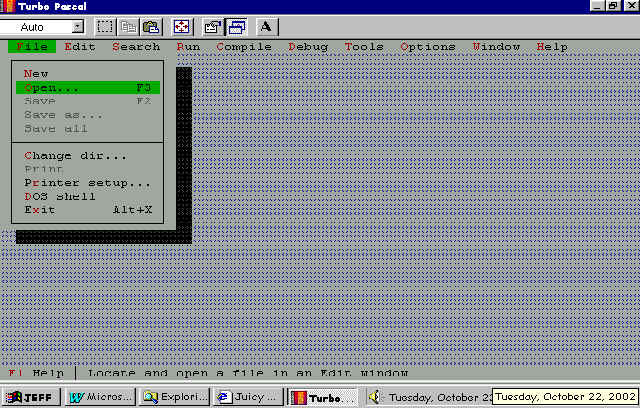
Illustration 001 – 01:
Turbo Pascal environment display
Before we can do any
programming, we must learn to operate the environment. The
Integrated Development Environment (IDE) has four components: the
menu bar, the desktop, the status area, and the output screen.
The first three are visible in Illustration 001 – 01, and
here’s some description for each.
The menu bar is the area
at the top of the screen containing a list of menus (e.g., File,
Edit, Compile). You activate menus by selecting them from the
menu bar.
The desktop is the area in
the middle of the screen. In this area you may place one or more
windows. There are several different types of windows. An Edit
window is used to enter and edit program code. A Watch window is
used to observe the values of variables and machine information
while a program is running. (This is useful in debugging programs.)
The desktop area can contain several windows. You can specify the
precise arrangement of the desktop. You can specify the size and
position of windows and you may alter the arrangement of the
desktop at any time. For instance, it may be useful to have
several editing windows open at once to facilitate writing one
section of a program while examining the impact on another
section.
The status area consists
of the area at the bottom of the screen. This area is used for
several purposes. First, it shows a list of any shortcut keys
which are operative. The keys available will change depending on
exactly what you are doing.
The status area also
serves as a source of user help. As you select a command, the
status area provides a description of what the command
accomplishes. By referring to this area, you may preview the
action of a command before you select it.
The status area also
informs you of the current activities of the program. This is
especially valuable during commands which last a while.
Not yet visible is the
user screen. This screen shows program output produced when a
program is run. To see the user screen, press the key combination
alt-F5. To return to the main Turbo Pascal screen, press this
same key combination again.
DESCRIPTION
of VISUAL BASIC:
- BASIC with a visual
development environment
- Windows-only. Brings
BASIC into the age of the graphical user interface.
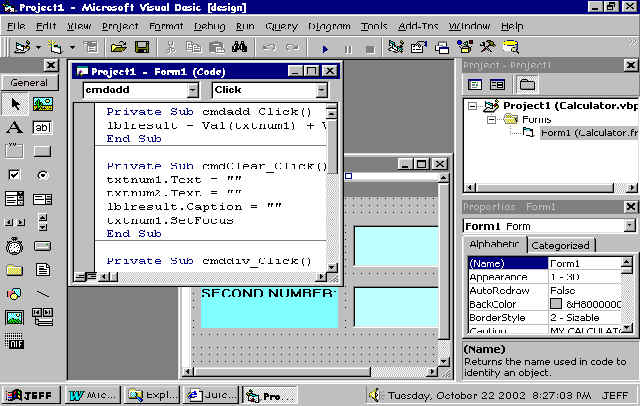
Illustration 001 – 02:
The Visual Basic Screen
- Properties : The
properties describe the appearance of the GUI component.
When adding a component, the Name property should be set
immediately, according to the three-letter mnemonic
naming conventions. The properties are displayed in the
Properties Window in Name/Value pairs in alphabetical
order.
- Event Procedures :
An event procedure is a piece of code that responds to
events that can occur for that object. Most of the events
are generated by the user, enabling them to dictate the
order of execution.
- Forms : The
Form is the main stage of your application. By default,
the Standard Exe option starts with a form called "Form1".
The Name property of the Form should be named with a
three-letter mnemonic prefix of "frm". Each
Form will be a Window in your application. Controls are
added to the form by either double-clicking them in the
toolbox, or by selecting the control and drawing a
bounding rectangle on the form. Your application may use
more than one form. To add a new Form to the project,
either select "Add Form" from the "Project"
menu or right-click the Forms folder in the Project
Explorer and select, "Add", and then "Form".
To load a new form, use the Show method. The parameter,
vbModal, is optional. If used, vbModal means that the
form has focus until closed within the application. The
Load command can be used to load a form without showing
it. This technique is useful if you want to preload a
form, and then use either the "Show" or "Visible"
method to make it visible as and when required.
- Standard Controls
: Controls are added to the Form from the Toolbox.
Each control has a set of properties, and a set of event
procedures associated with it. The following lists the
control, reading left to right, top to bottom as they
appear in the standard Toolbox.
- Pointer
- Picture Box Control
- Label Control
- TextBox Control
- Frame Control
- CommandButton Control
- CheckBox Control
- OptionButton Control
- ComboBox Control
- ListBox Control
- Horizontal and
Vertical Scroll bars
- Timer Control
- DriveListBox,
DirListBox, and FileListBox
- Shape Control
- Line Control
- Image Control
- Data Control
- Object Linking, and
Embedding, (OLE) Control
- The Pointer :
The Pointer is not a control, but is used to interact
with the controls on the form, allowing you to move and
resize them. The Pointer is selected by default. When a
control is added to the form, the focus reverts back to
the Pointer.
- PictureBox Control
: The PictureBox is used to display images or act as
a container to other controls. The three-letter mnemonic
for a PictureBox is pic (eg. picFace). The main event for
a PictureBox is the Click event. Pictures are loaded into
the PictureBox using the LoadPicture function. The
following example toggles between face0.gif and face1.gif
with each click of the mouse.
- Label Control :
The Label control is used to display text that can't be
changed directly by the user. Labels are more commonly
used to place captions against other controls or store
calculated values. The three-letter mnemonic for a Label
is lbl (eg. lblPrompt). The default property of a Label
is Caption. The Caption property may be set at design-time
using the Properties Window, and changed at run-time.
- TextBox Control :
The TextBox is used to display text that may be edited
directly by the user. The three-letter mnemonic for a
TextBox is txt (eg. txtData). The default event for a
TextBox is "Change", and the default property
is "Text". The following example allows the
enter key to be used to tab to the next control in the
tab order.
- Frame Control :
The Frame control is used to group controls and provides
a means of sub-dividing the Form visually. The three-letter
mnemonic for a Frame is fra (eg. fraPaymentMethod). The
default property is Caption, which can be used to give
context to the grouping (eg. Payment Method). Controls
should be drawn within the Frame in order to be
associated with the Frame. When the control is associated,
moving the Frame also moves all of the associated
controls. When option buttons are used, only one may be
selected on the Form. Option Buttons placed in a Frame
are associated with the Frame, and are treated as a new
group.
- CommandButton
Control : The CommandButton is used by the user to
invoke some action. The three-letter mnemonic for a
CommandButton is cmd (eg. cmdQuit). The default event for
a CommandButton is "Click". The following
example uses a CommandButton to end the program.
- CheckBox Control :
The CheckBox control is used to give the user a choice of
yes/no multiple choice options. The three-letter mnemonic
for a CheckBox is chk (eg. chkHobbies). The "Value"
property may be used to determine whether an item has
been selected - a value of 1 indicates true, and a value
of 0 indicates false. The following example uses a
command button to determine which items have been
selected from a control array of CheckBoxes.
- OptionButton
Control : The OptionButton control is used to group
options where the user can only select only one. As only
one item may be selected OptionButtons are grouped in
containers such as the Form, Frame or PictureBox. The
three-letter mnemonic for an OptionButton is opt (eg.
optPaymentMethod). The "Value" property may be
used to determine whether an item has been selected -
either True or False. The following example uses a
CommandButton to determine which item has been selected
from a control array of OptionButtons.
- ComboBox Control :
The ComboBox is a combination of a TextBox and a ListBox
control. Items may be added to the list at design-time
using the "List" property (<CTRL>+<ENTER>
takes you to the next line to add a new item). Items may
be added to the list at run-time using the AddItem method,
and removed at run-time using the RemoveItem method (see
below for details). The "Clear" method removes
all items from the list. The three-letter mnemonic for a
ComboBox is cbo (eg. cboArtist). The "Style"
property determines which type of ComboBox is displayed
from a choice of three.
- The AddItem Method
: The AddItem method is used to add items to either a
ComboBox or a ListBox. The AddItem method has no effect
if the ComboBox or ListBox is bound to a Data control.
The AddItem method takes two parameters, "name",
and "Index", where Index is an optional
parameter. The following adds, "Garbage", to
the end of the list, or to its correct sorted position of
the Sorted Property has been set to True.
- The RemoveItem
Method : The RemoveItem method is used to remove
items from either a ComboBox or a ListBox. The RemoveItem
method takes one parameter to indicate which item is to
be removed.
- ListBox Control :
The ListBox displays a list of items that may be selected
by the user. If the number of items in the list exceeds
the size of the list box, scroll bars are added
automatically. Items may be added to the list at design-time
using the "List" property (<CTRL>+<ENTER>
takes you to the next line to add a new item. Items may
be added to the list at run-time using the AddItem method,
and removed at run-time using the RemoveItem method. Both
AddItem, and RemoveItem work in the same way as described
above for the ComboBox. The "Clear" method
removes all items from the list. The three-letter
mnemonic for a ListBox is lst (eg. lstArtist). The "Style"
property may be used to add a CheckBox to each item in
the list.
- HScroll and
VScroll Control : Scroll bars provide a convenient
way of navigating through large amounts of information or
providing a visual indication of a value. The Min and Max
properties allow you to specify the minimum and maximum
value of the scroll bar. The Value property indicates the
position of the thumb of the scrollbar in relation to the
Max and Min values. The SmallChange property specifies
how much to increment or decrement the value if you click
on the arrow, and the LargeChange property specifies how
much to increment or decrement the value if you click on
the track of the scroll bar. Visual Basic offers two
scroll bars, a horizontal scroll bar (HScroll), and a
vertical scroll bar (VSroll). A VScrollBar is placed
vertically on the form. The three-letter mnemonic for a
VScrollBar is vsb (eg. vsbVolume). The default event for
a scroll bar is the Change event. A HScrollBar is placed
horizontally on the form. The three-letter mnemonic for a
HScrollBar is hsb (eg. hsbVolume). The default event for
a scroll bar is the Change event. The following example
uses a Label to show the exact value of the scroll bar.
- Timer Control :
The Timer control is visible at design-time, but not
shown at run-time. It is used for background processing
at intervals specified by the Interval property. The
Interval property takes an integer in the range 0 to 65,535.
The Interval is measured in milliseconds, therefore a
value of 1000 equals an interval of one second. An
Interval of 0 disables the Timer control in VB 6, but not
in VB.Net. To disable the Timer, set the Enabled Property
to False. Setting it to True will enable it again. The
three-letter mnemonic for a Timer is tmr (eg. tmrMove).
The default event for a Timer is the Timer event. This
example moves a PictureBox around the form. To try the
example, add a PictureBox called picFace, and a Timer
called tmrMove to the form. Set the Interval of the Timer
to 1, and add a picture of a face to the PictureBox.
- DriveListBox
Control : The DriveListBox allows the user to select
a valid drive at run-time. This control is usually
synchronised with the DirListBox and the FileListBox. The
three-letter mnemonic for a DriveListBox is drv (eg.
drvList). The default event for a DriveListBox is the
Change event. As the drive may not be ready to use, it is
a good idea to use error trapping if synchronised with
the DirListBox and FileListBox.
- DirListBox Control
: The DirListBox displays a list of folders. This
control is usually synchronised with the DriveListBox and
the FileListBox. The three-letter mnemonic for a
DirListBox is dir (eg. dirList). The default event for a
DirListBox is the Change event.
- FileListBox
Control : The FileListBox displays a list of files.
This control is usually synchronised with the
DriveListBox and the DirListBox. The three-letter
mnemonic for a FileListBox is fil (eg. filList). The
default event for a filListBox is the Click event.
- Shape Control :
The Shape control is used to display a graphical shape.
The shape is set at design-time, and the actual shape is
determined by the Shape property and may be changed at
run-time.
- Line Control :
The Line control is used to display a line on a form. The
line is visible even when the form's AutoRedraw property
is set to False. The X1, X2, Y1 and Y2 properties may be
used to move and resize the line at run-time. The three-letter
mnemonic for a Line is lin (eg. linDiagonal). The
following example positions a line on the form from the
top left corner to the bottom right corner.
- Image Control :
The Image control is used to display a picture. It doesn't
contain as many properties, methods and events as a
PictureBox but repaints faster as it uses fewer system
resources. The three-letter mnemonic for an Image is img
(eg. imgFace). The following example loads a picture into
an Image control.
- Data Control :
The Data control allows data-aware controls to be bound
to Fields within a recordset, providing an efficient
solution for accessing a database without writing any
code. The Caption property will be the name displayed on
the Data control. The DatabaseName property is used to
store the location and name of the database. The
RecordSource property is used to determine the name of
the table or stored procedure in the database. The three-letter
mnemonic for a Data control is dta (eg. dtaQuestion). To
bind a data-aware control to the Data control, set the
DataSource property of the data-aware control to the name
of the Data control (selected from a drop-down list).
Having set the DataSource, you can select the DataField
from a drop-down list on the data-aware control.
- Object Linking and
Embedding (OLE) Control : The Object Linking and
Embedding (OLE) control allows you to insert an
insertable object into your application. When you add the
control to your form, you will be given a list of
insertable objects that can be created from new on your
machine (eg. Paint Shop Pro) or you can select an object
from an existing file such as a Word document. The three-letter
mnemonic for an OLE control is ole (eg.
olePowerPointPresentation). The OLE Control is not
supported in VB.Net.
- Menus : Menus
can be added to a form using the Menu Editor, selected
from The "Tools" menu or from the button on the
toolbar. Selecting a menu item at design-time takes you
to the code editor for the specific menu item. VB.Net
menus are written in-place. The name is the identifier
for the control. The three-letter mnemonic for a menu
item is mnu (eg, mnuFile). I find it useful to name a sub
menu with the first letter from the name of the menu on
the level above. For example, a menu name for a File menu
might be mnuFile. If I was to add a sub menu of Exit, I
would name it mnuFExit so that in the code window all the
menu items related to File were grouped together. All
controls must be named uniquely. The caption is the name
the user sees on the menu. The & operator may be used
to create a shortcut to a menu name. Whichever letter is
preceded by an & will appear underlined. The menu
item can then be accessed by the user by pressing and
holding the Alt key and pressing the underlined letter.
If a menu item had a caption of E&xit, the x would be
underlined. The user can then use the Alt+x key
combination to access that menu item. Separators may
added to a menu with a caption of a single hyphen (-).
You can have more than one separator, but they must be
named uniquely. Shortcuts may be assigned to menu items
to make them accessible through a sequence of shortcuts.
For example, most Windows applications use the sequence
Ctrl+C to copy (With the control key pressed, hit the 'C'
key on the keyboard). Setting the shortcut Ctrl+Z against
a "Zoom" menu item would mean that a user could
access the "Zoom" menu item with Ctrl+Z as
opposed to using the mouse and selecting the item from
the menu.
CONTRAST
and COMPARISON:
We have here a DOS-based
and a Windows-based application. The most obvious thing to point
out here is that Visual Basic uses more system resources. Maybe
some decades back, Turbo Pascal does also the same (use more
system resources), but only to a lesser extent. Some examples are
the use of disk space, system and hardware requirements just to
name some. But we would like to point out and compare the
important aspects such as the learning curve, performance and
code size, extensibility, portability, support, the IDE’s
look and feel.
- Learning curve :
Visual Basic is very easy to learn and use, not only
because the programming language is not an OOP language
and thus it's easy to learn and code (in the end it comes
from BASIC), but also because the IDE is simple and
conformable to use, and the database objects that come
with Visual Basic provide an interface that makes them
easier to use. Visual Basic does many things for the
programmer. For example, objects are reference counted,
and this means that for example if we create an object
referenced by a local variable, the object will be
automatically released when the function or procedure
ends (unless we assign it to a non-local variable).
Visual Basic has a sophisticated memory management system
and uses a garbage collector so it's fast de-allocating
memory. Turbo Pascal is also easy to use but simply put,
not as easy as Visual Basic. For one, it’s hard to
design in Pascal although at present, Delphi ( the new-look
Pascal ) eliminates all of that.
- Performance and
Code size : no major problems encountered so far from
both Turbo Pascal and Visual Basic, only some minor speed
problems for Visual Basic…but no big deal, both
applications created runs smoothly and efficiently. But
when it comes to the code size, Turbo Pascal really
causes headaches. The whole source code of the Visual
Basic-created tic-tac-toe plus all the extras is still
far lesser than the whole source code of the Pascal-written
tic-tac-toe. The advantage Visual Basic has over Turbo
Pascal is the Graphical Interface it has ( again Delphi
solves that problem ). If we were to create a command
button in Pascal, that would take many lines of codes or
syntax, while in VB you’ll simply just click and
drag…then it’s there!
- Extensibility :
Visual Basic and Pascal are extensible. Both IDEs support
add-ons to add wizards and other extensions to the IDE,
but what is more interesting for programmers —better
said, more needed— is the possibility to use visual
and non-visual objects apart from those that originally
come with the development tool.
- Portability :
this is where Pascal has the advantage. One can install
Pascal into a floppy disk. While that is virtually
impossible for VB. And also Pascal can be used in other
Operating System environment. Visual Basic is taboo in
Linux.
- Support :
Product support is usually a critical factor when
deciding which tool to use. Microsoft has physical
presence in almost all major cities of the world. I've
heard that if you wait long enough over the phone, you
get transferred from one person to another until you
finally get to talk with the programmer who actually
wrote that function that gives you trouble. What a
support! But I would like to ask you a question: what
kind of support is waiting two or four hours on the phone
to finally be told that a bug has been corrected in the
latest version (i.e. "pay the upgrade") or that
it'll be corrected in the new version (i.e. "wait
and pay the upgrade when it comes out")? When I have
a problem I want a solution, and I want it now, and I don't
want to pay the cost of an upgrade. One of the things I
like of Borland is that they are very responsive with
this issues (for example if you find a bug in a VCL
component, likely someone already developed a patch or
found a workaround, or if you need additional
functionality for a component, if it's a common task
probably someone has already developed a substitute
component or else someone in the newsgroup can give you a
hint or some source code to do what you want). Tech
support is very important for me, and the architecture,
the extensibility and the availability of the source code
of the VCL gives me confidence, and I feel well backed
when I see that the members of Borland technicians and
the members of the Community that participate answering
questions in the forum have a high level of knowledge and
strive to answer from the simplest questions to the
roughest ones. Borland is a company with experience and
dedication to development tools, not a division of an
operating-systems company. I know what to expect from
Borland in the future, and I know they'll keep developing
and supporting Delphi, but the truth is I don't know what
Microsoft will come up with in the future, if they'll
keep developing Visual Basic or if one day they'll decide
to stop supporting Visual Basic and say that they want
Visual Basic programmers to migrate to a Microsoft
Universal Language or something like that...
- Integrated
Development Environment’s look and feel : ( look
at Illustration 001 – 01 and 001 – 02 ) The
Visual Basic IDE at first glance would rather make one
dizzy because of so many windows and buttons. Not to
mention so many entries in it’s menu bar. Turbo
Pascal, on the other hand uses simplicity in it’s
IDE. Having said that, although the Pascal IDE looks
simple, the feel is rather stiff mainly because of the
exclusive use of the menu bar. Maybe if Pascal just have
inserted a small box inside the desktop area that serves
as a recent output screen, instead of transferring from
source code window to output screen where it gets a
little bit annoying. The Visual Basic IDE on the other
hand makes you feel at ease, even though it’s
dizzying, it still feels great to use.
page 2
BACK: