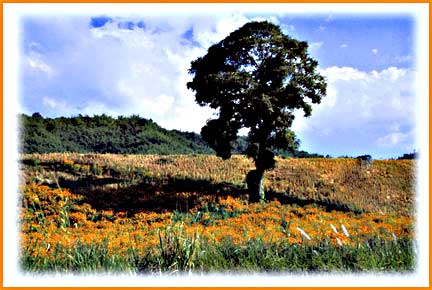
 Simple Field Scene
by John Boretos
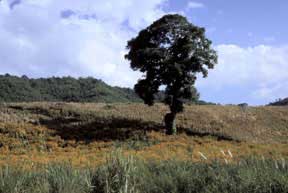 The Original Scene taken in
Thailand is similar to those seen in Maryland
~~~
Faded Edges and
Framed Borders Plus
The Original Scene taken in
Thailand is similar to those seen in Maryland
~~~
Faded Edges and
Framed Borders Plus
Enhanced Color via Hue and Saturation.
The effect gives a bright
& upbeat appearance to the photograph
Here is how it is done.
Step 1 - Give the
image color saturation.
Image > Image Adjustments > Hue and Saturation
At the top of the H & S window, open Green and drag slider
to right
to add saturation to the green grass; add until it looks natural.
Then from the same window (without closing),
open Red to add saturation to the wild flowers just as was done
for grass.
Then repeat for Blue to emphasis the sky. Click OK
Step 2 - Make the
faded border.
Make certain the color swatches in the tools pallette are black/white.
Use the Rectangular Marque tool and select everything
except for a border of an inch or two all around.
Go to Select > Feather and set feathering for 25.
(This gives the amount of blending. Smaller or larger amounts
can be used as desired.) Notice that the corners of the
selection have become rounded instead of square.
To finish the affect, go to Select > Inverse followed by Edit
> Cut.
The white surround border is now complete.
Step 3 - Make the
framed edge.
The operation is referred to as making a Stroke.
Go to the Layers window and choose Layer > Duplicate Layer.
In the Layers pallette, a new layer with its icon will appear.
With this layer highlighted (which it should be automatically),
go to the bottom of the layer list and click on the icon that
is in the shape of an "f".
A list will appear. At the bottom of the list is the word Stroke.
Click on this.
A window will appear. Choose the following settings:
Size 10, Position : inside, Blend Oder: normal, Opacity: 100%
Change the color swatch by clicking on it and select
Pantone 1375C from the Color Picker.
This color matches the wildflowers. Click Ok and the frame is
complete.
Step 4 - Merge all layers via Layer > Flatten
Image.
Filter > Sharpen > Unsharp Mask
Voila! Fini
Music Box
|