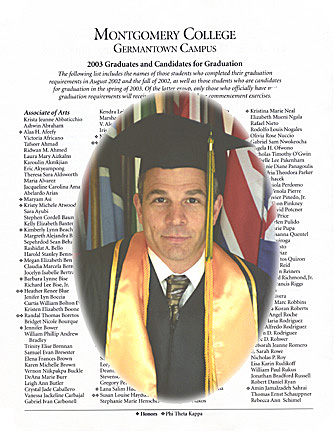
 Doing the Honors
by John Boretos
(Using Soft Edge Vignette Overlay)
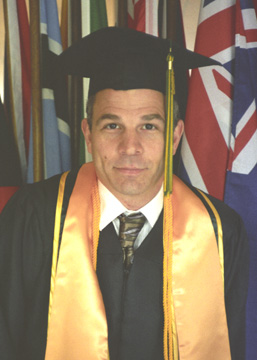
Original Image 1
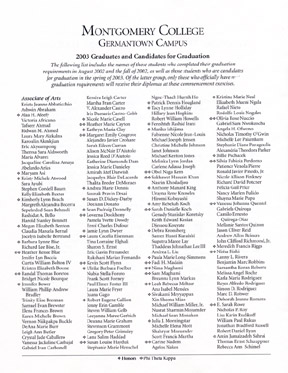 Original Image 2- Names of Graduates
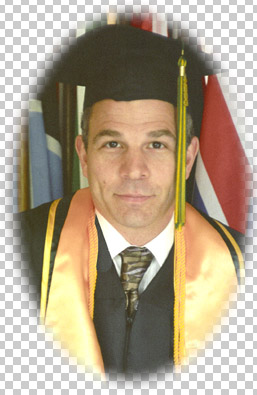 Option #1: Transparent Edge Vignettes
will Blend
Option #1: Transparent Edge Vignettes
will Blend
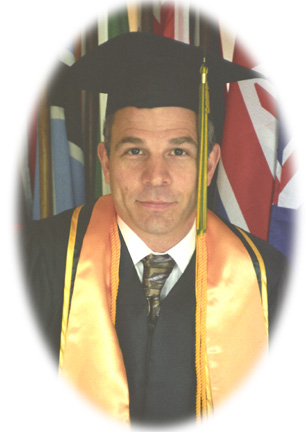 Option #2: Soft Edge Vignettes
Also Are Appealing
Vignettes and Overlays
Using Photoshop 7
Superimposing One Image Onto
Another Makes A Successful Special Effect.
Option #2: Soft Edge Vignettes
Also Are Appealing
Vignettes and Overlays
Using Photoshop 7
Superimposing One Image Onto
Another Makes A Successful Special Effect.
Transparent Edges or Soft Edges give a blended treatment to the
vignette
Here is how it is done.
Start
Begin by making corrections on a copy of the original image as
needed.
Correct overlapping white shirt collar and loose necktie.
Via the Polygonal Lasso Tool, select the overlapping part of the
collar.
Use the Clone Tool to fill in the white with the black gown texture
as well as the necktie.
Clone Tool set at Normal Mode, 100% Opacity and 100% Flow. Deselect
Compare improvements with shirt and tie of Doing The Honors with
Original Image.
Use the Select Tool and encircle
the pupils of the eyes.
Brighten catch-lights via: Image > Adjustments > Replace
Color.
Slide the Fuzziness Bar until only the eyeballs are showing on
the preview window.
Adjust Hue +5 and Saturation +5 > OK. Then Deselect.
Image 2 - Vignette Choice #1
Select the Elliptical Marquee Tool and draw the outline of an
oval. which will
include the head and shoulders in a pleasing size.
Then Select > Feather, 25 pixels radius.
Also Select > Inverse (Make certain the background color was
set to transparent on the original)
Edit > Cut
Now you have a lovely vignette with trailing clear edges
OR: Image 3 - Vignette Choice
# 2
Make this vignette similarly to Vignette # 1 except that you must
open a new image document
with the backgound selected as White instead of transparent before
proceeding.
Everything else is the same.
Final Image
Now overlay the vignetted subject onto the Names of Graduates
document.
Start anew by opening the Names of Graduates document. This will
be Layer One - the Background Layer.
Open the vignette image of your
choice and Select All. With the Move Tool chosen, click and drag
the
image on top of the Names of Graduates document. Align it as desired.
This will automatically become Layer Two.
Merge all layers.
Layer > Flatten Image
Sharpen via: Filter > sharpen > Un-sharp Mask
Save
Music Box
|