Application Layout
JBCommander contains 3 main components – the Application Menu, the Application Toolbar, and the main window area where all the Content Windows will appear. These are described in the following sections. Depending on how it is configured, the window may contain a background image.
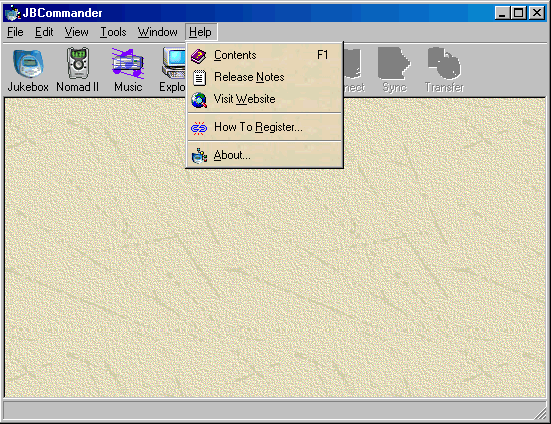
Application Menu
The application menu allows you to access the major functions within JBCommander via mouse clicks or by pressing the Alt key and the underlined letter of the Menu. The options available in the Application Menu are described in the following sections. Depending on how it is configured, the menu may contain a background image and/or icons next to each menu option.

File Menu
Export…
This menu option allows you to export the contents of your Jukebox, Nomad II, or Music Collection to a file. By default, it will prompt you for the location and name of the file to export the information into. You configure the format it outputs the information to, as well as many other options, in the Export tab of the Options window.
The equivalent shortcut key for this option is Ctrl-E.
Exit
This menu option exits the JBCommander program.
Edit Menu
Rename
This menu option allows you to rename the currently selected item such as a track name, or a playlist name. You will then be placed into edit mode where you can change the existing name or type in a new one. If you then press enter, the rename will occur. If you press ESC then the rename will be cancelled.
The equivalent shortcut key for this option is F2.
You can also perform this option by clicking the same tree/file entry twice.
New
This menu option allows you to create a new item such as an Album, Artist, Genre, or Playlist. A new entry will appear in the list and you will be placed into edit mode so that you can assign it a name.
The equivalent shortcut key for this option is Ctrl-N.
Delete
This menu option allows you to delete the currently selected item. You will be prompted before the deletion occurs.
The equivalent shortcut key for this option is DEL.
Select All
This menu option selects all the files currently displayed in the file list.
The equivalent shortcut key for this option is Ctrl-A.
Invert Selection
This menu options reverses what is currently selected in the file list, i.e., all items currently selected will be de-selected, and all those items not selected will become selected.
The equivalent shortcut key for this option is Ctrl-I.
View Menu
Toolbar
This menu option either displays or hides the Application Toolbar. JBCommander remembers whether this is being displayed or not each time JBCommander is run.
Player
This menu option either displays or hides the Audio Player in the currently active window.
Transfer Zone
This menu option either displays or hides the Transfer Zone in the currently active Jukebox or Nomad II window.
Messages
This menu option either displays or hides the Messages section in the currently active window.
Play Queue
This menu option makes the Play Queue the active node in the tree and displays the contents of the Play Queue in the file list.
The equivalent shortcut key for this option is Ctrl-Q.
Transfer Queue
This menu option makes the Transfer Queue the active node in the tree and displays the contents of the Transfer Queue in the file list.
The equivalent shortcut key for this option is Ctrl-T.
Refresh
This menu option refreshes the contents of the tree and file list of the currently active window.
The equivalent shortcut key for this option is F5.
Tools Menu
Rebuild Audio Cache
The content of the Jukebox is cached in a file. Occasionally, when a serious error occurs such as a disconnect during a file transfer, this file gets out of sync with the true contents of the Jukebox. This menu option forces the Jukebox to resend its contents information.
This menu option is only available when the Jukebox or Nomad II window is the currently active window.
The equivalent shortcut key for this option is Ctrl-R.
Rebuild Music Collection
The content of your music collection is stored in a file. If you move, rename, delete files, or change the id3 tags of these audio files, then your music collection file will be out of date. This menu option re-reads the list of the files you have in your Music Collection folders, and if necessary, re-reads the id3 tags in them, making your JBCommander Music Collection up-to-date.
This menu option is only available when the Music Collection window is the currently active window.
The equivalent shortcut key for this option is Ctrl-R.
Format Memory...
This menu option allows you to reformat the internal or external memory (depending on which memory you are viewing) of your Nomad II. It will prompt you before proceeding with the formatting.
This menu option is only available when the Nomad II window is the currently active window.
The equivalent shortcut key for this option is Ctrl-F.
Check Web For New JBCommander
This menu option checks the web to see if a newer version of JBCommander is available from the web-site. If it finds a newer version, it will prompt you whether you want to download the full/update install file, or view the release notes. If you choose to download the install file, it will be placed on your desktop for you to run. You will have to exit JBCommander before you do so.
Check Web For New Manual
This menu option checks the web to see if a newer version of the JBCommander help manual is available from the web-site. If it finds a newer version, it will prompt you whether you want to download the update install file, or view the release notes. If you choose to download the update file, it will be placed on your desktop for you to run. You will have to exit JBCommander before you do so.
Options...
This menu option displays a window with hundreds of options for configuring the appearance and behaviour of JBCommander.
See Configuring JBCommander for more information.
The equivalent shortcut key for this option is Ctrl-O.
Window Menu
Jukebox
This menu option displays the Jukebox contents window.
The equivalent shortcut key for this option is Ctrl-J.
Nomad II
This menu option displays the Nomad II contents window.
The equivalent shortcut key for this option is Ctrl-D.
PC Music Collection
This menu option displays the PC Music Collection contents window.
The equivalent shortcut key for this option is Ctrl-M.
PC Explorer
This menu option displays the PC Explorer contents window.
The equivalent shortcut key for this option is Ctrl-P.
Cascade
This menu option overlaps the open windows.
Tile Horizontal
This menu option tiles all the open windows horizontally.
The equivalent shortcut key for this option is Ctrl-H.
Tile Vertical
This menu option tiles all the open windows vertically.
The equivalent shortcut key for this option is Ctrl-V.
Arrange Icons
This menu option arranges all the icons of the minimized windows.
Help Menu
Contents
This menu option shows this help file.
Release Notes
This menu option shows the readme file that came with your installed copy of JBCommander.
Visit Website
This menu option will open your internet browser at the JBCommander website.
How To Register...
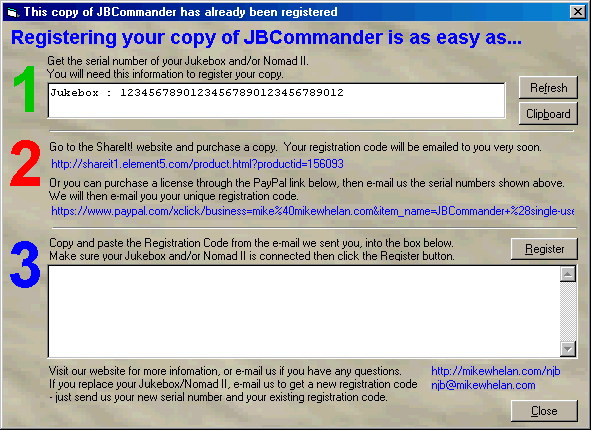
This menu option displays the Registration window. If you have already registered JBCommander, it will show your current registration details and ask whether you want to continue or not. You cannot harm your registration by continuing into the window – unless you enter an invalid registration code.
About...
This menu option displays the About window.
Application Toolbar
The application toolbar contains a series of buttons that allow you to quickly access the main functions and windows within JBCommander via simple mouse clicks. There are several options to change the appearance of the toolbar and which buttons are displayed, but by default it looks like this:

The following sections describe the buttons available on the Application Toolbar.
Jukebox Button
This button displays the Jukebox Window.
Nomad II Button
This button displays the Nomad II Window.
Music Button
This button displays the PC Music Collection Window.
Explorer Button
This button displays the PC Explorer Window.
Options Button
This button displays the Options Window.
Save Button
Connect Button
It will appear pushed inwards if it is already connected to the device. Clicking it again, will cause the device to be disconnected.
This button is only displayed if the appropriate configuration option is set, otherwise it will appear in the Content Toolbar.
Sync Button
It will appear pushed inwards if the synchronization process is currently occurring. Clicking it again will stop the sync process.
This button is only displayed if the appropriate configuration option is set, otherwise it will appear in the Content Toolbar.
Transfer Button
This button allows you to start or stop transfers to/from the Jukebox//Nomad II. It is only enabled when either the Jukebox or Nomad II window is the currently active window.
It will appear pushed inwards if transfers are currently occurring. Clicking it again will stop the transfer process.
This button is only displayed if the appropriate configuration option is set, otherwise it will appear in the Content Toolbar.
Content Windows
JBCommander allows you to simultaneously view different devices and PC contents in separate windows, allowing you to view and manipulate them in a consistent manner. The layout and content is described in the following sections.
Content Window Layout
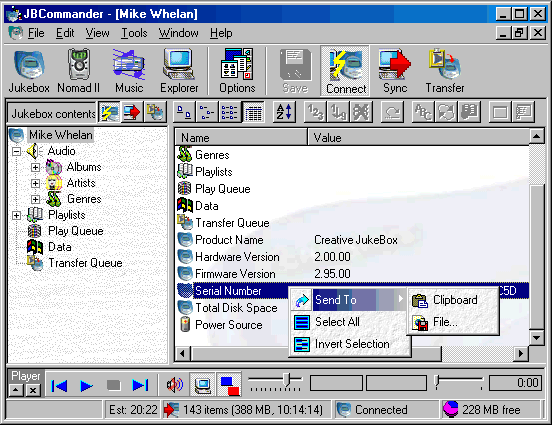
The layout of the content windows all follow the same appearance.
Content Tree
The left side of the window is a tree that contains the summary nodes of audio/data content, or in the case of the PC Explorer Window, the drives and folders on your PC.
Right-clicking a node on this tree will display a context-sensitive menu of functions available to that node.
You can also drag and drop nodes from one location on the tree to another, or to a location in another window.
Content Toolbar
Above the Content Tree is a toolbar that lets you quickly access common functions. Only buttons that are appropriate to the type of content being displayed will be visible. See below.
If configured, these buttons may only be displayed in the Application Toolbar instead.
Save Button
This button allows you to save pending changes to the Music Collection cache file. It is only visible when the Music Collection window is the currently active window.
Connect Button
This button allows you to connect to the Jukebox//Nomad II. It is only visible when either the Jukebox or Nomad II window is the currently active window.
It will appear pushed inwards if it is already connected to the device. Clicking it again, will cause the device to be disconnected.
Sync Button
This button allows you to synchronize the contents of your PC Music Collection with your Jukebox/Nomad II. It is only visible when the Jukebox, Nomad II, or Music Collection window is the currently active window.
It will appear pushed inwards if the synchronization process is currently occurring. Clicking it again will stop the sync process.
Transfer Button
This button allows you to start or stop transfers to/from the Jukebox//Nomad II. It is only visible when either the Jukebox or Nomad II window is the currently active window.
It will appear pushed inwards if transfers are currently occurring. Clicking it again will stop the transfer process.
File List
This list will display the appropriate content for the currently selected node on the Content Tree. The information can be displayed in different ways, depending on what view is chosen from the toolbar. When in the details view, the columns displayed will be different depending on the type of content being shown. There are also several configuration options to choose which columns will or not ever be displayed.
Right-clicking selected file(s) in the List will display a context-sensitive menu of functions available to those files.
File List Toolbar
Above the File List is a toolbar that lets you quickly access common functions and settings that control the appearance of the files. Only buttons that are appropriate to the type of content being displayed will be enabled. See below.
Internal Memory Button
View the contents of the Internal Memory of the Nomad II. This button will only be enabled in the Nomad II window.
External Memory Button
View the contents of the External Memory of the Nomad II. This button will only be enabled in the Nomad II window.
Large Icon View Button
View the files in the large icons format.
Small Icon View Button
View the files in the small icons format.
List View Button
View the files in the list format.
Details View Button
View the files in the detailed format.
Sorted Button
Toggle between files being sorted and being in natural order.
Edit Track Number Button
Allow editing of Track Number (within albums only).
Assign Track Numbers Button
Assign new track numbers to selected tracks.
Clear Track Numbers Button
Clear selected track numbers.
Transformation Track Names Button
Perform transformations on the tracks.
Sort Button
Depending on which node you are on it will either, sort the Playlists on the Jukebox into Alphabetical order so that they will appear on the Jukebox itself in that order, or sort the open Playlist or Play Queue into the order you have specified in the configuration options.
Shuffle List Button
Shuffle the Playlist (or Play Queue) into a random order.
Save To Playlist Button
Save the current Play Queue to a Playlist.
Clear Queue Button
Clear the current Queue.
Queue Options Button
View/Hide the Queue options available for this node.
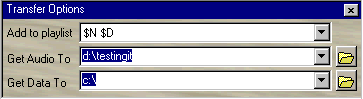
Transfer Queue Options
This section allows you to alter settings related to the transferring of files. You can choose to show or hide these options from the File List Toolbar, and you can make it smaller or larger by holding your mouse over the separator between the options and the file list and dragging it up or down.
It can only be displayed when the Transfer Queue node is currently selected on the tree.
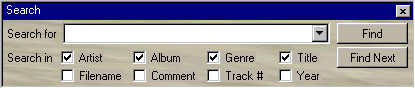
Search
It can only be displayed when the Play Queue node is currently selected on the tree.
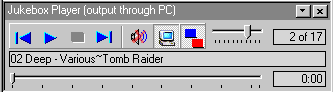
Audio Player
This section allows you to control the playing of audio files on the PC or the Jukebox. It can either appear inside the Tree at the bottom, or above the status line.

Messages Section
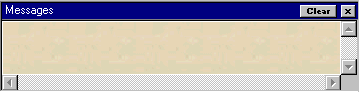
It will automatically be shown if a new message is displayed.
Transfer Zone Section
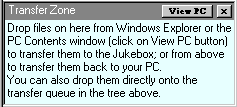
This section shows hints on how to transfer files to and from the Jukebox or Nomad II. You can choose to show or hide this by choosing the appropriate View menu option.
Status Bar
The status bar is displayed on every window and will contain panels of information relevant to the type of content being displayed.

Message Panel
This displays a message about what is occurring or has just completed, or will summarise the number of files that are currently selected, how much disk space they use, and their total duration (for audio files).
Transfer Time Estimate Panel
This shows the estimated time required to transfer the files remaining in the Transfer Queue. It will only be visible if there are files remaining to transfer.
Transfer To Jukebox/Nomad II Summary Panel
This shows a summary of the files remaining in the transfer queue to be sent to the Jukebox/Nomad II. This will only be visible if there are any awaiting transfer.
Transfer To PC Summary Panel
This shows a summary of the files remaining in the transfer queue to be sent from the Jukebox/Nomad II to the PC. This will only be visible if there are any awaiting transfer.
Device Status Panel
This shows the status of the Jukebox/Nomad II – whether it is connected or not etc. It will only be visible on the Jukebox and Nomad II windows.
Free Space Panel
This shows the amount of free space on the Jukebox/Nomad II. It will only be visible on the Jukebox and Nomad II windows.
Power Source Panel
This shows the current power source for the Jukebox/Nomad II. It will only be visible on the Jukebox and Nomad II windows.
Progress Bar Panel
For potentially long processes, this panel will become visible and will show a progress bar and the percentage that the process is complete. To save space, when this panel is showing on the Jukebox/Nomad II windows, the Device Status Panel is hidden.
Jukebox Window
This window shows the contents of your Nomad Jukebox. The Jukebox just contains audio tracks, data tracks, and playlists. JBCommander groups the different types of content and displays them as nodes on the Content Tree. The contents of the selected node are then displayed in the File List.
Top Node
This node will show your Jukebox's owner name, or if you haven't set one, it will say Jukebox. If you click on this node and choose rename, it will set the owner name on the Jukebox.
The File List will show a summary of the Jukebox content, as well as particular information about the Jukebox itself such as its hardware and firmware versions, its serial number, and whether its running off batteries or is running off mains power and whether the batteries are being charged.
Audio Node
The File List will show the Albums, Artists, and Genres entries, and if configured, it will also show every audio track contained on the Jukebox.
Albums Node
The File List will show every Album on the Jukebox, along with how many audio tracks are on each. When you then open a particular Album, the tracks belonging to that Artist are displayed.
Artists Node
The File List will show every Artist on the Jukebox, along with how many audio tracks are on each. When you then open a particular Artist, the tracks belonging to that Artist are displayed.
If configured, rather than the number of tracks being displayed, the number of Albums that this Artist is on will be displayed instead. When you open an Artist the Albums will be displayed and they will show how many audio tracks belong to each.
Genres Node
The File List will show every Genre on the Jukebox, along with how many audio tracks are on each. When you then open a particular Genre, the tracks belonging to that Genre are displayed.
If configured, rather than the number of tracks being displayed, the number of Albums that this Genre is on will be displayed instead. When you open a Genre the Albums will be displayed and they will show how many audio tracks belong to each.
Playlists Node
The File List will show every Playlist on the Jukebox, along with how many audio tracks are in each. When you then open a particular Playlist, the tracks belonging to that Playlist are displayed.
Any changes you make to the track details in this Playlist will automatically be reflected in the same audio track in the Albums Artist, Genre views.
The Playlists are displayed in the same order as they will appear on the Jukebox itself.
Data Node
The File List will show details of every data file on the Jukebox.
Due to limitations in the Jukebox firmware, you cannot change the name of data files.
Play Queue Node
The File List will show details of every audio track that has been added to the Play Queue. The Play Queue is the list that the JBCommander Audio Player uses to play audio tracks.
Transfer Queue
The File List will show every file that has been queued to be transferred, or has already been transferred, to or from the Jukebox. If configured, only those files not yet transferred are displayed.
Nomad II Window
This window shows the contents of your Nomad II. It appears very similar to the Jukebox, but does not have a Playlists node because the Nomad II does not support playlists. See the Jukebox Window for more details.
PC Music Collection Window
This window allows you to view and manipulate the audio files on your PC in the same manner as the files on your Jukebox are displayed in the Jukebox Window. This gives you a powerful way to view and fix any information in the Id3 tags of your audio files before they are transferred to your Jukebox.
You can also use this window as a means of synchronizing the contents of your Jukebox with the files stored on your PC, therefore easily transferring any files that are new to your PC onto your Jukebox, or vice-versa. If configured, you can also get it to delete audio files that you have recently deleted from the PC, from the Jukebox also.
To start your Music Collection, all you have to do to tell JBCommander where on your PC that your audio files are stored. You can do this by either dropping the top-level folder(s) where your audio files are stored from Windows Explorer, or the PC Explorer Window, onto the Music Collection Window; or you can just specify the folders in the appropriate textbox in the Options window. JBCommander will then search for your audio files in and under the specified folders and display them grouped by Album, Artist, and Genre.
Also, any PC Playlist files you have (.m3u or .pls), will be displayed as Playlists in this window. You can then re-arrange the tracks in the Playlists, or add and remove tracks using drag and drop, and these files will be automatically updated so you can use them in WinAmp etc.
PC Explorer Window
This windows shows the contents of your PC in a very similar manner to Windows Explorer. For audio files, it additionally, displays the id3 tag information such as Title, Album, Artist, Genre, Track Number etc. In this window, you can rename and delete files, and manipulate the id3 information directly.
A Play Queue Node will be displayed so that you can queue and play audio files located on the PC from within this Explorer window.
Using JBCommander
Drag And Drop Operations
One of the most powerful capabilities of JBCommander is the ability to drag and drop multiple items in the File List and Content Tree to other locations in the Tree or even to other windows.
In the Jukebox window, this changes the details of the Tracks and Playlists stored on the Jukebox. In the Music Collection window, this allows you to change the Id3 tags of the audio files on your PC.
You can just about drag anything from one place to another. The status line will always show you what action will be performed if you dropped the selected item(s) onto where the mouse is currently pointing. If you decide to abort the drag and drop operation, then you can just press the Esc key.
Changing Track Details
You can change the Artist associated with tracks by dragging it from one Artist in the Tree to another. If you wanted to change all the tracks for several albums, you can select them and drag them to the required artist in the Tree. The same applies for Albums, and Genres.
Playlists
You can easily add tracks or Albums of tracks, or all tracks for an Artist, or a Genre etc to a Playlist by just dragging them onto the required Playlist in either the Tree or File List.
You can also move tracks from one Playlist to another by just selecting the tracks and dragging them onto the other Playlist.
Re-ordering Tracks In Playlists
You can change what order the tracks will appear in a Playlist on the Jukebox, by just selecting the required files and dragging them from one place in the File List to another. The selected tracks will be moved to before the track the mouse is over when they are dropped. If you drop the tracks onto a blank area of the File List, then the files will be moved to the end of the Playlist.
Re-ordering Playlists
You can change what order the Playlists appear on the Jukebox also, by selecting the Playlists Node in the Tree, and just selecting the required Playlists in the File List and dragging them from one location to another in the File List. This will move the selected Playlists to before the Playlist the mouse is over when they are dropped.
Transferring Files To The Jukebox/Nomad II
You can transfer files to your Jukebox or Nomad II by just dropping the required files, or folders of files from Windows Explorer onto the Tree in the Jukebox Window. You can also do this from the PC Explorer Window from within JBCommander.
If you want to transfer the files to the Jukebox and add them to an existing Playlist, then drop the files/folders onto a specific Playlist in the Jukebox window.
If you drop a Playlist file (such as .m3u or .pls) onto the Jukebox window, then all the files contained in the Playlist will be transferred, and if configured, added to an equivalently named Playlist on the Jukebox.
Transferring Files To Your PC
You can transfer files from your Jukebox or Nomad II by just dropping the required Tracks, Albums, Artists, Genres or Playlists from the Jukebox Window to a particular folder in the PC Explorer Window.
Dropping From Windows Explorer Or PC Explorer
See Transferring Files To The Jukebox/Nomad II.
Right-Click Context Menu
The following options will be displayed when you right click a node in the Content Tree or on files in the File List. Only the appropriate options will be visible. If an option works on a single file and multiple files have been selected, the option will be displayed but disabled. Depending on how it is configured, the menu may contain a background image and/or icons next to each menu option.
Play
Plays the specified audio track on the Audio Player.
Open
Opens the specified entry in the tree. For data files, if they exist on the Jukebox or Nomad II, it first transfers it to the PC and then, performs the "open" operation for the file type.
Add To Play Queue
Adds the selected tracks to the Play Queue.
Add To Playlist
Adds the selected tracks to a Playlist. A sub-menu appears containing the list of all existing playlists, to allow you to select an existing playlist, or to choose a new one.
Add To Transfer Queue
Adds the selected tracks to the Transfer Queue.
Jump To Album
Moves to the Album that the selected track belongs to.
Jump To Artist
Moves to the Artist that the selected track belongs to.
Jump To Genre
Moves to the Genre that the selected track belongs to.
Edit Properties
Displays the Properties Window for the selected tracks. From there, you can change the id3 information for the audio file.
Rename
Allows you to rename the selected track.
Delete
Delete From Playlist And Jukebox
Deletes the selected tracks from both the Playlist it is in, and from the Jukebox itself.
Clear MP3 v1 Tags
This will clear the v1 tags stored in the selected MP3 files.
Clear MP3 v2 Tags
This will clear the v2 tags stored in the selected MP3 files.
Set Tags From Filename
This will set the Id3 tags in the selected MP3/WMA files based on their folder/filenames (using the Filename Template).
Assign Track Numbers
Assigns Track Numbers for the selected tracks.
Clear Track Numbers
Clears the Track Number for the selected tracks.
Transform Track Names
Applies the transformation rules for the track names of the selected tracks.
Don't Sync
Marks the selected tracks so that they will never be chosen when syncing between the Music Collection and the Jukebox/Nomad II.
Allow Syncing
Clears the Don't Sync mark on the selected tracks.
Move To Start Of Playlist
Moves the selected tracks to the start of the Playlist.
Move To End Of Playlist
Moves the selected tracks to the end of the Playlist.
Move To Start Of Play Queue
Moves the selected tracks to the start of the Play Queue.
Move To End Of Play Queue
Moves the selected tracks to the end of the Play Queue.
Move To Start Of List
Moves the selected playlists to the start of the list. This means that these Playlists will appear at the beginning of the list when displayed on the Jukebox.
Move To End Of List
Moves the selected playlists to the end of the list. This means that these Playlists will appear at the end of the list when displayed on the Jukebox.
Sort
Depending on which node you are on it will either, sort the Playlists on the Jukebox into Alphabetical order so that they will appear on the Jukebox itself in that order, or sort the open Playlist or Play Queue into the order you have specified in the configuration options.
Shuffle
Shuffle the Playlist (or Play Queue) into a random order.
Send To Clipboard
Copy the details of the selected tracks to the clipboard. If the selected entries are Albums, Artists, Genres, or Playlists then the details of the tracks belonging to these are copied. There are several configuration options available for what format and which information will appear.
Send To File…
Copy the details of the selected tracks to a file. If the selected entries are Albums, Artists, Genres, or Playlists then the details of the tracks belonging to these are copied. There are several configuration options available for what format and which information will appear.
Send To Clipboard (Summary Only)
Copy the summary information of the selected Albums, Artists, Genres, or Playlists to the clipboard. There are several configuration options available for what format and which information will appear.
Send To File… (Summary Only)
Copy the summary information of the selected Albums, Artists, Genres, or Playlists to a file. There are several configuration options available for what format and which information will appear.
Save To External Playlist
Saves the selected Playlist that was created in the Music Collection to a physical file capable of being read by programs such as WinAmp etc.
Select All
Selects all the files in the File List.
Invert Selection
Inverts the selected files.
New
Creates a new Artist/Album/Genre/Playlist etc.
Right-Click System Tray Menu
If you right-click the JBCommander icon in the system tray, the following options are displayed.
Open JBCommander
This will restore the JBCommander window.
Play
This will start/resume playing the current track in the Audio Player.
Pause
This will pause the currently playing track in the Audio Player.
Stop
This will stop the currently playing track in the Audio Player.
Previous
This will go to the previous track in the Play Queue.
Next
This will go to the next track in the Play Queue.
Properties Window
F -> Tags Button
Click this button to update the tag information using the filename.
T -> File Button
Click this button to update the filename using the tag information.
Undo Button
Reverses changes made to the current file's information since it was displayed.
Navigation Toolbar
If you have specified multiple files, this toolbar will appear to allow you to move around the selected tracks.
OK
Closes the Properties window and applies the changes.
Cancel
Closes the Properties window and ignores all the changes you have made to the track information.
Registration Window
To do...
About Window
To do...
Special Functions
To do...
Configuring JBCommander
All the options for configuring the appearance and behaviour of JBCommander is available from the Options Window. The window contains many tabs which group the types of options, and three buttons at the bottom of the window.
Clicking the Restore Defaults button will restore all settings to their installation defaults. You will be prompted if this is OK, before it occurs. The Options window will then be closed.
Clicking the Cancel button will close the window and cause all the changes you've made to the options will be ignored.
Clicking the OK button will close the window and save all the changes you've made to the registry. All the open windows will be refreshed, and most of the option changes will take effect immediately. However, if you don't see the changes you've made appear, you will then need to close the appropriate window and re-open it, or if necessary, close JBCommander and re-open it.
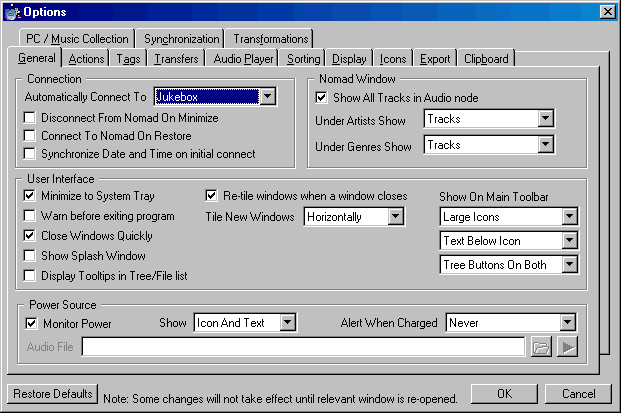
General Tab
Connection
Automatically Connect To
Choose which device(s) to automatically connect to when you start JBCommander or open the specified window
Disconnect From Nomad On Minimize
Check this option to disconnect from the Jukebox/Nomad whenever you minimize
JBCommander.
Connect To Nomad On Restore
Check this option to reconnect to the jukebox/Nomad when JBCommander is restored (unminized)
Synchronize Date and Time on initial connect
Check this option to automatically synchronize the current PC date and time onto the Jukebox/Nomad when you first connect to it.
Nomad Window
Show All Tracks in Audio node
Check this option to show all tracks in the list window when the Audio node is selected in the tree.
Under Artists Show
What to show when expanding an artist entry in the tree
Under Genres Show
What to show when expanding an artist entry in the tree
User Interface
Minimize to System Tray
Check this option to show icon in system tray on minimize
Warn before exiting program
Check this option to query user whether to close program when Exit is chosen
What method to tile the windows when a new window is opened.
Close Windows Quickly
Check this option to close the JBCommander windows quickly.
Show Splash Window
Check this option to show the splash window (i.e. the big blue Jukebox) on startup
Display Tooltips in Tree and File list
Check this option to view tooltips in the tree and file list
Re-tile windows when a window closes
Check this option to automatically re-arrange remaining windows when a window is closed
Tile New Windows
What method to tile the windows when a new window is opened.
Show On Main Toolbar
Whether to show small or large icons, and whether to show text beside or below the icon. You can also choose whether to show the Content Toolbar icons on the Application Toolbar as well as or instead of on the Content Toolbar.
Power Source
Monitor Power
Check this option to continuously show the current power source, e.g., Battery, External Power, Battery Charging.
Show
Choose what should be shown on the status bar.
Alert When Charged
Choose which method you want to be informed when battery is fully charged.
Audio File
The WAV file to play when the battery has become fully charged.
A browse button is available to choose a suitable wav file. You can also drop a file onto the field from Windows Explorer.
A preview button is available to play the specified wav file.
Actions Tab
When double-clicking
Provides the ability to choose what action should occur when you double click a particular type of node in the Content Tree or on a file in the File List.
After Deleting/Moving Last Track, Remove From Tree
Album
Check this option to remove an album from the tree if there are no more tracks belonging to it.
Artist
Check this option to remove an artist from the tree if there are no more tracks belonging to it.
Genre
Check this option to remove a genre from the tree if there are no more tracks belonging to it.
Playlist (And From Jukebox)
Check this option to remove a Playlist from the tree and the Jukebox if there are no more tracks belonging to it.
Tags Tab
Tag Source
Take Tags From
Whether the album/artist etc info should be taken from the id3 tags or from the filename.
Use Template for WAV files also
Check this option to use the filename template for determining the tag info for WAV files.
Filename Template
The template for getting tags based on the folder/file names, used when tags not found. Use $A for artist, $N for album, $# for track number, $T for track name, and $G for Genre.
Default Tags For MP3/WMA Files
Default Artist
The default artist to use if not found in tags or in filename template. Use $F if you want the default to BE the filename.
Default Album
The default album to use if not found in tags or in filename template. Use $F if you want the default to BE the filename.
Default Genre
The default genre to use if not found in tags or in filename template. Use $F if you want the default to BE the filename.
Default Title
The default title to use if not found in tags or in filename template. Use $F if you want the default to BE the filename.
Default Tags for WAV Files
Default Artist
The default artist to use if not found in tags or in filename template. Use $F if you want the default to BE the filename.
Default Album
The default album to use if not found in tags or in filename template. Use $F if you want the default to BE the filename.
Default Genre
The default genre to use if not found in tags or in filename template. Use $F if you want the default to BE the filename.
Default Title
The default title to use if not found in tags or in filename template. Use $F if you want the default to BE the filename.
MP3 Id3 Info
Save MP3 Tags As
What version of Id3 tags to save in MP3 files – v1, v2, or both.
Transfers – General Tab
During Transfer
If a file already exists
What action to perform if a file already exists on the Jukebox/Nomad/PC
Remove Entry from Queue
Check this option to remove the entry from the transfer queue after it has been transferred.
After Transfers Completed
Play success sound
When to play a sound on successful transfers
Wav File To Play
The WAV file to play after successful transfers.
A browse button is available to choose a suitable wav file. You can also drop a file onto the field from Windows Explorer.
A preview button is available to play the specified wav file.
Play failure sound
When to play a sound on failed transfers
Wav File To Play
The WAV file to play if a transfer fails.
A browse button is available to choose a suitable wav file. You can also drop a file onto the field from Windows Explorer.
A preview button is available to play the specified wav file.
Save Queue
Whether to save the transfer queue when closing the Jukebox window (if there are any untransferred files), so you can resume next time.
Save Transfer Queue Frequently
Check this option to save the remaining transfer queue to disk before each transfer. Only needed for users with stability problems.
Transfers – To Nomad Tab
General
File types to transfer
Wildcards specifying what types of files to allow transfers on, or to show in the PC Window. Use semi-colons to separate, e.g., *.mp3;*.wav;*.zip
Auto start transfers
Whether to automatically start transfers after files are added to the queue to be transferred from the PC
Auto exit program
Whether to automatically exit the program when the transfers have finished
Command Line To
Which device to transfer files specified on the command-line to.
Warn If Insufficient Free Space On Nomad
Check this option to warn if about to transfer more audio/data than available on the Nomad, reserving specified extra space
Reserve Extra Space (MB on Jukebox)
(The number of Megabytes to always reserve on Jukebox (for warning purposes)
(KB on Nomad II)
The number of Kilobytes to always reserve on Nomad II (for warning purposes)
Audio Transfers
Transfer Files In PC Playlist Files
Check this option to transfer files in PC playlists (such as Winamp playlists)
Use PC Playlist Name On Jukebox
Check this option to add the files to a playlist of the same name on the Jukebox
Add audio to playlist
Specify the playlist to copy the audio file to after it has been transferred to the Jukebox. Use $D to include today's day, $W for day of week, $M for month number, $N for month name, $Y for 2 digit year, $C for year including century.
Add To Playlist Even If File Already Exists
Check this option to add the files to a playlist of the same name on the Jukebox
Store Date/Time Transferred (at end of comment field)
Check this option to store the date/time the audio file was transferred to the Device. This is stored after the end of the comment information stored on the Jukebox, but will be displayed separately within JBCommander.
Transfers – To PC Tab
General
Auto start transfers
Whether to automatically start transfers after files are added to the queue to be transferred to the PC
Folder to store Audio
The base folder to place audio files when retrieved from the Jukebox/Nomad.
A browse button is available to choose an appropriate folder. You can also drop a folder onto the field from Windows Explorer.
Template for Audio
The template for naming audio files retrieved from the Jukebox. Use $A for artist, $N for album, $# for track number, $T for track name, $G for Genre, and $F for original filename.
Create extra folder(s) for Drop to PC
Check this option to create the extra folder(s) specified in the Audio Template even when dropping files onto a specific folder in the PC Window
Folder to store Data
The folder to place data files when retrieved from the Jukebox/Nomad.
A browse button is available to choose an appropriate folder. You can also drop a folder onto the field from Windows Explorer.
Folder to store Playlists
The folder to place playlists files when retrieved from the Jukebox/Nomad.
A browse button is available to choose an appropriate folder. You can also drop a folder onto the field from Windows Explorer.
Special Character Translations
Allows you to specify the characters to use to substitute for characters that are illegal in filenames under windows.
Transfers – Advanced Tab
Advanced Settings
Pause After Transfers To Nomad (Local)
The number of seconds to wait after transferring an (audio and/or data) file from a local hard drive, before transferring the next. Use this option if you are getting NOTREADY type errors during transfers.
Pause After Transfers To Nomad (Lan)
The number of seconds to wait after transferring a (audio and/or data) file from a networked drive, before transferring the next. Use this option if you are getting NOTREADY type errors during transfers.
Commit To Device Every
The number of files (audio and/or data) to transfer before performing a "commit" of the information to the Jukebox/Nomad II. Committing takes some time so only set it lower if having problems transferring a large number of files.
Pause After Transfers To PC (Local)
The number of seconds to wait after transferring a file from a local hard drive, before transferring the next. Use this option if you are getting NOTREADY type errors during transfers.
Pause After Transfers To PC (Lan)
The number of seconds to wait after transferring a file from a networked drive, before transferring the next. Use this option if you are getting NOTREADY type errors during transfers.
After Audio Transfer
Copy folders/files
When to copy audio folders/files after transfer to Jukebox/Nomad
To
The folder to copy audio folders/files to after they have been transferred to the Jukebox/Nomad.
A browse button is available to choose an appropriate folder. You can also drop a folder onto the field from Windows Explorer.
Move folders/files
When to move audio folders/files after transfer to Jukebox/Nomad
To
The folder to move audio folders/files to after they have been transferred to the Jukebox/Nomad.
A browse button is available to choose an appropriate folder. You can also drop a folder onto the field from Windows Explorer.
Delete folders/files
When to delete audio folders/files after transfer to Jukebox/Nomad
Use Recycle Bin
Check this option to send audio files to recycling bin instead of deleting them permanently.
After Data Transfer
Copy folders/files
When to copy data folders/files after transfer to Jukebox/Nomad
To
The folder to copy data folders/files to after they have been transferred to the Jukebox/Nomad.
A browse button is available to choose an appropriate folder. You can also drop a folder onto the field from Windows Explorer.
Move folders/files
When to move data folders/files after transfer to Jukebox/Nomad
To
The folder to move data folders/files to after they have been transferred to the Jukebox/Nomad.
A browse button is available to choose an appropriate folder. You can also drop a folder onto the field from Windows Explorer.
Delete folders/files
When to delete data folders/files after transfer to Jukebox/Nomad
Use Recycle Bin
Check this option to send data files to recycling bin instead of deleting them permanently.
Audio Player Tab
General
Repeat Tracks
Check this option to repeat playing all the tracks in the queue
Use Jukebox UI
Check this option to make the player use the Jukebox user interface
Show Title
Check this option to show the title as a separate field on the player (as well as tooltip)
Save Queue
Whether to save the play queue when closing the Jukebox window, so you can reload next time.
Overlap by
Number of seconds to overlap the current track with the next, when playing audio through PC
Title Format
The template for the name to display in the Player . Leave blank to not show track details (will still show as tooltip), or use $A for artist, $N for album, $# for track number, $T for track name, $G for Genre, and $F for original filename.
Cache
Cache Size
Maximum number of files to keep in cache during session, when playing audio through PC
No. to Fetch
Number of files to fetch at once, when playing audio through PC
Buffer after
Number of seconds to wait before buffering the next track, when playing audio through PC
And before
Minimum number of seconds before end of track to allow for buffering the next track, when playing audio through PC
Sorting Tab
Order To Add Tracks to Playlist / Queue
Specify which fields to sort tracks by when adding them to a Playlist or to the Play Queue, by moving them from the Available Values list to the Sort Order list. You can either double click the values to move them from one list to another, or use the Add and Remove buttons. You can then use the Up and Down buttons to move the values higher or lower in the list.
Sort In
You specify whether each value is sorted in ascending or descending order by clicking on the value in the Sort Order list and clicking either the Ascending or Descending radio button.
Order To Sort Tracks to Playlist / Queue
Specify which fields to sort tracks by when clicking the sort button/menu option in a Playlist or the Play Queue, by moving them from the Available Values list to the Sort Order list. You can either double click the values to move them from one list to another, or use the Add and Remove buttons. You can then use the Up and Down buttons to move the values higher or lower in the list.
Sort In
You specify whether each value is sorted in ascending or descending order by clicking on the value in the Sort Order list and clicking either the Ascending or Descending radio button.
Display Tab
General
Date/Time Format
Choose which format to display dates and times in
Columns To Display In Lists
Specify which columns can ever be displayed in the File List, by clicking on the checkbox to the left of the column names.
Column Width
By clicking a column then clicking on the appropriate radio button, you can change the width that will be used to display the column from either being automatically sized depending on its contents, to using a default width (different for each column), or to using a custom width that you enter in the adjacent textbox.
Background Images
You click the area described in the list, then choose whether to display the default background image, no background image, or a custom background image to use. The custom background image can be any bitmap, gif, or jpeg file.
Icons Tab
General
Use enhanced icons on Tree
Check this option to use colourful icons in the Content Tree. Unchecked, it will give it a boring, more explorer-like appearance.
Use large icons on Tree
Check this option to use large icons on the tree.
Display Icons On Application Menu
Check this option to display icons to the left of each menu item in the Application Menu. This option is currently not working on Windows XP.
Display Icons On Right-Click Menu
Check this option to display icons to the left of each menu item in the Right-Click Menu and System Tray Menu. This option is currently not working on Windows XP.
Customise Icons
Select an icon type from the list, then change the small and large icons, or for some types, the icon that is displayed on the Content Tree when the node is selected.
You can choose between the default icon stored within JBCommander, the icon normally associated with the file type for MP3, WMA, and WAV files, or a custom icon from any icon, dll, or executable file. Clicking the Custom radio button or the Change button will bring up a dialog box to allow you to choose an appropriate icon from a file.
Export Tab
General
Export Format
Choose which format to export the data into
Delimiter
Type a character or choose a standard character from the drop-down to separate each value output.
Include Heading
Check this option to include the column headings in the output
Sorted
Check this option to sort the output (slower)
Don't Prompt
Check this option to always use the file specified by Default Location rather than prompting for a filename each time. You should specifiy a full path and file in the Default Location rather than just a folder.
Default Location
The default folder to save the export file to. Or you can specify the exact file to use.
A browse button is available to choose an appropriate folder or file. You can also drop a folder/file onto the field from Windows Explorer.
Values To Export
Specify which values to export, by moving them from the Available Values list to the Exported list. You can either double click the values to move them from one list to another, or use the Add and Remove buttons. You can then use the Up and Down buttons to move the values higher or lower in the list.
Max Width
For each field exported, you can also specify the maximum number of characters to output for this value before truncating the rest. Leave blank to not restrict it (or for default if fixed width format)
Values To Sort By
Specify which values to sort on when exporting, by moving them from the Available Values list to the Sort Order list. You can either double click the values to move them from one list to another, or use the Add and Remove buttons. You can then use the Up and Down buttons to move the values higher or lower in the list.
You specify whether each value is sorted in ascending or descending order by clicking on the value in the Sort Order list and clicking either the Ascending or Descending radio button.
Clipboard Tab
Use Export Options
Check this option to use the same options for copying to clipboard as is set for export.
General
Format
Choose which format to copy the data to the clipboard in.
Delimiter
Type a character or choose a standard character from the drop-down to separate each value output.
Include Heading
Check this option to include the column headings in the output
Sorted
Check this option to sort the output (slower)
Values To Copy To Clipboard
Specify which values to copy to the clipboard, by moving them from the Available Values list to the Copied list. You can either double click the values to move them from one list to another, or use the Add and Remove buttons. You can then use the Up and Down buttons to move the values higher or lower in the list.
Max Width
For each field copied, you can also specify the maximum number of characters to output for this value before truncating the rest. Leave blank to not restrict it (or for default if fixed width format)
Values To Sort By
Specify which values to sort on when copying to the clipboard, by moving them from the Available Values list to the Sort Order list. You can either double click the values to move them from one list to another, or use the Add and Remove buttons. You can then use the Up and Down buttons to move the values higher or lower in the list.
You specify whether each value is sorted in ascending or descending order by clicking on the value in the Sort Order list and clicking either the Ascending or Descending radio button.
PC / Music Collection Tab
General
File types to show
Wildcards specifying what types of files to show in the music collection, use semi-colons to separate, e.g., *.mp3;*.wav;*.zip;*.m3u;*.pls
Allow File Deletion
Check this option to allow you to delete files from within the Music Collection and PC Window.
Use Recycle Bin
Check this option to send files to recycling bin instead of deleting them permanently.
PC Contents
Startup Folder
The folder to start the PC Window in
Allow Rename Of Files
Check this option to allow you to rename of folders and files in the PC Window
Music Collection
Under Artists Show
What to show when expanding an artist entry in the tree.
Under Genres Show
What to show when expanding an artist entry in the tree.
Show All Tracks in Audio node
Check this option to show all tracks in the list window when the Audio node is selected in the tree.
Allow Update of ID3 info
Check this option to allow you to change the id3 information stored in audio files.
Rename File Also
Check this option to rename the file using the Transfers' Filename Template when changing id3 information.
Music Collection Folders
Enter the list of folders that point to where your music collection is stored on your PC (one per line)
Synchronization Tab
General
Master Copy
Choose which library is considered the master copy. All files not in the Master Copy will be deleted.
Music Collection -> Jukebox/Nomad
Synchronize
Choose which types of files to synchronize.
Highlight Ignored Files with color
Check this option to highlight files marked to be ignored in a special color.
A button is available to choose the color, which is then displayed in the text field.
Matching Criteria
Place a check on which attributes must match to be considered the same audio file
Jukebox/Nomad -> Music Collection
Use same criteria for both
Check this option to use the same matching criteria for both directions.
Synchronize
Choose which types of files to synchronize.
Matching Criteria
Place a check on which attributes must match to be considered the same audio file.
Transformations Tab
Rules
Transform files going to Device
Check this option to apply the transformation rules when a file is added to Transfer Queue to be sent to Jukebox/Nomad from PC.
Transformation File
The full folder and filename of the file containing the transformation rules.
Artist Section
Check this option to perform transformations on artist names, then enter the name of the section for artist transformations.
Album Section
Check this option to perform transformations on album names, then enter the name of the section for album transformations.
Genre Section
Check this option to perform transformations on genre names, then enter the name of the section for genre transformations.
Title Section
Check this option to perform transformations on track names, then enter the name of the section for title transformations.
Templates
Transform files going to Device
Check this option to perform template transformations when a file is added to the Transfer Queue to be sent to Jukebox/Nomad from PC.
Artist Template
Check this option to use the following template to transform the artist name.
The template for the artist name. Use $A for artist, $N for album, $# for track number, $T for track name, and $G for Genre.
Album Template
Check this option to use the following template to transform the album name.
The template for the album name. Use $A for artist, $N for album, $# for track number, $T for track name, and $G for Genre.
Genre Template
Check this option to use the following template to transform the genre name.
The template for the genre name. Use $A for artist, $N for album, $# for track number, $T for track name, and $G for Genre.
Title Template
Check this option to use the following template to transform the track name.
The template for the track title. Use $A for artist, $N for album, $# for track number, $T for track name, and $G for Genre.
Size Limits (To Jukebox/Nomad Only)
Max Artist Size
The Maximum size to allow the Artist Name before truncating the rest. Leave blank to never truncate size.
Max Album Size
The Maximum size to allow the Album Name before truncating the rest. Leave blank to never truncate size.
Max Genre Size
The Maximum size to allow the Genre Name before truncating the rest. Leave blank to never truncate size.
Max Title Size
The Maximum size to allow the Track Name before truncating the rest. Leave blank to never truncate size.