Welcome to the Random Parameter Generator. This page allows you to create a randomized Ultra Fractal parameter file (otherwise known as a "UPR" file), fetched from the deepest seas of chaos, which you can copy into your clipboard and paste directly into Ultra Fractal. The randomization is completely controlled by you, the user, so you can have a little bit of chaos here and there where you want it, or send the whole formula through the random motions. Once you Paste the formula into Ultra Fractal, you can use that random layer created by the parameter generator as a "springboard" to get your creative juices flowing, or just give you something to start with.
Here is what you see when you start the Random Parameter Generator. I numbered each set of sections, and explain each one in detail below.
(pasting a fragment into Ultra Fractal)
This section, placed at the top of the page, as well as on the bottom, allows you to hot-swap between 4 different formulae of any type. To change to another formula, simply click on a section box that is not highlighted (in the picture above, the "Fractal Settings" is highlighted), and you may begin (or continue) another formula. If you click back to a setting box that already contains a formula you've worked on, it will be swapped back into place, with everything just the way you left it. Please note that although you can hold any type of formula in any of the setting boxes (you can use the "Inside Coloring Settings" to work on a transformation formula, for example), the parameter file will only hold one set of Fractal parameter data, 2 Coloring Parameter data sets (one for inside, one for outside), and up to 10 Transformation data sets (more Transformation data sets can be made if desired, but only the last 10 will be remembered separately).
The is where the formula file that you have either pasted to the clipboard, or selected through the "browse..." button, is displayed. Note that the entire formula file is displayed here.
This area is where you will tell the page what formula file you will use. There are 2 methods for you to input the file you want to use. 1 is less time consuming than the other, but will only work if the page has been saved to your computer, and you are running the page from that location in your computer. The other, more time consuming method is in place if you wish to run the page from a remote server (like my geocities website I uploaded it to). If in doubt, try the less time consuming method. If you get an error "Automation Server can't create object", you must use the more time consuming Copy & Paste Method. To avoid the time consuming method, consider downloading the page to your computer, and run it from there. If you have already downloaded it to your computer, and are still getting the error message, it is probably because ActiveX scripting is disabled on your computer (or else you told it "no" when it asked if it could use ActiveX on the page, in which case it is blocking the ActiveX script. Reload and say "YES" next time). Try enabling ActiveX scripting in your internet options and try it again. As for being on a remote server, remote servers will generally NOT allow files to be uploaded to it willy-nilly (you never know what may be uploaded to the server...).
The easy way (running on a local computer):
1. Click the "Browse..." button and choose the formula file.
2. If a prompt comes up asking "An ActiveX control on this page might be unsafe to interact with other parts of the page. Do you want to allow this interaction?", SAY YES. The ActiveX script only reads the file that you have selected, and dumps it into the formula window above. Trust me, it's safe to allow the ActiveX script. I promise. It does NOT download anything malicious; no pop-ups, no spyware/viruses, etc. All it does is just reads (and ONLY reads) the file that you selected as plain ol' text, and dumps it into the formula window above.
The time-consuming way (running on a remote server)
1. Do steps 1 and 2 as above. You will get the error message "Automation Server can't create object"
2. Open up the formula file you tried to use in a text editor (the one in Ultra Fractal works fine), select the entire file (CTRL+A usually works) and copy it to the clipboard (CTRL+C usually works).
3. Click on the "Paste from Clipboard" button. The file will be pasted into the File Window above.
This is where the formula you select will be displayed. Don't confuse this with the file window, above. This window only contains the formula you have currently selected from the formula Parse section below, as opposed to the entire formula file in the window above.
This section contains two parts. The Parse button, and the Formula Selection List.
The Parse Formula Button:
When this button is pressed, the formula contained in the formula window above will be carefully combed through, and all parameters of the formula will be extracted from it, and placed in the formula Tables below. It's all automated, so all you do is click and forget. If there's nothing in the formula window, nothing will be parsed.
The Formula Selection List:
This is where you choose which of formulae in the formula file you want to use. It's a drop down list, so just click on the downward-pointing triangle to the right of the list box, and select your formula. The formula you select will automatically be displayed in the Formula Window above, so that you can parse the formula with the Parse Formula button next to it. Note that this button will not show up unless you have inputted a formula file in section 3 above.
This is the meat of the Random Parameter generator. This section displays all the parameters for a formula, organized by type of parameter. There are 8 types of parameters, each represented by a section in the table. I will explain each item in the Parameter tables below. Here is a sample picture of the Parameter Table Section, because a picture is worth a thousand words:
1. The Change all Min/Max Values
By changing these input boxes, you can change all of the Min (Minimum) and Max (Maximum) values for every parameter in that heading, except those that are not selected (The "randomize? checkbox is unchecked). For example, if you set the Change all Min box in the complex parameter heading to 0, all of the Min values (except the ones that are selected) will change to 0. These input boxes are in the Complex, Float, and Integer Headings only.
2. The Invert Selection Checkbox
When you check (or uncheck) this checkbox, you will invert all the selection boxes for every parameter in that heading. For example, if you uncheck all the selection boxes for the imag(inary) values in the Complex heading, then (un)check the invert selection, all of the real parameters in the Complex heading will be unselected, and all of the imag(inary) parameters will be selected.
3. The Selection Checkbox
If this box is unchecked, the parameter's value will not change when the parameter values are randomized, nor will the parameter's Min/Max values (if it has them) be subject to the change all Min/Max values. You may edit the values manually by directly changing the value in the input box if you so desire, though.
4. The Min Value
Changing this value changes the minimum, or smallest, value that the parameter's value will be when it's value is randomized. You may also edit the input box manually, if you desire.
5. The Parameter Value
This box shows the current value of that particular parameter. When you write your parameter file (or fragment), this value will be used for the parameter.
6. The Max Value
Changing this value changes the maximum, or largest, value that the parameter's value will be when it's value is randomized. You may also edit the input box manually, if you desire.
7. The Enumerated Lists
These drop down lists contain the enumerated values for Enumerated Parameters, Functions, Boolean Parameters, and Color Functions. The selected value in the list is the one that will be used when you write your parameter file (or fragment).
8. The Disable Color Parameter Checkbox
In the Color Parameters section, there is an additional check box to disable color parameters. This is extremely useful in certain coloring formulae, which can have up to almost 800 color parameters, and take the parser up to 10 minutes or more to completely go through (!). Do yourself a favor in these rare cases, and disable the color parameters. Trust me, you won't miss them, and neither will Ultra Fractal...
When this button is pressed, all Parameters that are Selected will be given a random value. For the list box parameter types, (Enumerated Parameters, Functions, Boolean Parameters, and Color Functions), they will be given a random index that points to one of the listed items, and it will be displayed in the drop box. For numeric values (Float, Integer, and Complex), the random number will be constrained to the minimum and maximum values listed to the left and right of the parameter value. If you didn't set a minimum or maximum, and there was no default named in the formula ("NONE" is displayed in the min/max value), appropriate limits have been placed on the variables so they don't go out of control. All you do is press the button, and the appropriate parameters you chose to randomize will be done automatically.
Depending on what type of formula you are working with, different buttons will appear here.
Fractal Formula (.ufm):
You only have two buttons here:
Write Formula Data: This button will record the current values of all the parameters, as well as the name of the formula file and the formula itself. If you already have fractal formula data recorded (i.e. you already pressed the button once before), and you press it again, the contents will be overwritten with the new data. Note that you will not see the data that is recorded until after you press the "Write Parameter File" button.
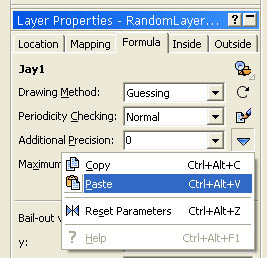
Copy Formula Fragment: This will copy the Formula part of of your parameter file, so that you can paste it directly into Ultra Fractal, without having to recreate the entire parameter file. when you click this button, the formula fragment will be copied into your clipboard. All you have to do is switch to ultra fractal (where you should have an open fractal you are working on), and paste the fragment on in. Here is a picture of the paste section in Ultra Fractal:
Coloring Formula (.ucl):
There are three buttons here: "Add Inside Coloring", "Add Outside Coloring", and "Copy Coloring Fragment". These buttons are similar in function to the "Write Formula Data" and "Copy formula fragment" buttons mentioned above, but record the data for Inside and Outside Coloring formula, and copies a coloring fragment for pasting into Ultra Fractal's Inside or outside coloring (the pasting button in Ultra Fractal is similar to the picture above, except in the "Inside" or "Outside" tab).
Transformation Formula (.uxf):
Transformation formulae have 3 buttons associated to it. The middle button, "Add Transformation data", works similar to the "Write Formula Data" button noted above, recording a set of Transformation data, with the exception that instead of overwriting the data when the button is pressed a second time, it will add that data to the previous data. If you want to remove the last set of Transformation data added, click on the "Remove Last Transform" button. This feature only remembers the last 10 Transformations you added, although you can add more than 10 sets of Transformation data to the Parameter file. To clean out the entire set of Transformation data and start clean, click on the "Erase Data" button. As above, the "Copy Transformation Fragment" copies the current Transformation Fragment for use in the Mapping section of Ultra Fractal. Paste it in the mapping section the same way as above.
In this window, your Ultra Fractal Parameter file (U.P.R.) will be created when you click on the "Write Parameter file" button below. You may edit the parameter directly in the window before you paste the Parameter file into Ultra Fractal, if you desire.
These buttons Manipulate the Parameter Window above.
Write Parameter File!
Takes the Fractal Formula data, all gathered Transformation data, the Inside Coloring data, and the Outside Coloring data, and generates the Ultra Fractal parameter file (U.P.R.) The generated file is displayed in the Parameter Window above.
Copy to Clipboard
Copies the contents of the Parameter window to the Clipboard for later pasting to Ultra Fractal
Clear Window
Clears the contents of the Parameter window. For clean, tidy people.