|
One of JTT's strongest areas is its GUI. Whilst it has a powerful CLI and
set of commands to go with it, it can be daunting to have to remember the
format for using commands, and the protocols to follow when typing text. In
this circumstance, a visual aid is always a benefit, in the same way that
operating systems use GUIs to make it easier to use a computer.
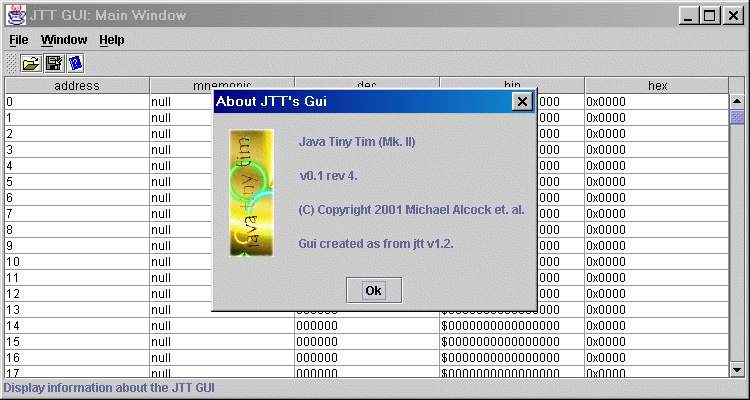
JTT's GUI was programmed using recent techniques, meaning that some older versions of Java will be unable to run it. If this is so, you will be warned upon loading JTT and the GUI will refuse to open. You can still operate the CLI, however, which is just as useful. It is best in this case to skip Chapter 7 for now. Otherwise, continue reading. The windows that make up the GUI are similar in basic functionality to those in most operating systems, and contain menus, sliders, arrows and gadgets to click on using the mouse. It is assumed that you have used such graphical interfaces before. Most of these will be explained briefly below, but if any of this is not even vaguely familiar, you should consult a manual for Windows, Unix, MacOS, Amiga Workbench or similar OS system GUI before reading on. There are various parts of the GUI, or windows, that you can choose or choose not to view. Each has its own function, and is listed and outlined below. The Main Window This is the first (and by default, only) window that is shown when you open the GUI. It is a spreadsheet that allows to type in JTT instructions in mnemonic or machinecode format. Every memory address is listed horizontally in this window, and the hidden ones below (or above) can be accessed by using the slider or arrow gadgets to the right of the spreadsheet panel. In each address shown, its instruction is given in mnemonic and machinecode. Additionally, the latter is given in decimal, binary and hex. If no instruction has yet been entered, the word null is shown.
To enter an instruction, click (which is always done with the left mouse- button) inside the square of the memory address to edit, whether it be mnemonic or machinecode. It should be highlighted with a thick box. Then click again, and you will see a black flashing cursor and the text that was already there will be highlighted. Type in the instruction, and press ENTER. If the instruction was invalid, you will be warned and its contents will be reset to its previous contents. Otherwise, the information will be entered, and all relevant boxes updated accordingly. For information regarding the Main Window's menus, and opening the other windows detailed below, see Section 7.4. The Register/Flag Window This contains the contents of all eight registers (in decimal, binary and hex notation) as well as the status of each flag. The IP and SW flags are so identified. The Data Memory Window Whilst the Main Window concerns instruction memory, this displays the contents of data memory. It has a spreadsheet layout, and the data in each memory address is displayed in decimal, binary and hex. To edit values, see the Main Window above. The Help Window This is the window containing the help database. Full details are given in Section 7.5. 7.1 Dealing with Requesters and Error Messages A requester (or dialogue) is a window that appears to inform you of a particular circumstance that has arose as a consequence of your actions. They serve the same purpose as error/warning messages in the CLI (see Section 6.4). However, there are, as you may expect, graphical differences. They contain a graphic, which shows you the status of the message, a message, and, below the text, gadgets that, when clicked, perform particular operations. Requesters come in various formats:
Their use should otherwise be self-explanatory. On many windows (and all of the JTT GUI's), there are titles that appear on a row at the top. Clicking on one of these titles reveals a smaller window that contains options pertaining to the title, such as help. These are pull- down menus. To access a menu, click on its title. Whilst the mouse-button is held down, 'drag' the mouse-pointer down to the menu option that you want. If it is a sub-menu item, a further box will appear with more options. To choose an option, release the mouse-button. This type of menu is less common. Similar to the pull-down menu, they appear when the right mouse-button is displayed. When this happens, hold down the mouse-button, 'drag' the mouse-pointer to your choice and let go to choose the option. Pop-up menus appear on each of the JTT GUI's windows. They usually contain the main commands that can be accessed via the pull-down menus, but seldom contain all the available options. They therefore provide quicker shortcuts that allow you to get to the options provided for in their pull-down counterparts. On the Main Window, there are many menus that allow you to exit the GUI, load and save files, and display the various windows. As yet, these menus are uncomplicated and need not be explained here. You should get a feel for the menus by using them. The pop-up menu contains many of the same options, but give quicker access since there are less options to choose from. It is therefore likely to be easier to locate the option you want. The Help Window is displayed via the Main Window's 'Window' menu title. Once open, there are two panels. On the left-hand side is a tree containing the main help topics. Click on one of the topics, and it will 'open out' to show its sub-topics. Click on one of these, and it will be displayed on the right- hand side. NOTE that due to major updates to the GUI, this part is subject to change soon. A preferences window is also planned. None as yet. |

 |
 |
 |
 |
 |