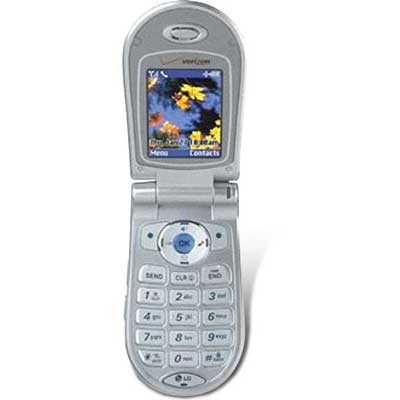
(image shamelessly ripped off the first site that showed in Google)
From what I've researched online, what I will need to transfer data between my phone and the computer is BitPim, available from www.bitpim.org (local copy (version 0.62)) and the mobile office kit. Now, I priced the kit online via their website, and their price is about $16. Sweet, you say. Now take a trek over to the Verizon dealer. Ask the price. Go on, do it. The guy says $49.99. I just about smashed my jaw on the floor. I'm definitely ordering online. Just gotta wait until payday....should be.....NOW!.....NOW!....awww....NOW!...
(to be continued)
The long-awaited update...(drumroll)
Finally, I have some time and motivation to update my site!I got the cable. I ordered over the Verizon site. $15. Nice. BitPim had no issues, except a file in the path is in a slightly different location. Here is my detailed walkthrough:
Prerequisites:
-An LG VX-4500 cell phone
-The data cable (was found here listed as the Mobile Office Kit)
-The USB driver that comes with the Mobile Office Kit (I would post it here, but 1) I imagine it is illegal to redistribute and 2) they have changed the hardware of the cable since I got mine so my driver might be useless with the new revision)
-A copy of BitPim (see above for download)
-Some sort of hex editor (I used XVI32, freeware, naturally)
-The tone you want to put on the phone, in MP3 or MIDI format only
First, please realize that I take no responsibility for whatever happens to your phone! I will not replace any dead hardware, pay any bills you rack up, or in any other way be liable for your actions. That aside, I followed these steps:
1. Install the USB drivers for your phone's data cable. DO THIS BEFORE CONNECTING THE USB as Windows chooses a bad driver if it doesn't have the correct one in its database. I did this in reverse order and Windows 2000 picked a good driver, though.
2. Install BitPim. See above for download links. I used version 0.63 in the making of these instructions, but any new releases shouldn't be that different.
3. Launch BitPim. BitPim will probably want to grab your current calendar settings, ringers, and notes, but don't let it. It doesn't know where to get them from on the phone as they are stored in a different location on this model and the built-in routines will fail because of this.
4. Click on the 'Filesystem' tab. Dismiss any messages that come up warning you of this being an advanced feature; if you do this right, there is no risk.
5. Expand the '/' node by clicking the '+' next to it. BitPim will freeze for a moment while it is talking to the phone (the link is extremely slow, as you will see), and then a list of files will show up.
6. Expand the 'user' folder. If it does not exist, create it by right-clicking on '/' and selecting 'Create Subdirectory'.
7. Under 'user', expand 'sound'. If it doesn't exist, create it.
8. Under 'sound', expand 'ringer'. If it doesn't exist, create it.
9. Add the ringer you want here by right-clicking 'ringer' and selecting 'New File'. The normal file-open box will show itself; select the MIDI or MP3 you will be using. As you will see, the link is VERY SLOW. Also, the VX-4500 has about 5meg of space available, so be careful not to run out of room. Use common sense about the size of the files. Since a ringtone only plays about 20 seconds or less, you can cut only the part you want to hear out. You should convert the tone to Mono because that way you are wasting much less space (the phone only has one speaker...). These space-saving tips don't apply to MIDIs. MIDIs are so tiny there is no point in trying to space-save.
10. Now, you may be tempted to try the tone out now. Don't. You won't see it anywhere on the phone. Why? It hasn't been added to the index. Duh! This step requires a little more thought and care. Just for clarity, collapse all the nodes except for the '/' node. Expand the 'download' node. If it doesn't exist, create it. Expand 'dloadindex'. Again, if it doesn't exist, create it. There should be a 'brewRingerIndex.map' in that folder. If it's not there, download the template file, unzip it, and add the resulting file to the 'dloadindex' folder on the phone.
11. Right-click the 'brewRingerIndex.map' file and click 'Save'. Open it with XVI32 (or a hex editor of your choice). Assuming you haven't put any ringtones on your cell yet, change the first byte to a 01. Change the third byte to 00, the fourth to 00, and, switching to text mode, type the name of the file you added to the phone. Save the file and overwrite the old version on the phone.
12. Enjoy! The ringtone should now show up in both the 'My Media > Music' screen and in the 'Settings > Sounds > Ringers' screens.
Feel free to contact me: jacob.rau -at- gmail.com if this works, doesn't work, sorta works, kills your phone, etc. and I'll try to help.
The other mischief
I am in no way responsible for your actions with this mischief. Your troubles with Verizon are between you and them. Don't come crying to me about your termination of service.
With that out of the way, let me tell you how to get into the Service menu. When the phone is at the main screen, press Menu (the left Soft key). Press 0. You will be prompted for a service code. It's all zeroes. Yeah. There's some scary stuff in there. One feature is GPS. Go to 2. Field Tests > 6. gpsOne. Change 1. gpsOne Test Screen to On. Go to 2. Test Num and remember the number it gives you. Press the CLR button until you are back to the main screen. Dial the number that was on the 2. Test Num screen. Beware: I read this on a forum dedicated to cell phones: "I got a perfect result using gps to find my location (it's eerie). Like some others, I had to change the gps number from 923 to 922, and then dial 922. Then the 911 operator answered, "What is your emergency?" I said I had dialed 922, not 911, and she just said "ok" and hung up." - bonnydon (check it out for yourself). I just wanted to let you know that you may be connected to E911. I wasn't, though. When you call the test number, the screen will say "GPS Network Start". It will say that for about 15 seconds, then give the current GPS location to the fifth decimal. That's right, folks. Verizon can tell where you are. However, I don't think they can monitor that info without the phone being in a call. I'm not sure about that, though. I'm also not sure if the call incurrs a charge...
I'm out for the night. More to come. Play with the rest of the features at your own peril. Happy trails.
-JakeTheBrikHed
Home