Table Of Content
Please read OnlineVC Terms And Conditions before deploying OnlineVC
While
there are numerous softwares referred to as news group mailing list and
forum
each have their own functionality shortcoming.
Most
often deploying running maintaining and participating in these softwares
are
not easy and each have their own numerous problems.
What
is OnlineVC:
OnlineVC
is a hybrid of newsgroups, mailing lists, and forums providing most
of
the features these softwares have and allow users participate in the ongoing
discussion
to a degree that they wish to participate.
OnlineVC
Technologies:
OnlineVC
is written entirely in the Java(TM) programming language.
It
is a robust easy to deploy and friendly to use solution.
OnlineVC
has been developed and tested using Java(TM) 1.2
System
requirements:
OnlineVC
will run on any system which supports jre (Java(TM) 2
Platform
formerly known as JDK 1.2).
OnlineVC
will run with any relational database that supports Java (TM)
An
Access database is provided for convinience only.
You may use any relational database with OnlineVC.
To run OnlineVC you would need to deploy jre Java(TM) 2 Platform.
You
may download jre Java(TM) 2 Platform from javasoft
for most platforms
or
from your operating system vendor web site.
For
deployment of jre consult the jre vendors.
Access
Database Deployment:
Go
to Control Panel , ODBC, System DSN click on add,
select
Microsoft Access Driver ( *.mdb ) click finish.
In
the next window click on select and find OnlineVC.mdb,
and
select the file to let your os know where OnlineVC.mdb is.
Plase
note you may use other databases as long as you use appropriate driver,
and
setup your database tables identical to OnlineVC.mdb.
If
it is not possible to view OnlineVC.mdb, send me an email.
I
will provide the database spec.
Deployment
And Configuration Of OnlineVCDemo Server:
Unzip
OnlineVCDemo1_0.zip preserving ovc folder name in the root directory of
any drive.
It
contains two folders ovcserver and ovcclient
ovcserver
contains the server side material and ovcclient contains client side material.
To
avoid confusion preserving folder names.
Do
not unjar any of the jar files they are setup to run as jar files.
Jarred
files save your disk space.
1)
Move ovcserver to any root directory preserving ovcserver folder
name.
OnlineVCServerDemo.jar
is the server side application if your jre is setup properly it
should
run from any directory.
2)
RunOnlineVCServerDemo.bat is a dos batch file to start the server for MS
Windows for other platforms please
consult
the jre vendor.
Starting
server application
OnlineVC
uses mail server extensively.
Before
running the OnlineVCDemo make sure your mail server is running.
Run RunOnlineVCServerDemo.bat
If
for any reason you would like to shut down your mail server shut down
OnlineVCDemo
first
OnlineVCDemo
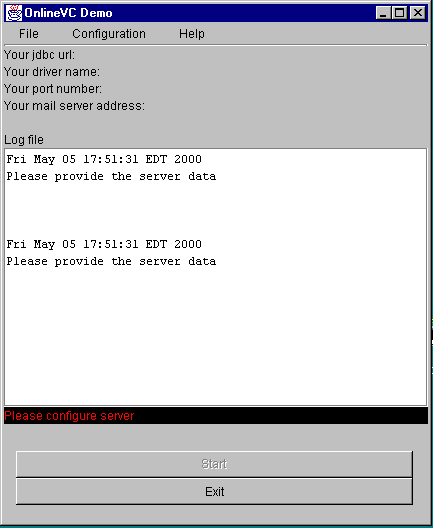
needs to be configured before starting the server
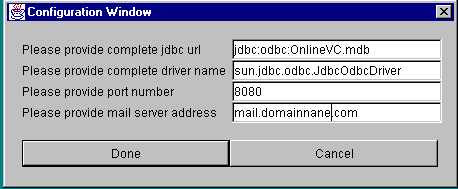
Go
to configuration window from Configure menu and provide configuration parameters.
OnlineVCDemo
Configuration
You
may change these parameters according to your own desired setup.
For
performance and robustness reason a number of subsystems can
be
instantiated only once on the one runtime cycle of OnlineVC.
If
you would like to reconfigure OnlineVC, exit OnlineVC
and
start it again reconfigure it and start the server.
OnlineVC is programmed to finish all the jobs in progress before shutting down.
Editing
log file text editor:
if
and when an error occures OnlineVC will display the information on the
text editor.
Please
email these information to [email protected]
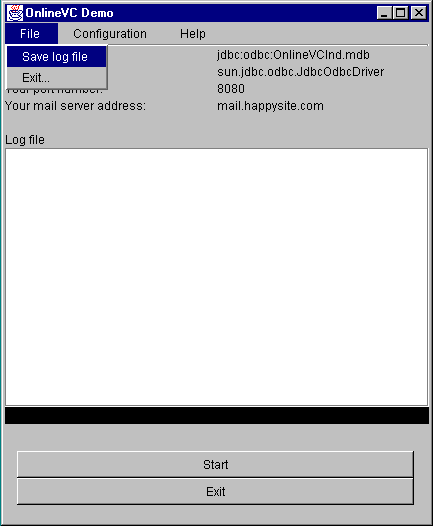
You
may edit and delete the this editor and from File menu Save log file save
the content to log file.
Please
periodically delete these messages to keep the server in its optimum state
Deployment
And Configuration Of Applets:
Move
ovcclient folder with all its content to your appropriate http folder,
and
note its location for your URL link.
OnlineVCClientApplet.html
is the client applet for user view and
submission
of notices and comments.
OnlineVCHelp.html
is the online help for the users that the applet can down load at run time
OnlineVCNewUserApplet.html
is for submitting new user.
It
is up to your web site policy to make it accessible to your users or ask
them to
email
a request to join the OnlineVC.
Please see NewUserHelp.html
Setting
up applets params:
There
two parameters that you would need to provide in the tags
<param
name=provider value="Web happy Goup">
You
would need to replace "Web happy Goup" with the name of your
organization
or web site.
<param
name=port value=8080>
8080
is the port number client and server will be using to communicate.
this
number has to be the same for both client and server.
Bugs
and Issues:
Although
OnlineVC is developed to be a highly robust and reliable solution,
some
versions of jre ( Java(TM) run time environments ) have some peculiarities
or bugs.
While
the length of messages for comment is set to 300 character and for notice
2500
character
some jdbc-odbs drivers will not allow more than 245 character.
These
bugs are removed on the subsequent release of jre.
Please
report all bugs to [email protected]
OnlineVC Solutions are fully supported for one year.
Direct
all queries to [email protected]