Table
Of Content
Please
Note:
This help
document is written in a none technical manner to demonstrate very
clearly
the functionality of OnlineVC to a none technical users.
Any further
question or queries should be directed to the web master of the
web site
where it was downloaded from.
What
is OnlineVC:
OnlineVC
is an Internet / Intranet ECommunity discussion applet facilitating members
belonging
to the ecommunity post notices or comments on other's notices.
How
to use OnlineVC:
When a
new member is submitted, the new member receives an email from OnlineVC
with a
password
and a default member's preferences.
The new
member then can access OnlineVC applet and participate in the ecommunity
How
to join OnlineVC:
Each website
have its own policy on how to allow a new member join
its ecommunity.
Please
refer to the web master instruction.
Notice
and comment id:
When a
member submits a notice or a comment he / she will receive an email with
the submission
id for his / her record.
Each notice
and comment has its own id number for reference.
Notices
and comments can be downloaded with their id number
Notices
and comments can be downLoaded from Download
With ID Window
Local
data updates:
When moving
from one window to another a fresh set of data is downloaded so
you always
view the most recent data.
It is
always possible that subsequent to your download a new set of notices
and comments
are submitted to OnlineVC.
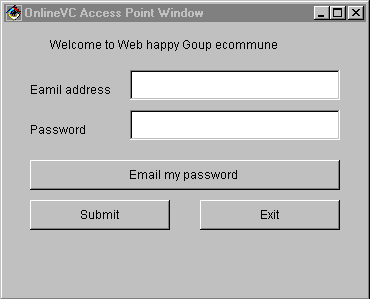
OnlineVC
Access Point Window is where a member submits email address and password
to
access
OnlineVC ecommunity.
OnlineVC
Main Window
If correct
password and email address has been provided, the member
will be
admitted to the OnlineVC ecommunity that is OnlineVC Main Window.
The member
now can select any areas of OnlineVC and see notices and comments and
participate
in the community.
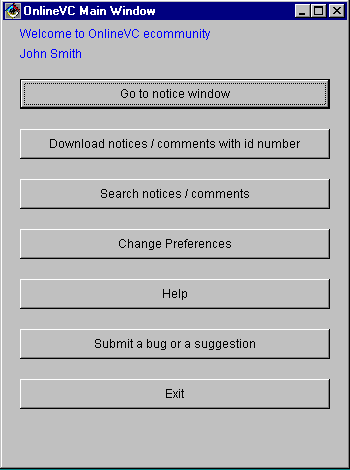
Go
to notice window button will take you to OnlineVC and Notice
Window
where
you can download notices and comments.
Download
notices / comments with id number button will take you to
OnlineVC
Download With ID Window where you can download
notices
and comments with their id number
Search
notices / comments button will take you to
OnlineVC
Search Window where you can search
an exact
phrase in notices and comments
Change
Preferences button will take you to
Preferences
Window where you can change your preferences
and password
Help button will take you to this page.
Submit
a bug or a suggestion button
will take you to
Submit
A Bug Or Suggestion Window where you can submit
directly
a bug or suggestion to OnlineVC developer.
OnlineVC
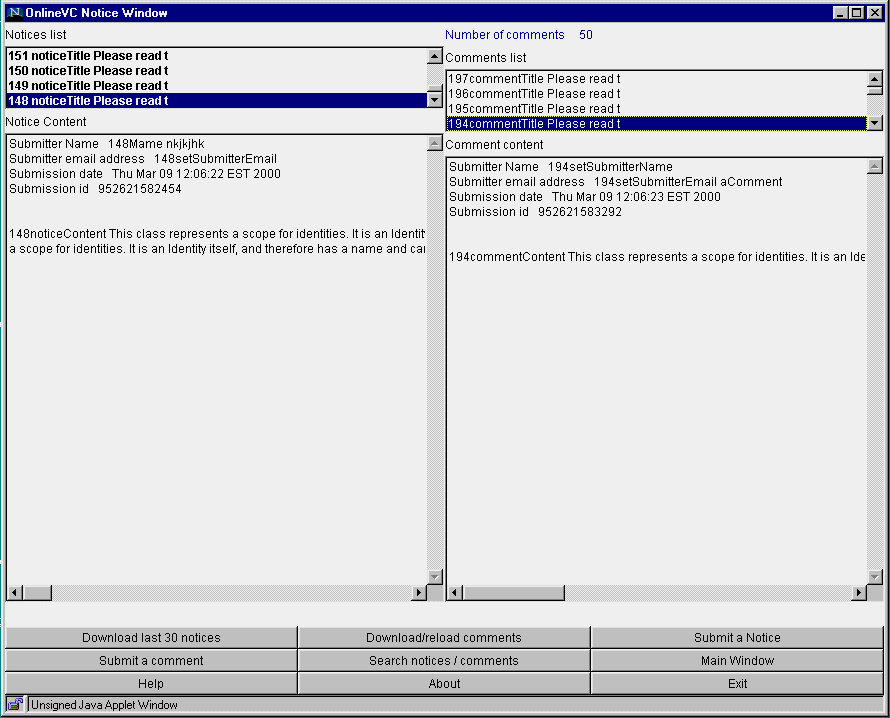
Notice Window
In this
area you can download notices in groups of 30 from most recent consecutively.
Down load
comments button will download comments submitted to the selected notice.
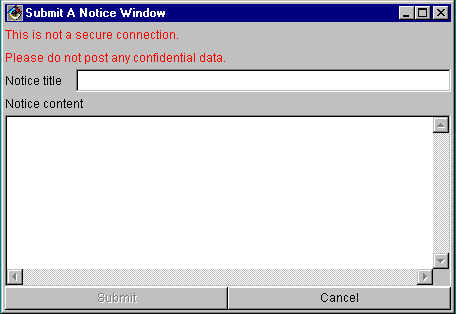
Submit
a notice will submit a new notice
and email
you the notice with it's id for your record.
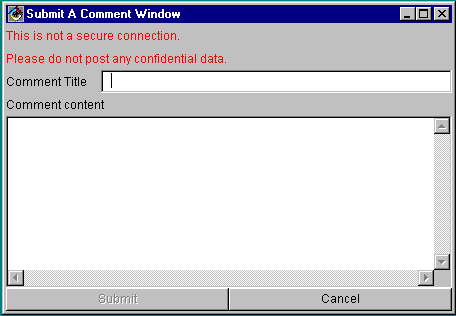
Submit
a comment will submit a comment to the selected notice
and email
you the comment with it's id for your record.
OnlineVC
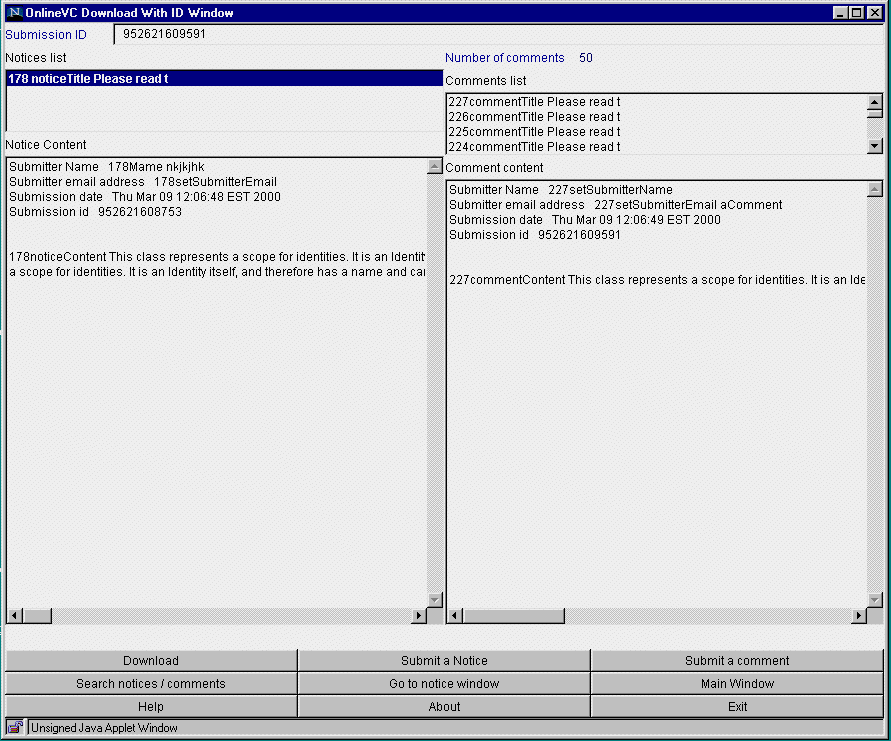
Download With ID Window
In this
area you can download notices and comments by their id number.
You may
use a notice or a comment id number OnlineVC will download the notice and
its
associated
comments.
OnlineVC
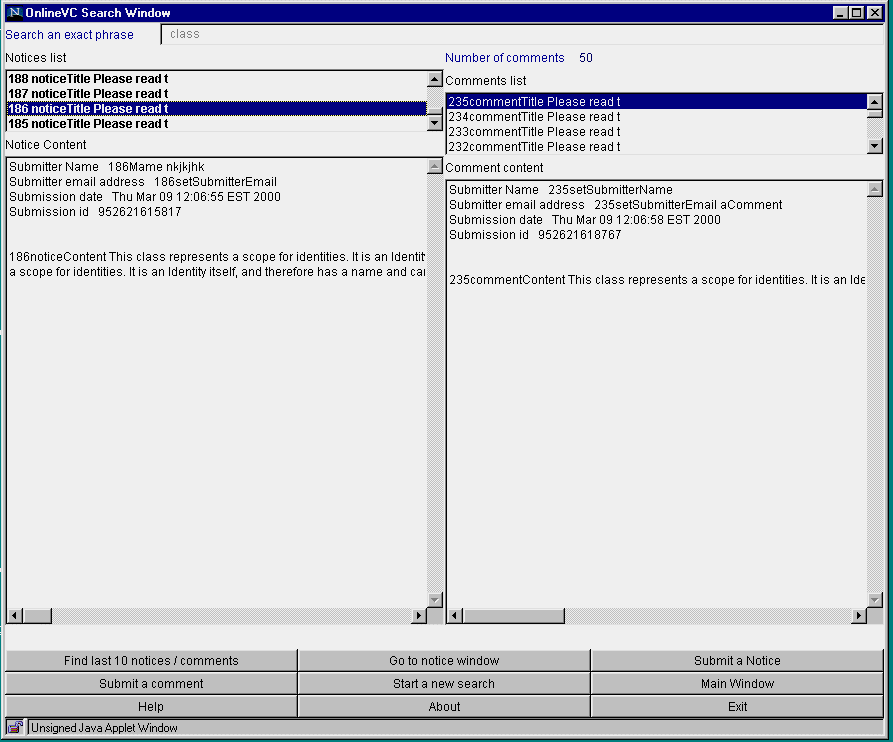
Search Window
In this
area you can search an exact phrase through notices and comments
Preferences
Window
Initially
when a new member is added a numeric password is assigned to the new member
and
emailled
to the member.
Email
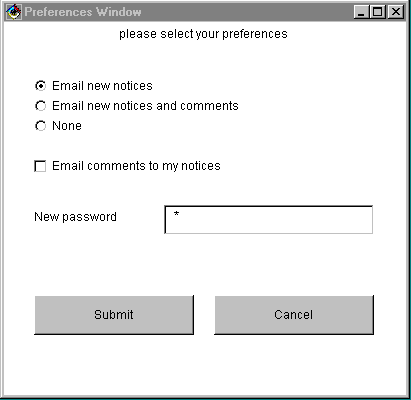
all new notices and email comments to my notices are set as preferences.
A member
can change password ( alphanumeric is recommended ) and preferences at
anytime.
Members
can determine their degree of participation in the community by changing
preferences.
The preferences
options are:.
1) Email all new notices.
OnlineVC will email you new notices2) Email all new notices and comments
OnlineVC will email you new notices and comments3) None
4) Email comments to my notices.
OnlineVC will email you comments to the member notices
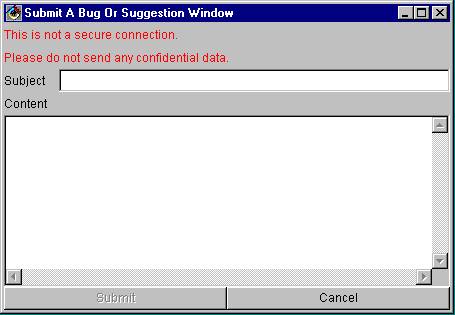
Submit
A Bug Or Suggestion Window will send a bug report or suggestion to
OnlineVC.
Generally when something goes wrong browsers display some messages in
their
Java Console. It would be helpful to copy and paste these messages from
Java Console and
send along
with what when wrong and how.
Internet
security and confidential information and OnlineVC.
While
notices and comments are being transferred, They may be intercepted.
Please
do not include confidential data in the notices and comments