OnlineTSLt read me firstOnline
System requirements:
OnlineTSLtDemo will
run on any system which supports jre (Java(TM) 2 Platform formerly known
as JDK 1.2).
OnlineTSLtDemo has
been developed and tested using Java(TM) 2.
To run OnlineTSLtDemo
you would need to install jre Java(TM) 2 Platform.
You may download
jre Java(TM) 2 Platform from
javasoft
for most platforms or from your operating system vendor web site.
For installation
of jre consult the jre vendor.
Installation And Configuration Of OnlineTSLtDemo.
Installation:
Unzip OnlineTSLtDemo1_0.zip
preserving otsl folder name in the root directory of any drive.
It contains 3 jar
files two sample HTML files and a batch file and this file.
Do not unjar
any of these files they are setup to run as jar files.
Jarred files save
your disk space.
1) OnlineTSLtDemo.jar is the server side application if your jre is setup
properly it
should run from any directory, To avoid confusion leave it in the otsl
folder.
2) runjar.bat is a dos batch file to start the server.
3) The other four file are the client side HTML and applets.
Move them to your appropriate http folder and note the URLs.
Starting The Application.
OnlineTSLtDemo uses
mail server extensively.
Before running the
OnlineTSLtDemo make sure your mail server is running.
If for any reason
you would like to shut down your mail server shut down
OnlineTSLtDemo first
A batch file is provided
to start the application on Windows system NT.
Do not unjar
any of these files they are setup to run as jar files.
For other platforms
consult the jre vendor manual on how to start
a jarred Java(TM)
application without unjarring the jar file.
Start OnlineTSLtDemo
go to configuration window from Configure menu and provide configuration
data.
OnlineTSLtDemo
Configuration
OnlineTSLtDemo is
configurable only before starting the server services.
For performance
and robustness reason a number of subsystems can
be instantiated
only once in the one runtime cycle of OnlineTSLtDemo.
If you would like
to reconfigure OnlineTSLtDemo again exit the application and start it again
reconfigure it and start the server.
You may exit OnlineTSLtDemo
at any time.
OnlineTSLtDemo
is
programmed to finish all the jobs in progress before shutting down.
OnlineTSLtDemo
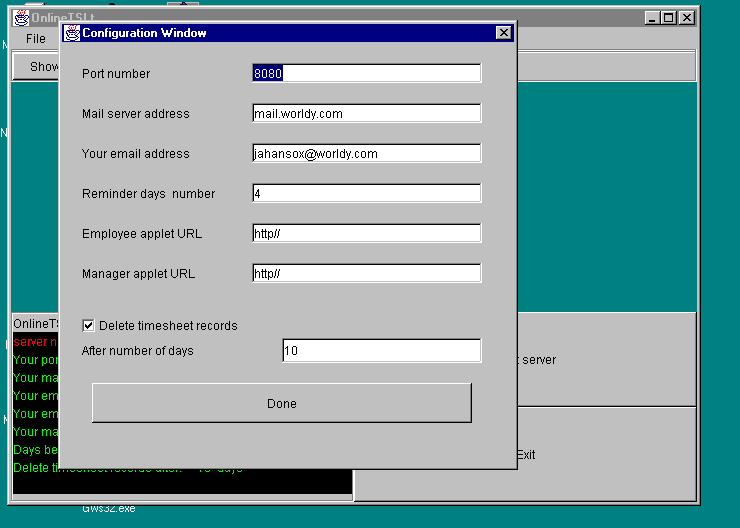
requires the following data for its functionality or your information
1) Port number (I have used 8080 you may change it to any appropriate number)
.
2) Mail server address ( this address required to send emails ).
3) Your email address (this address required to approved time sheet data).
4) Reminder days number ( How often to send to approving manager the reminder
email, disabled in demo).
5) Employee applet URL ( for you information ).
6) Manager applet URL( for you information ).
7) Option to delete submitted time sheet (disabled in demo).
A screen shot of Configuration Window
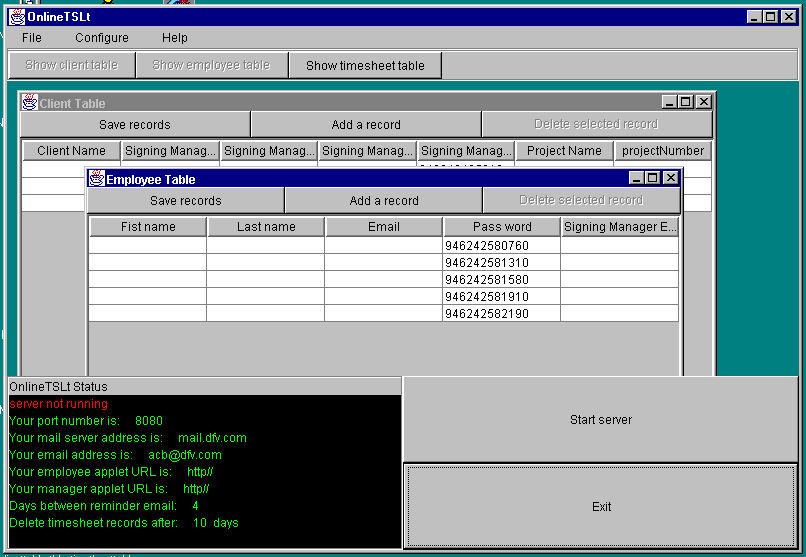
There are three tables,
1) Employee table, to add and remove employees.
2) Client table to add and remove clients.
3) Time sheet table to represent the number of time sheets and their status.
( only allowing to delete records manually )
The manual deleting
functionality is provided if and when a multiple
time sheet data
is submitted for the same date.
Time sheet record
deleting functionality will remove time sheet records
as needed and configured.
When a new record
is added a password generated which can be changed
locally or remotely
by the applets provided.
For performance reason
remove any record that is not need.
For performance
reason open table windows only when needed
and close them immediately.
If for any reason
the mail server is shutdown OnlineTSLtDemo will not
accept any submissions
and instead the applets will display
a "Mail server is
not running. Please contact OnlineTS Administrator " dialog box.
A screen shot of OnlineTSLtDemo
Bugs and Issues
Although OnlineTSLt
is developed to be a highly robust and reliable solution,
some versions of
jre ( Java(TM) run time environments ) have some peculiarities or bugs.
These peculiarities
or bugs varies from one platform to another.
There are some abnormal
key board and mouse behavior associated with JTable in
Swing library in
some versions of Java(TM) run time environments.
Through experience
I found double clicking on each field is the best way to draw
focus to the field.
Installation And
Configuration Of Applets.
Move the HTML and
jar files to your appropriate http folder.
In the param
tag the value must be the identical to your chosen port number.
The HTML file names
can be changed to any http valid HTML file name.
What can go wrong.
Java(TM) is enabled
and browser does not run the applets.
Older versions of
browsers use JDK 1.0x
Use a more recent
version.
OnlineTS Solutions
are fully supported for one year.
Direct all queries
to [email protected]
Please report all bugs to [email protected]