Content
What is JDBPlex
JDBPlex Functionality
How to use JDBPlex
JDBPlex Window
Source menu
Error messages
Target menu
Tools menu
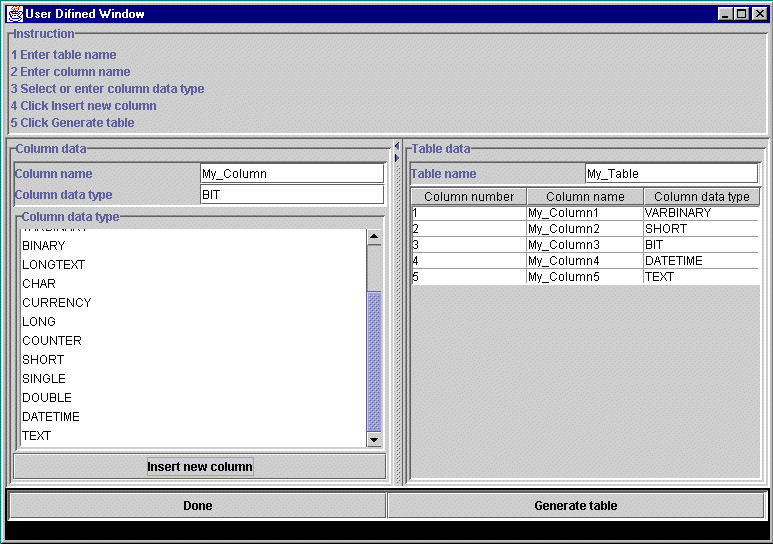
User Defined Tables Window
Caution:
JDBPlex
is an ideal tool to explore undocumented databases with
many
tables and replicate temporary tables for development and test environment.
For
production and release purposes please use other tools preferably
database
native interfaces or database vendor recommended tools.
It
is assumed users have adequate knowledge of relational database fundamentals
and
some
understanding of JDBC(TM) Database Access technology.
What
is JDBPlex
JDBPlex is a set
of utility tools to view replicate and create new tables in databases.
It is written in
Java programming language.
It is a GUI driven
software, and users are not required to write any Java programming language
or SQL code.
JDBPlex
Functionality.
-
It displays database
tables
-
It displays database
table column names and data types.
-
It write some database
relevant information and tables column names and data types to a text file.
-
It replicates tables
from a source database to a target database.
-
It creates tables of
user defined or existing tables in the source database into the target
database.
How
to use JDBPlex
JDBPlex needs the
following parameters for both remote source and target databases as databases
may require ( Drivers
must be installed. and the same database can be both source and target
).
For databases running
locally User name and User password may not be needed
-
Database driver name
-
Database url
-
User name
-
User password
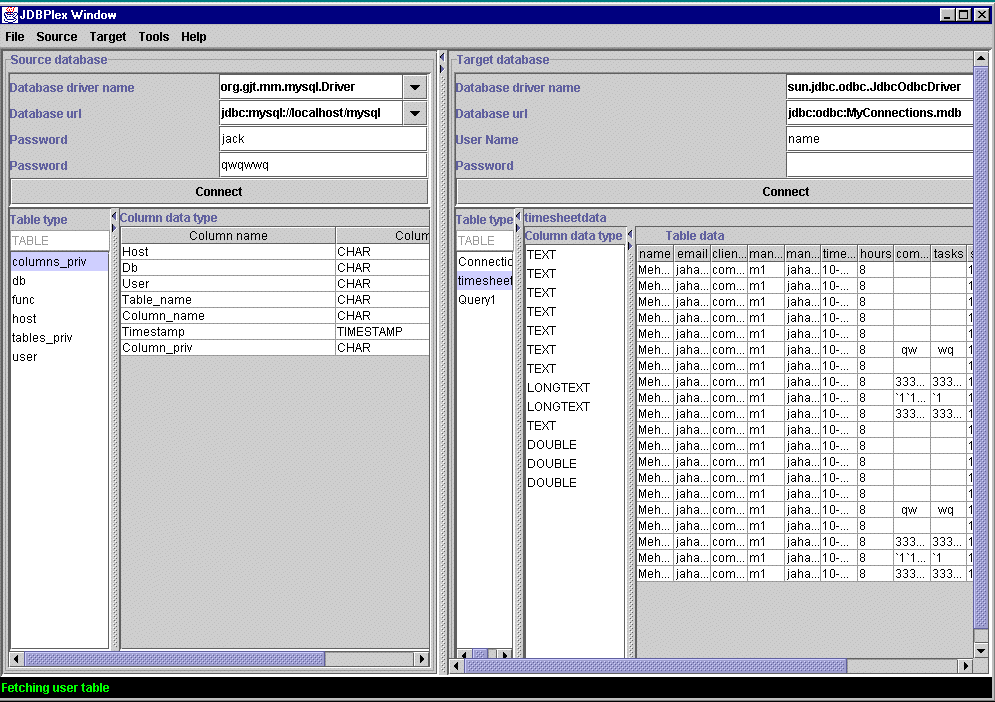
JDBPlex
Window
provides a view
of tables column names and data types
Error
messages
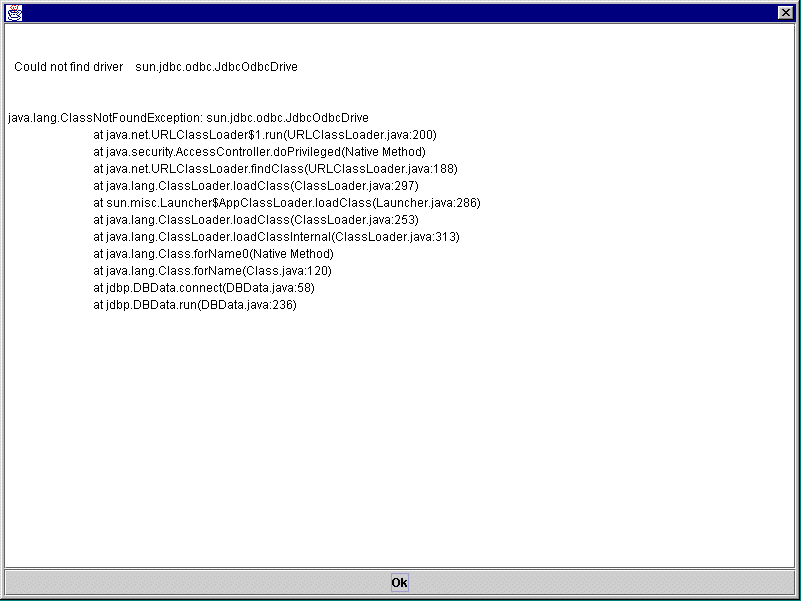
While connecting,
or other activities some errors may occur.
These error messages
will be on the error dialog.
Usually the first
few line would indicate the cause of errors.
Source
menu
-
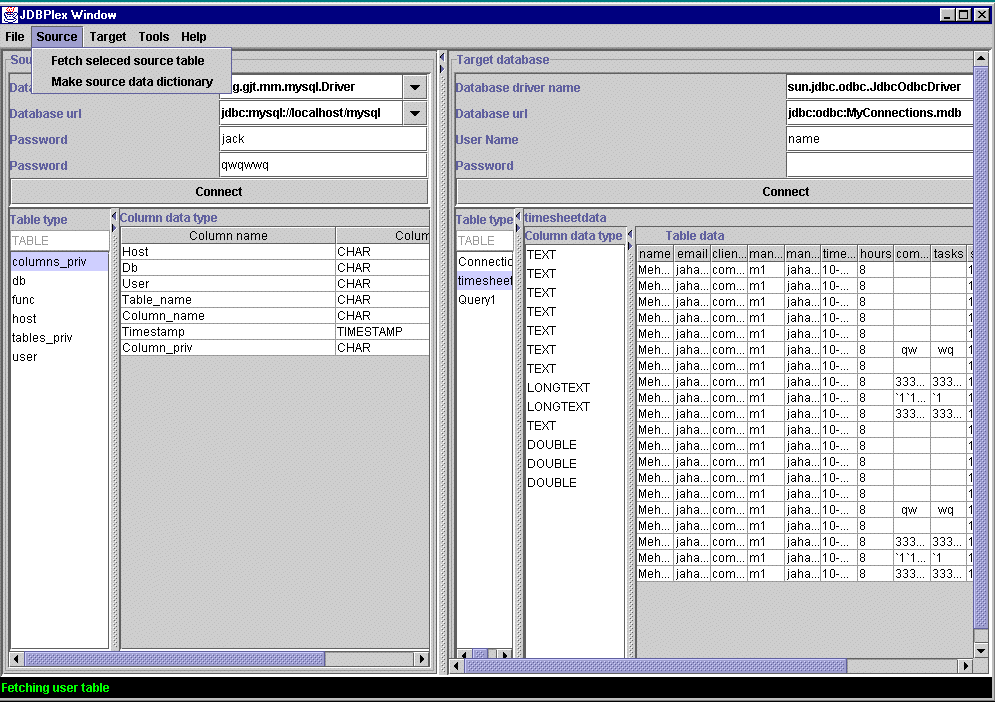
Fetch selected source
table will get a view of the table rows
-
Make source data dictionary
will write database product name, database product version, driver name
and table column names and data types to SourceDataDictionary.txt
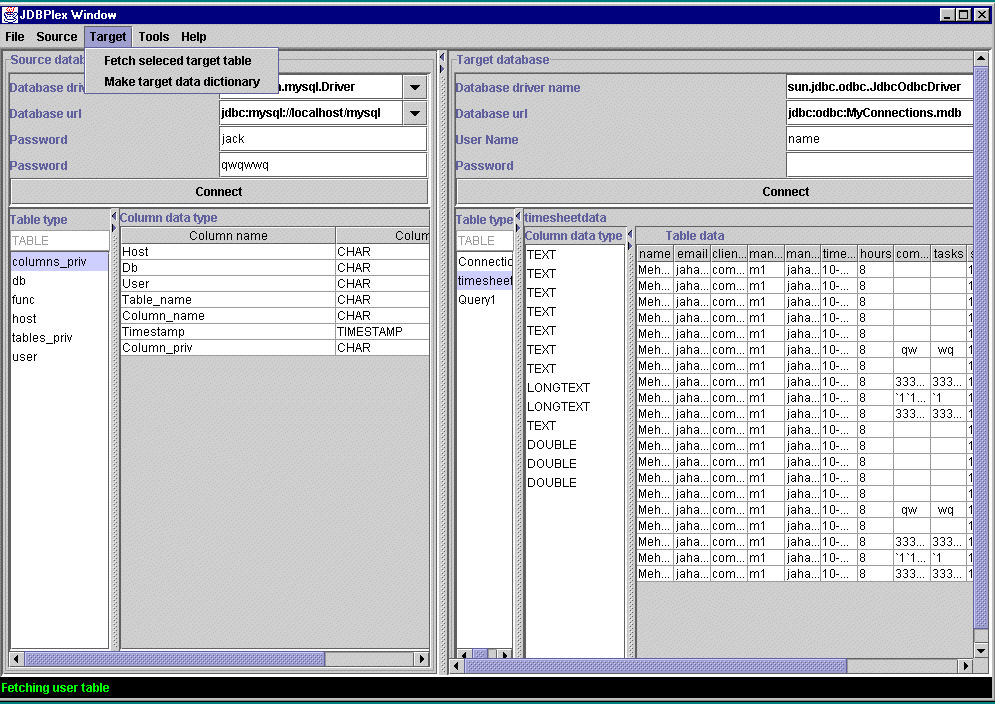
Target
menu
-
Fetch selected target
table will get a view of the table rows
-
Make target data dictionary
will write database product name, database product version, driver name
and table column names and data types to targetDataDictionary.txt
Tools
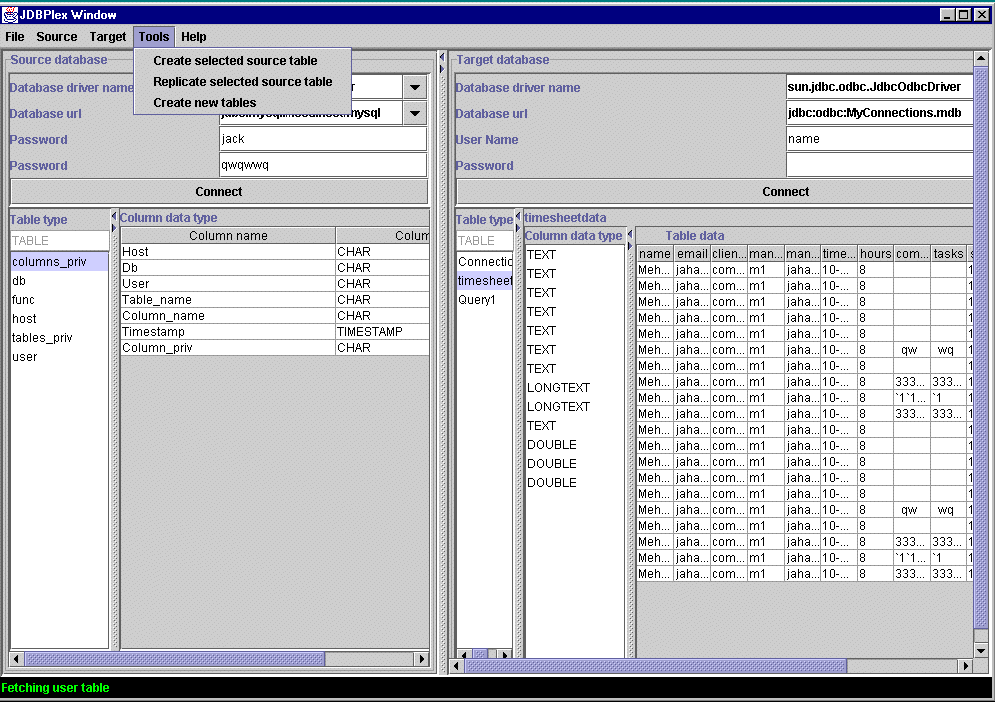
menu
-
Create selected source
table will create a table in the target database with the sane name, column
names and column data types.
-
Replicate selected source
table will write first ten rows of the source table in to the target table
-
Create new table will
take you to User Defined Window
where you can create new tables in the target database
User
Defined Tables Window
Create new tables
in the target database