
Version 2.0
| 1.2 How to Connect to the Labs |
[Back to Homepage]
|
EECS Servers
Good news! You can log into the labs from your home (or elsewhere) and work
remotely. Any of the instructional computers in the labs are available for you
to log into (just note their addresses printed on their labels). Or, you can
log into a larger EECS server. These are just some of the many servers
available.
Sometimes any machine you choose will be fine. Other times, you'll want specific machines because of their architecture (some programs only run on Solaris machines or i86 machines). Or, some machines may be down or slow. There may be additional reasons.
The EECS servers are setup to allow only ssh connections. But if you ever use other servers, you should use ssh still, even if they allow telnet, rlogin, or some other non-secure login method. That's because you want to keep your password secure; you don't want hackers stealing your password and messing with your account.
UNIX to UNIX
Connecting UNIX machines to UNIX machines is easy and works seamlessly. Once connected, you can run programs on the remote machine even if your local machine does not have it. Make sure you use SSH (not rlogin, telnet, or some non-secure program); otherwise hackers will be able to steal your password. To ssh to a machine (for example, po), use:
cory% ssh po
(If you have never logged in to po before, ssh will ask if it is okay to log into po). Answer yes. Type in your password. And then you will be connected!
Once connected, you can use programs as you'd normally would. If there are some graphical programs, the windows will be displayed on your local machine's desktop. If for some reason, you get an error about the display, try typing xhost + on the local machine.
WINDOWS to UNIX
To use SSH on a Windows PC, you first need an ssh client. Download SSH from: software.berkeley.edu or inst.eecs.berkeley.edu.
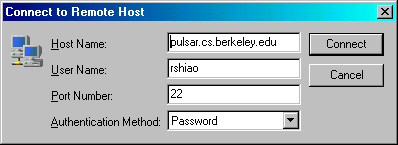
Connect to the EECS machines by entering one of the addresses above, your
username, and your password in the Connection dialog box. In SSH, click on the
"Quick Connect" button to pull up this window:
Once the connection is made, you can then use the shell as you normally would on
a lab computer.
However, to display graphical windows, you need to run an X11 server. One example is Exceed, available free to students. Exceed is probably the best option. But if you don't want the huge download, you can try WinAxe, available for free trial off their website. Download and install either one of them, and then you can use your connection just like you were sitting at the remote computer.
To set up the graphics display, you'll need to make a few changes to the setup
in the SSH client. Specifically, you'll want to turn on the "X11" Tunneling or
Forwarding option. Here is an example screenshot for SSH 2.4:
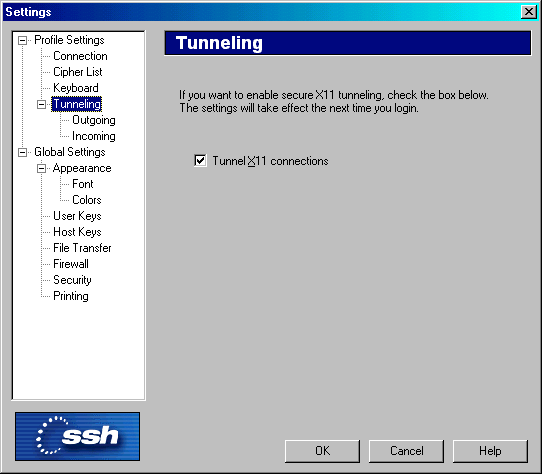
Under the Edit menu, click on Settings. Then, select "Tunneling" and check the
box.
Now, just run Exceed or WinAxe in the background while you use the SSH client. When you start a program that uses graphical windows, the windows will automatically pop up on your desktop.
Some issues with the Alt key. If for some reason, you can't get the Alt (also known as the Meta key) to work, there are several work-arounds. First, if you are using the Alt on the left side of the keyboard, try using the one of the right side. Oddly enough, this seems to work for some people. I think it may be a bug with Exceed (at least some earlier versions), but I'm not sure. Anyhow, try it, and it might work. If not, then a second workaround is to use the ESC key. To do a M-x combo, you would hit the ESC key, then the x (no need to press and hold the ESC key).
Additional Resources
- Free Software (including SSH and Exceed) for all registered Berkeley students.
- Download other versions of SSH for other operating systems.
- The Official EECS Guide to connecting. Highly recommended for finding answers to specific questions. Covers material beyond what this basic guide covers.