 Fig. 1
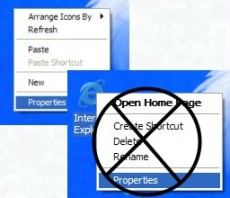
Fig. 2
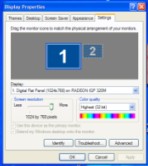
Fig. 3
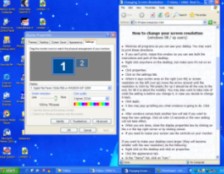 Fig. 4
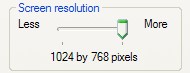
Fig. 5
(windows 98 / xp users)
If you've read the disclaimer and want to proceed, follow these directions:
1. Minimize or close any programs you have open so that you can see your desktop (Fig. 1). You may want to print these directions.
2. Right click anywhere on the desktop, but make sure your mouse is not on an icon. If it is, then you won't open the right thing.
3. Click properties (Fig. 2).
4. The porperties box will come up (Fig. 3). Click on the settings tab.
5. If you can't print from your computer, resize this window, and if nessecary drag the screen properties box by clicking on the top bar and moving it around so you can see both the instructions and the box. (Fig. 4)
6. Where it says screen area on the right (win 98) or screen resolution on the left (win xp) move the arrow around until the resolution is 1024 by 760 pixels. For xp it should be all the way to the end (Fig.5), for 98 it is about the middle. You may also want to take note of what the setting is before you change it (usually it is preset to either 1024 x 60 or 800 x 600), in case you decide to change it back.
7. Click apply.
8. A box may pop up telling you what windows is going to do. Click ok.
9. After windows comes back another box will ask if you want to keep the new settings. Click ok witin 15 seconds or the new setting will not take effect.
10. When you are done, close the display properties box by clicking on the x in the top right corner or by clicking cancel.
11. If you need to resize your screen use the controls on your monitor.
1. Right click on the desktop and click on properties.
2. Click the appearance tab.
3. In the *items* list, click on icon.
4. Change the number next to the word "icon" to your desired size (try anywhere from 30-40, that usually works pretty good) and click apply, and then cancel.