

Now that you know how to use some
of the tools in photoshop...
You can now have some exercises to test your knowledge
Exercise no. 1
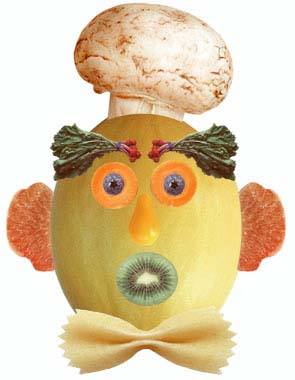
Make a vegeman out of the given objects using the selection tools you have learned. Just save the images below
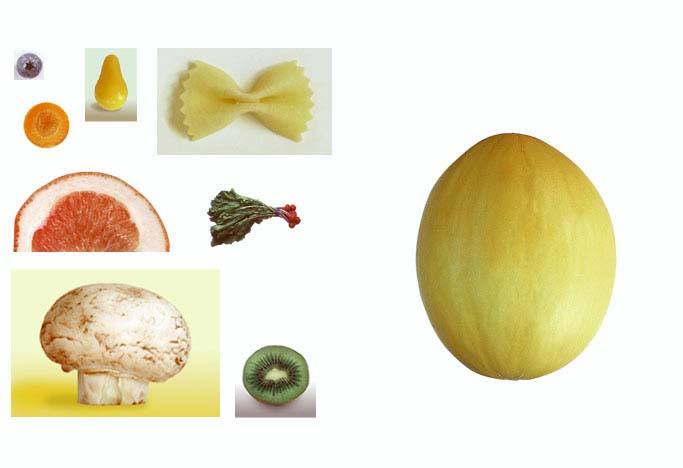
Exercise no. 2
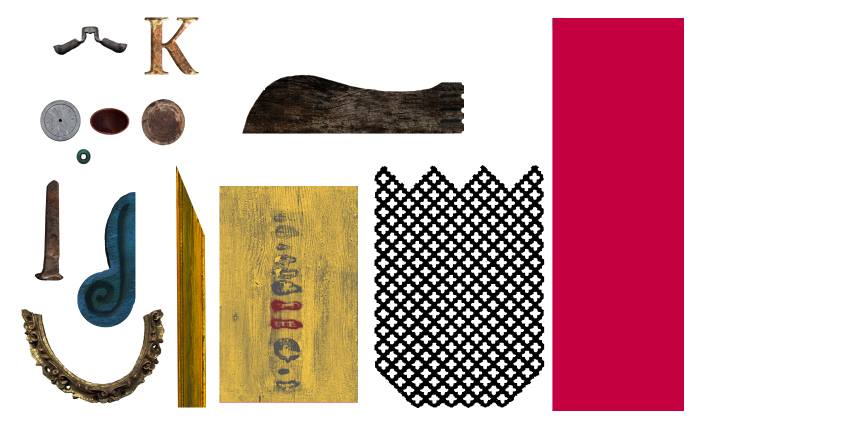
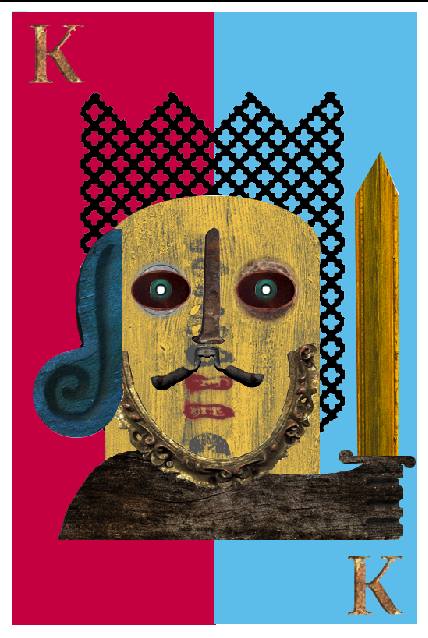
Make a knight out of the given objects using the selection tools you have learned. Just save the images below
Exercise no. 3
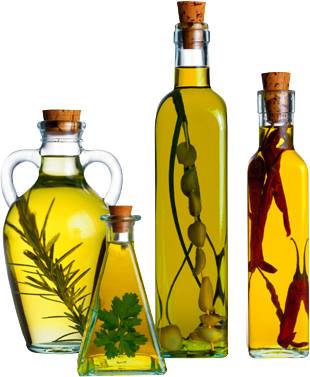
Make an output out of the given objects using the selection tools you have learned. Just save the images below
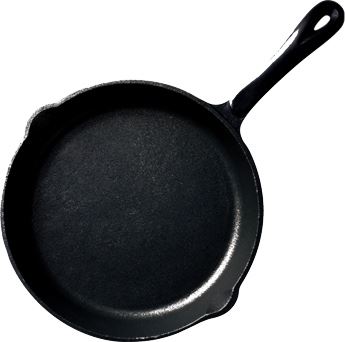
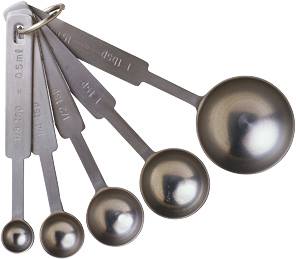
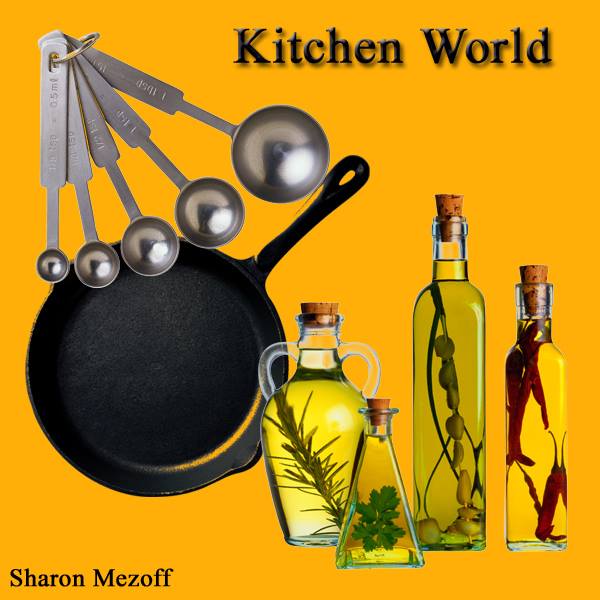
Exercise no. 4
Elimnate the acne's using the healing brush tool. Just save the images below
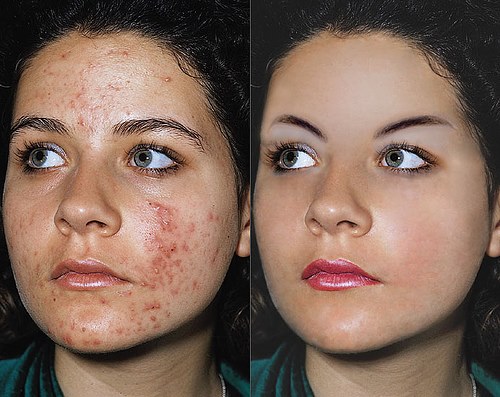
Exercise no. 5
Eliminate the wrinkles and/or make the old man younger with the use of patch tool. Just save the images below
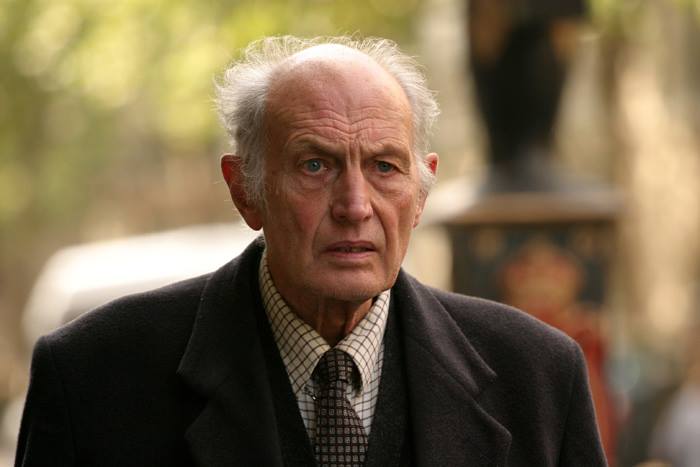
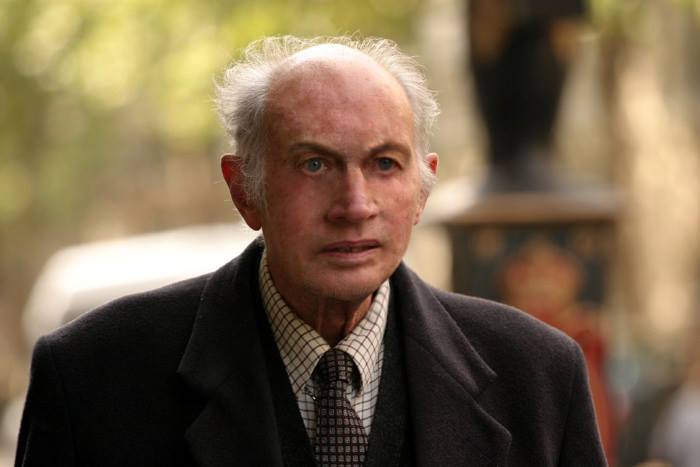
Exercise no. 6
Make the image look new with the help of clone stamp tool. Just save the images below
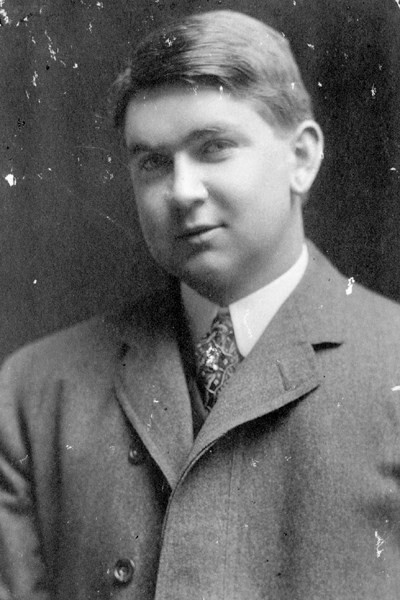
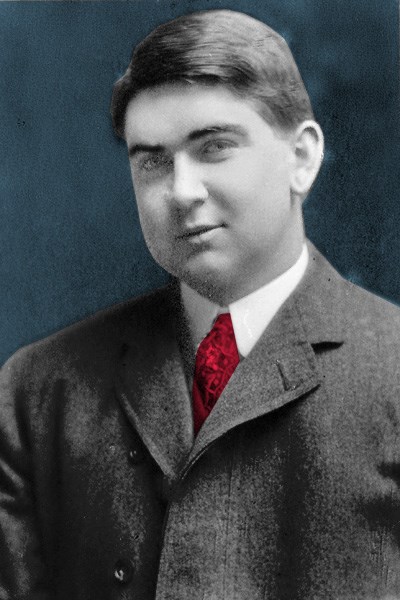
Exercise no. 7
Make an output similar to the finished product below. Just save the images below




Exercise no. 8
Go on and try to color your own images' hair with altering the hue/saturation and the selection tools.You can also use the image below.

Exercise no. 9
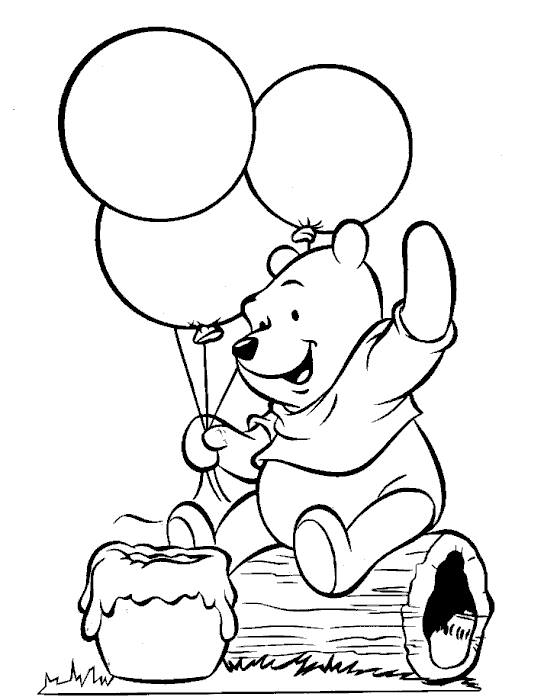
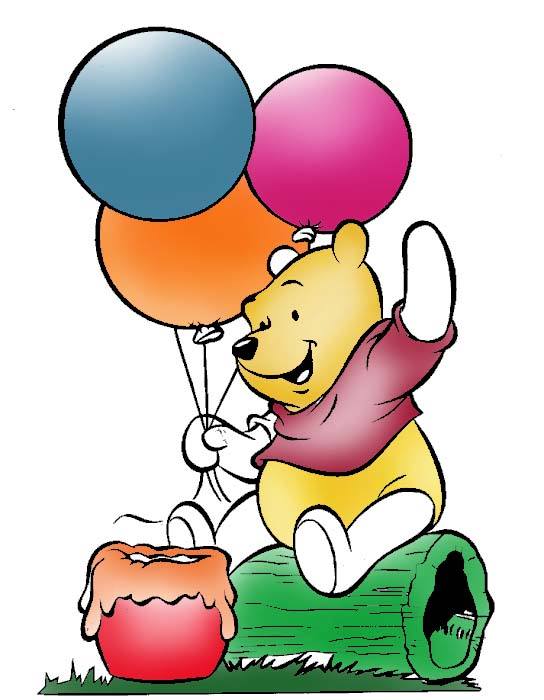
Try to color the image with the use of gradient tool. Just save the images below
Exercise no. 10
Make an output that's as beautiful as the picture below. This time, you can use your knowledge about text effects. You think it's hard? Don't worry, we'll help you in making this output. Just download the needed font and the images below
How to do the Futuristic Grunge:
1.Open Control Panel > Fonts, then drag the Font file in the folder to the Fonts folder.
2.Open Photoshop, make your foreground color to white and background color to black, now create a new document with measurements 1920 px x 1080 px and the Background Contents option to White.
3.Now drag the �Grunge� image into photoshop and resize it to fit the screen.
4.Now use the Horizontal Type Tool and click type in �TEXT� using Acens as the font and 500 pt as the font size.
5.Now open Windows > Character, and then change the settings exactly like this.
6.Now merge the image layer and the background layer (CTRL + E), then add a levers adjustment to the �Background� layer with these exact settings.
7.Now add a drop shadow to the �TEXT� layer with these settings.
8.Now add a Outer Glow to the �TEXT� layer with these settings.
9.Now add a Bevel & Emboss to the �TEXT� layer with these settings
10.Now add a Satin to the �TEXT� layer with these settings.
11.Now add a Color Overlay to the �TEXT� layer with these settings.
12.Now add a Gradient Overlay to the �TEXT� layer with these settings.
13.Now set the Pattern Overlay to rock patterns and you chosen rock pattern to the �TEXT� layer with the following settings.
14.Now drag the �Bolts� image onto photoshop, place as many as you want to place but make the bolts far from each other like this.
15.Now use the rounded rectangle tool and make a rectangle beside the bolts but inside the text like so.
16.Now apply an Inner Shadow to the shape with these settings.
17.Now apply an Outer Glow to the shape with these settings.
18.Now apply an Inner Glow to the shape with these settings.
19.Now apply a Satin to the shape with these settings.
20.Now apply a Color Overlay to the shape with these settings.
21.Now select the shape using the Path Selection Tool and press CTRL + ALT + T on the keyboard and resize and move the shape to other parts of the text. It might look something like this when its done.