| FarmHand - for Palm users
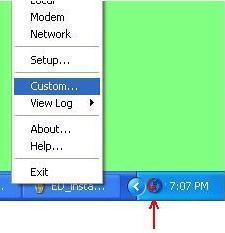
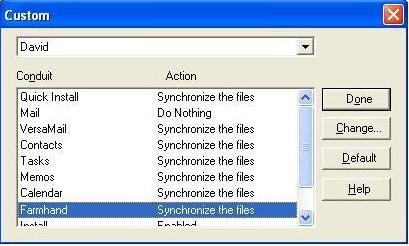
1. Ensure the Hotsync Manager is set up to recognise FarmHand. Once you have run the SETUP.EXE.installation program it should have established the Farmhand folder and created desktop icons and so on. All that remains is to ensure that the Hotsync Manager recognises FarmHand and is running to keep the system synchronised. Select the H/Sync manager as shown and choose Custom... |
| If FarmHand does not show in the conduit list your data will never get across. Follow the instructions for re-installing the conduit. 2. Perform a Hotsync to send the FarmHand program across. Then run the program there. This will create empty files ready for your first data to come across. You can have a brief look, e.g. under the Help / About menu option to check you have the latest version. (Clicking the name and version area will show the latest changes made to that release). Close the program Down (File / Exit) 3. Then simply perform another HotSync. It should send your data over. Once you have the system up and going, you only need to Hotsync each time to get data to or from the device. 4. Once you've entered data, you will no doubt want to see it back on the PC! Close down FarmHand on the device and after your next hotsync tyour Host program should pick up the work you've done. In EasyDaory for instance, any 'red-lined' areas need to be checked out because they will have been rejected. |
 |
 |