 |
|
|
|
|
|
|
|
|
|
|
|
|
|
|
|
|
|
|
|
|
|
|
|
|
|
|
| Me & My HTML | ||||||||||||||||||||||||||
 |
||||||||||||||||||||||||||
 |
||||||||||||||||||||||||||
| Lesson 4 for Classreport.org Administratiors | ||||||||||||||||||||||||||
| Lesson 4. | ||||||||||||||||||||||||||
 |
||||||||||||||||||||||||||
 |
||||||||||||||||||||||||||
| Home | ||||||||||||||||||||||||||
| Lesson 4 Picture | ||||||||||||||||||||||||||
| Email: | ||||||||||||||||||||||||||

| Lesson 4.
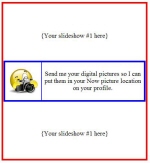
Now we shall put graphics to use. The actual generation of the graphics and how that is done we will not cover that. There are things inside the graphics that can be changed for better viewing. I will note that as we go along but for the most part we will just use what we get from Slideshow.com, Youtube.com and the like. I stole 6 graphics from your site. 2 are the last 2 slideshows. I do not know if you do what I do but managing 10 sites, I make a text file with Notepad of every graphic I use. I have a folder called Data4Websites. In there I have a folder for each site and for each site, I have 3 folders, those being Yearbook, NowPics and Admin. In Admin I have the copies of the data from the site like the roster & Email addresses from The Office. The other two are self explanatory. The main folder for the site has a copy of the code from each HTML Block, every Slideshow, every graphic I am, have or plan to use. It is a catch-all for all the posted code on the site. The ones we will use are in the attachment. I feel that the slideshow code is a bit too large to post inside this message. I copied the header you had with the slideshow. NOW to the lesson. We will be replacing the Data in each box from Lesson 3. Open Lesson 3 and do a Save As renaming it Lesson 4. 1. Let us replace the second Hello! with: <a href="http://s324.photobucket.com/albums/k359/fairport1977/Graphics/?action=view�t=thcamera-1.gif" target="_blank"> <img src="http://i324.photobucket.com/albums/k359/fairport1977/Graphics/thcamera-1.gif" border="0" alt="Photobucket"> Preview and return to the Editor. 2. Replace the third Hello! with: Send me your digital pictures so I can put them in your Now picture location on your profile. Preview and return to the Editor. 3. Replace the first Hello! with the code in the section called Slideshow #1 in the DebbiesGraphics.txt attachment. Preview and return to the Editor. 4. Replace the last Hello! with the code in the section called Slideshow #2 in the DebbiesGraphics.txt attachment. Preview and return to the Editor. Save the file. Notice that each of the slideshows have 2 entries each of 426 and 320 for width and height. On the home page these sizes must be kept to those numbers. On a profile however, the can be changed. You will get a much larger display by changing them. I like to keep the profile at 600 for a width. with a 426 width setting to start with, the corresponding number for 320 is 451. You can change the members to 600 and 451 if you place them on a profile. (To get there I divided 600 by 426 [1.408] and then multiplied by 320 which gave me 450.7). |