 |
|
|
|
|
|
|
|
|
|
|
|
|
|
|
|
|
|
|
|
|
|
|
|
|
|
| Me & My HTML | |||||||||||||||||||||||||
 |
|||||||||||||||||||||||||
 |
Lesson 3 | ||||||||||||||||||||||||
| Lesson 2 for Classreport.org Administratiors | |||||||||||||||||||||||||
 |
|||||||||||||||||||||||||
| Lesson 3 picture | |||||||||||||||||||||||||
| Home | |||||||||||||||||||||||||
 |
|||||||||||||||||||||||||
| Email: | |||||||||||||||||||||||||

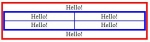
| Lesson 3.
Now we will retrace some of our steps but from another direction. We are going to make a box with 2 boxes inside but this time they will be side by side. We want to have a full width text above the box, text in each of the side by side boxes and then full width text under the double box. Remember this is just a practice and we are using text in the place of any data that may come along later. Text is so much easier to generate. Our Text this time is only going to be the word Hello! We will have 6 occurrences of Hello! on the display. We will want them to be centered. Already you should have that process in mind. <center> Hello! </center> Open HTML-Kit and Lesson 1. Remove all of the center data that has 5 line breaks at the top to the 5 at the end. Highlight and delete. So we will not Lesson 1, do a Save As and call it Lesson 3. Next put 6 of the center tags with Hello! where we removed the data. Give some space between each for future entries. Preview what you have. It should be 6 Hello!'s in the center, one above the next. We will be leaving the top and bottom occurrences alone and only work with the middle two. Put a box around the two but make it blue. You already have the code on the page so copy it and paste it in the correct places. Hint: you will want to box only the second and third ones so you put the definition of the box above the second and close the box below the third. We also want the box to be blue. The closing of the box is: </tr> </tr> </table> Now we want to split the 2 in the center box. We have the <td> tag that is defining the Table Data as the two occurrences of Hello! Let us divide each as an occurrence, separate from the other. We will be using the center table as a piece of table data for the first table. We must define it into a new table row of its own and call it table data for that row. We must add it right after we closed the center of the first "Hello!". Add the two tags <tr> <td>. We also want the last "Hello!" to be outside the second box but inside the first. We need to terminate that second box row and data before that last "Hello!" with a </td> </tr>. We first must close the first Hello! and then open the second. To close the first table data, what would you do? And then to open the second what would you do? Where would you do this? Try it and let me know if you get. Request the answer attachments if you need to. Try to add a second row to the table. Hint: cut and paste from the existing entries. In playing around with this lesson, try it with White borders. The boxes that you are using will show where you plan to place data. Once you have the page layout, as you want it, the borders can be removed. You will find that the table tag can let you design a very controlled space into compartments Try placing boxes side by side inside the big box. Try placing boxes above one another with text between. The borders need not be so thick so the border="1" can be used. Use different colors to determine which box you are working with. Be sure you save this as it is a very important part of Lesson 4. There is one link that may be very helpful at this point. It is the colors that can be used for borders, font, Background and any other place where you have a color attribute that you can change. The URL is; http://www.computerhope.com/htmcolor.htm . I would keep this in your Bookmarks or Favorites as the case may be. I keep it on my desktop because I use it a lot. | |||||||||||||||||||||||||