| Making a transparent design |
| Dark clothing needs a transparent design background so a white square background does not print. |
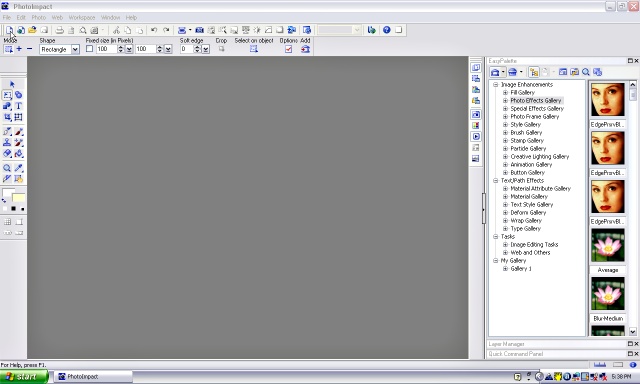
| 1, Click on the 'new' button at the top, left. This will make a new canvas. |
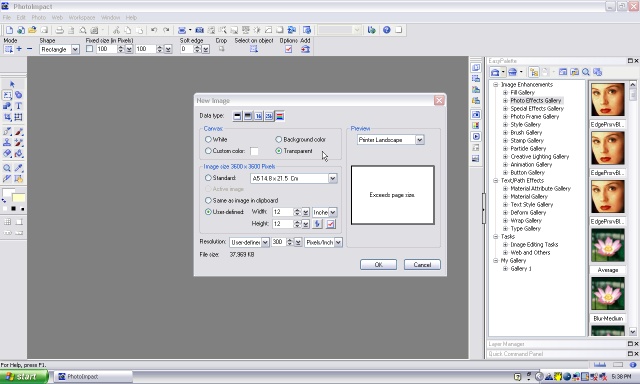
| 2, A panel will appear giving you options for your new canvas. Choose the size you want (in pixels, inches or cm). Make sure the 'transparent' box is ticked. Change the resolution to 200 or 300 pixels per inch. Click OK |
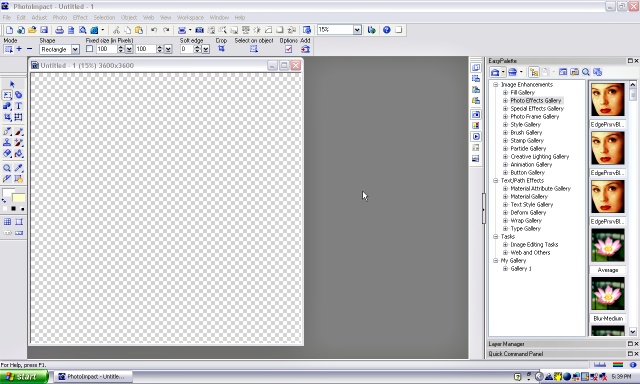
| 3, You now have a transparent canvas as a base to your design. |
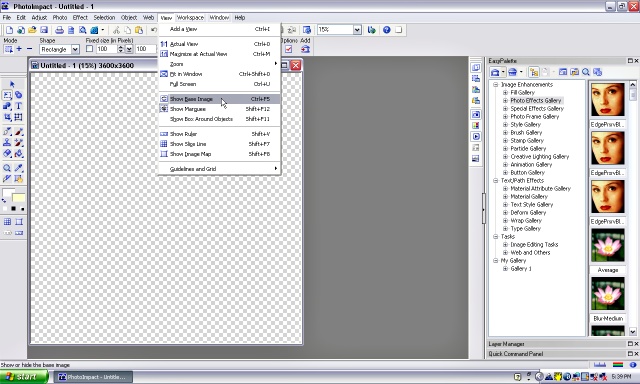
| 4, If you would like to have a white background so it is easier to see what you are doing (you will change it back to transparent later), click 'view' (on the top task bar), then 'show base image'. |
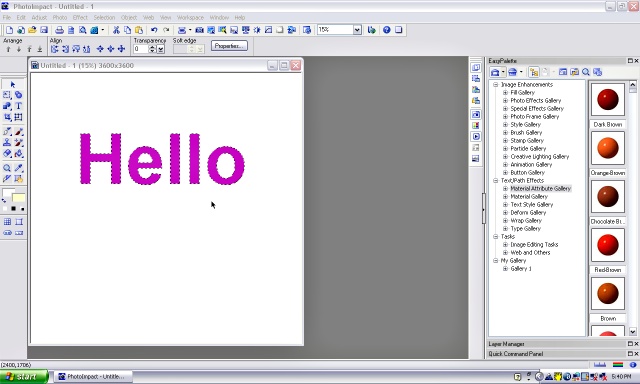
| 5, You now have a white canvas to make a design on. I have used the text button to write a word. |
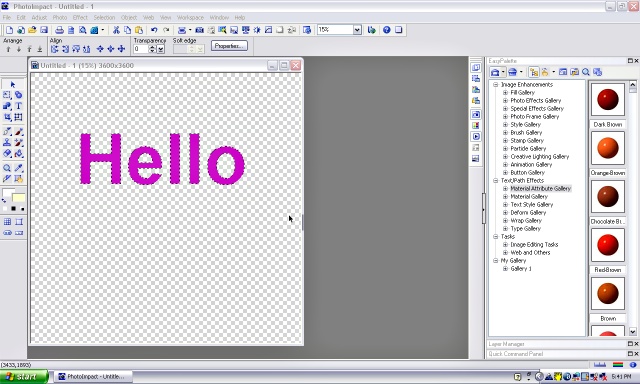
| 6, When you have finished placing words and pictures on your canvas, click on 'view � show base image' again to turn the base transparent. Your image is on a separate layer to the base. 7, NOTE- if you have drawn onto the white base with the paint or pencil tools, your drawing will be a part of it so you will need to use the magic wand tool to choose the white of the base then right click � invert. Now copy, then past onto a new transparent canvas. |
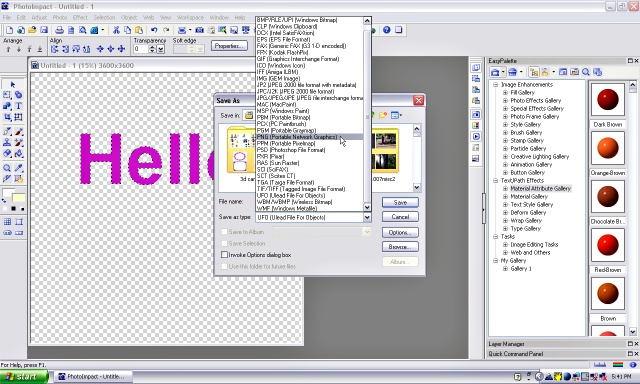
| 8, Click file (top left on the tool bar), save as. A screen will appear where you can choose a place to save your design. In the 'save as type' box choose PNG. |
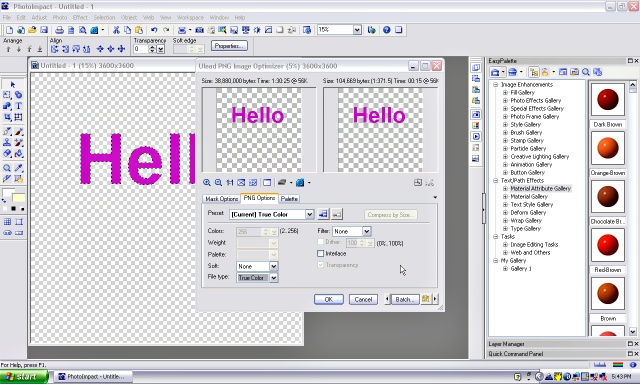
| 9, If you have ticked the 'invoke options dialogue box' on the 'save' screen, you will get a new screen that gives some saving options and also tells you how big your saved file will be. |
 |
 |
 |
 |
 |
 |
 |
 |