| Making flaming words or pictures |
 |
 |
 |
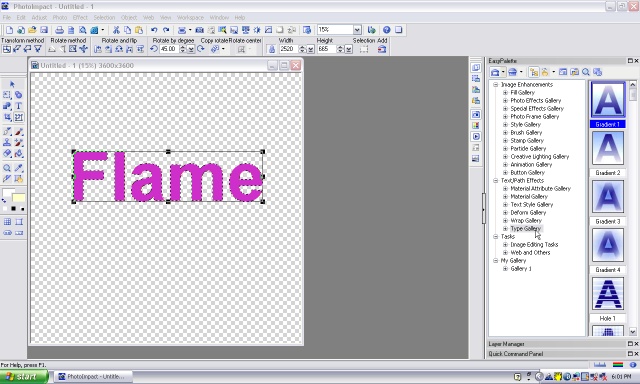 |
| 1, Open a new canvas. 2, Write something on it or paste your design on it. Simple PNG designs or text work best. (to see your work better click on 'view' at the top tool bar, then show base image, which will then turn white) |
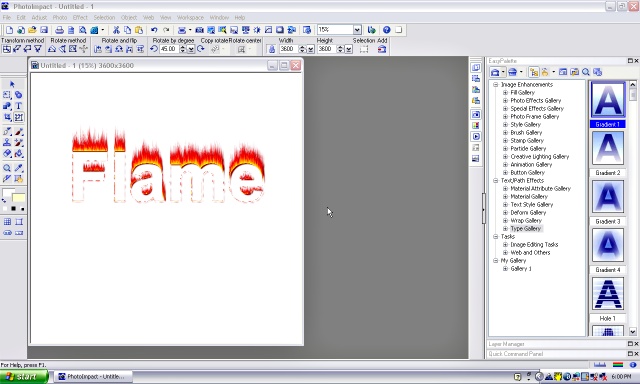
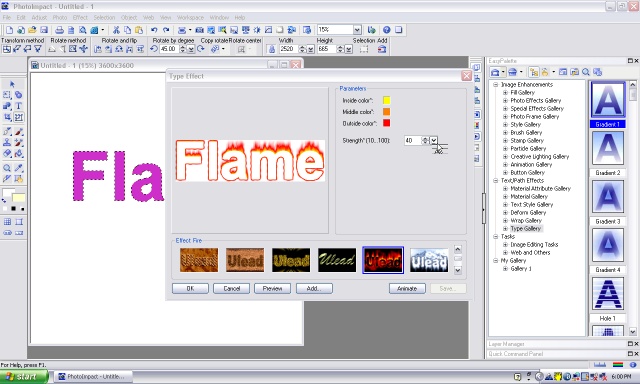
| 3, Click on 'type gallery' on the right tool bar. 4, Right click on one of the 'A' pictures and a options palette will appear. 5, Choose the flaming/fire optiion. |
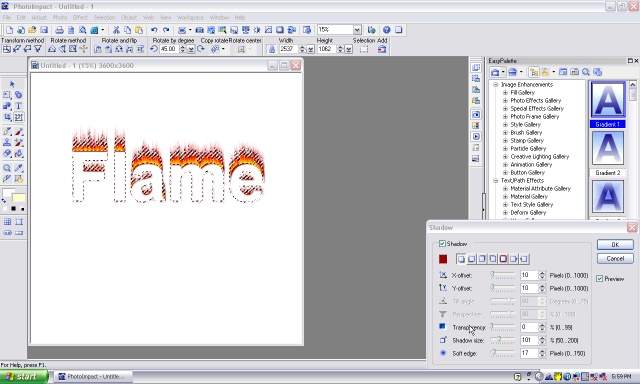
| 6, The outline of your design will be covered in flames. 7, Right click on the image and choose 'shadow'. Make a red shadow. This will show up the flames and word better. Reduce the transparency to 0. |
| If you would like to use this image on a dark shirt, merge the layers (right click and choose merge all) then use the magic wand to choose the white background. Right click on the design and 'inverse' then copy it and paste to a new transparent canvas. The reason you do not just 'unshow' the base layer is that you will get transparent pixels around the flames which will look wrong when printed.These pixels will be cut out by doing the step above. |