An e-Commerce Project Sample
Team5.com
Table of Content:
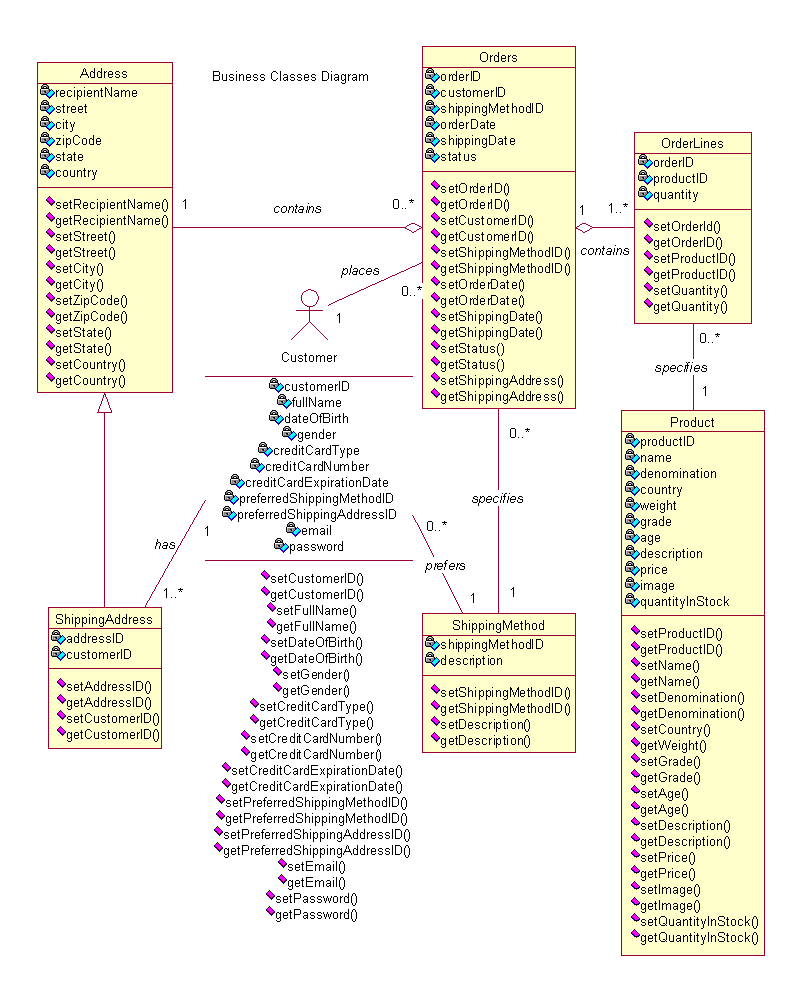
1) Business Class Design
2) User Interface Design
Business Class Design
Functional User Interface Design
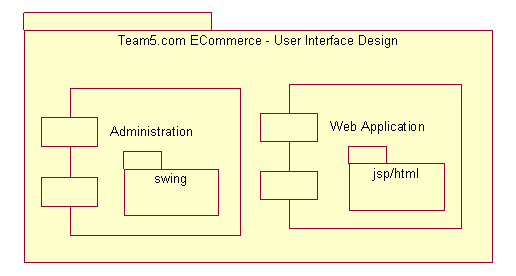
The project was broken into two major components: Administration and Web Application. The Administration component makes use of GUI/Swing Java for front end, and the Web Application makes use of HTML and JSP for front end.
Administration Component Main Screens:
- Order Consult Form
- Display/Select Orders
- View Order Details
- Product Maintenance Form
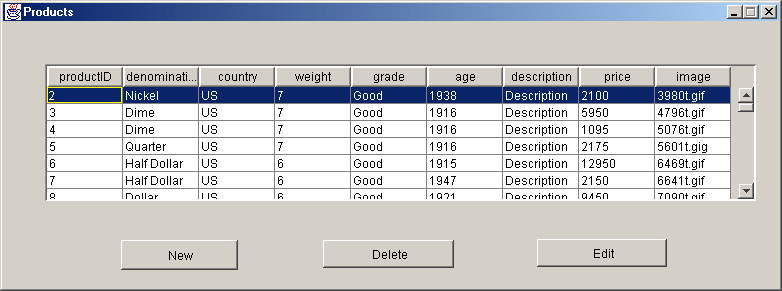
- Display/Select Products
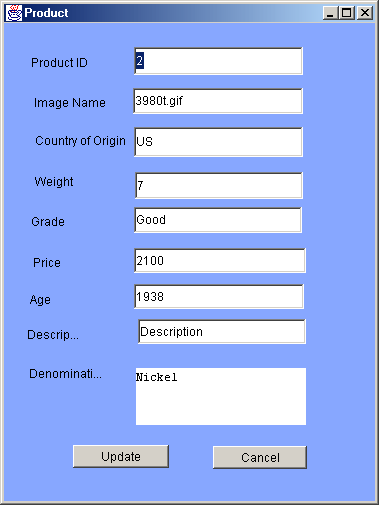
- Edit Products
- Shipping Method Maintenance Forms
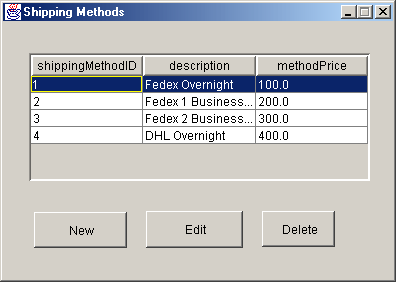
- Display/Select Shipping Methods
- Edit Shipping Methods
Web Application Component Main Screens:
- Web Site Main Page
- About Team5.com Page
- Browse Product Page
- Customer Login Page
- New Customer Registration Process
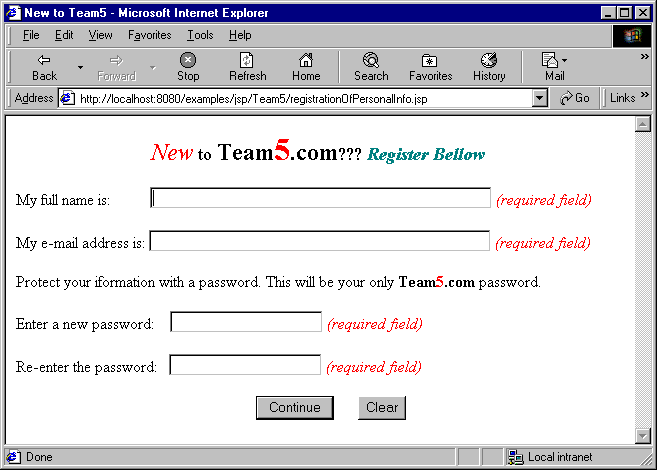
- Registration of name, email, password and password confirmation
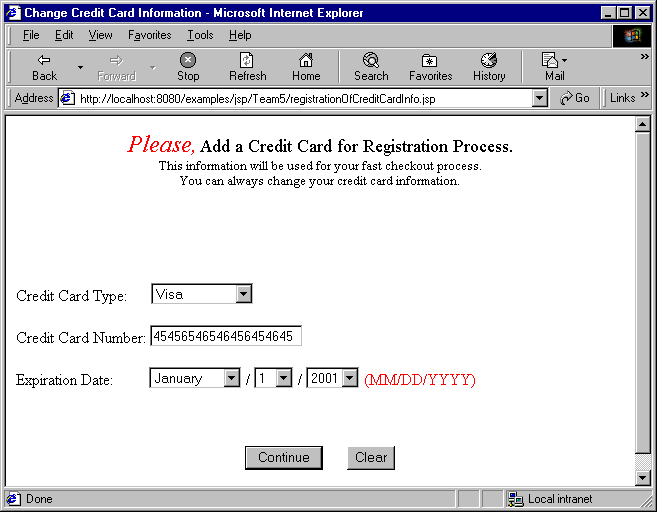
- Registration of credit card information
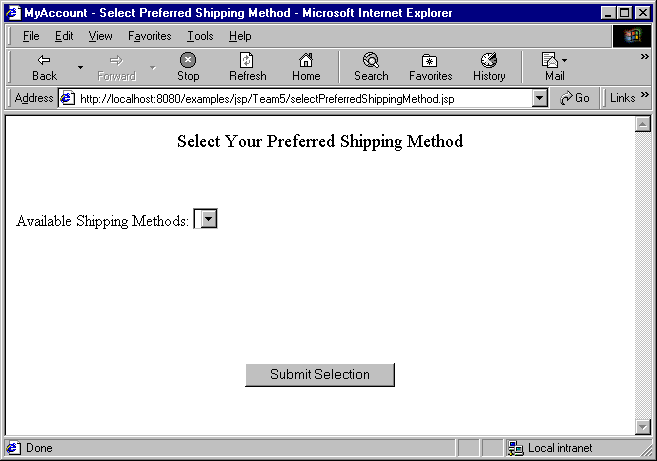
- Registration of preferred shipping method
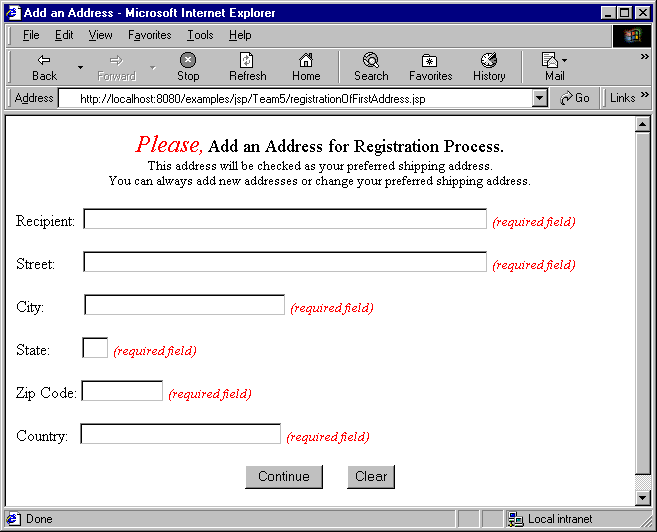
- Registration of first shipping address
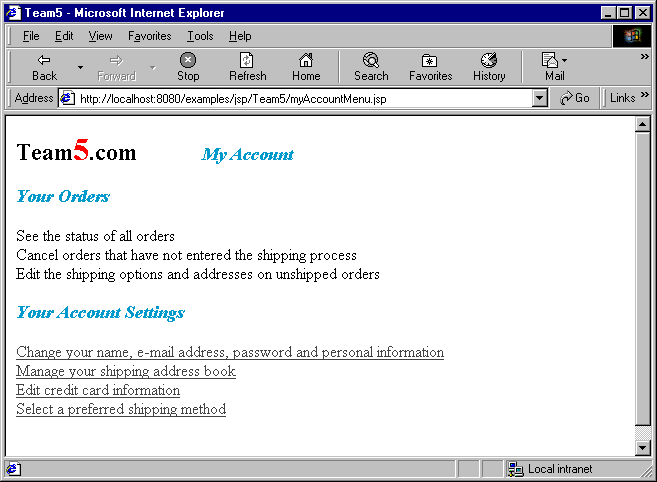
- Customer Account Menu Page
- Consult all orders
- Edit unshipped orders
- Change name, email, password and password confirmation
- Change credit card information
- Change preferred shipping method
- Manage shipping address book
- View/Edit Cart Content Page
Considerations for the Web Application GUI Design
The Site has been designed so that any customer can browse through, search for coins and get a main idea of what TEAM5.com has to offer with no need to login or be a TEAM5 member. The Login Process is only needed when the customer starts the checkout process. For these previous considerations, and in order to make TEAM5.com an easy and complete site to browse through, the whole site is provided with a top header. This header is constantly available and offers the browser/customer a set of pages, which may vary depending on whether the user has logged in or not.
- If the user is not logged in:
- If the user is logged in:
Home | Sign in | Search | About Team5
Home | Sign Out | Search | My Account | About Team5
Overview of the links:
- Home : will take the user back to the TEAM5 Main Home Page. This Page will provide the user with a drop down list of all countries for which we do have available coins.
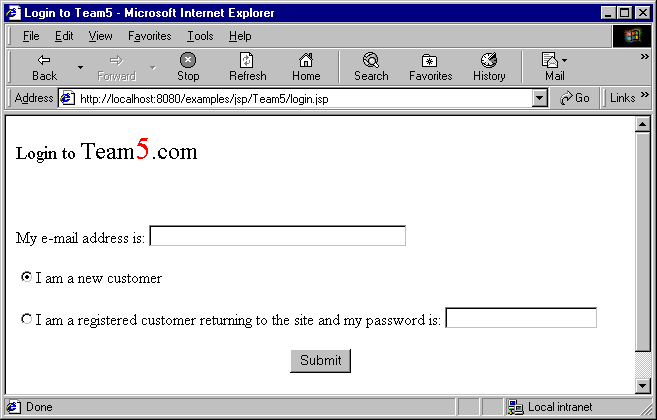
- Sign In: login page to authenticate TEAM5 member. Email and Password are required.
For security purposes, and also to decrease the number of user information exchanged during the check out process, Team5.com has decided to have their customer register first, providing all the necessary information for the shipping process, such as address, credit card and others. This information will partly be used to process an order and therefore minimize the time for a check out and more important, it will provide secure Access to TEAM5 valuable customers data.
Some Screen Shots Examples
Registration of Personal Information:
Registration of Credit Card Information:
Registration of First Shipping Address:
My Account Menu:
Select Preferred Shipping Method:
Login:
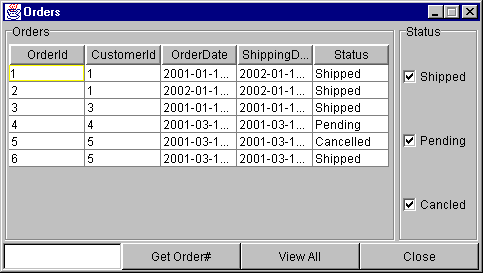
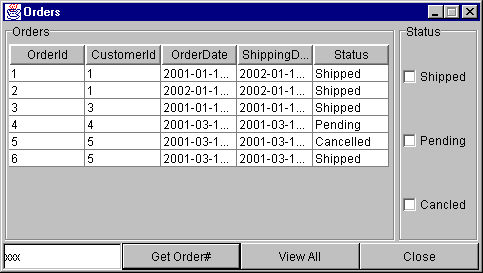
Display Orders
All Types of Orders:
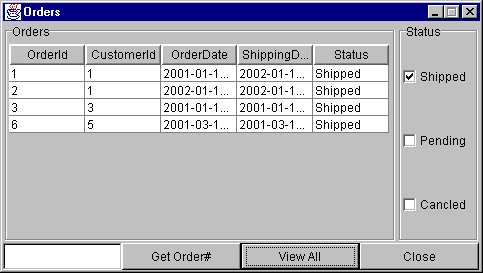
Only Shipped Orders:
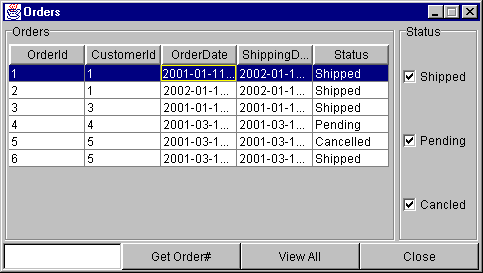
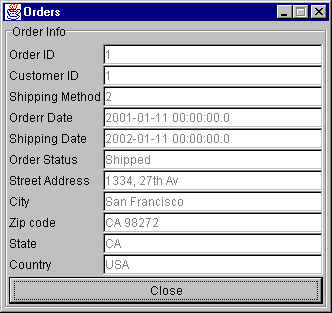
View Selected Order:
View Order Details:
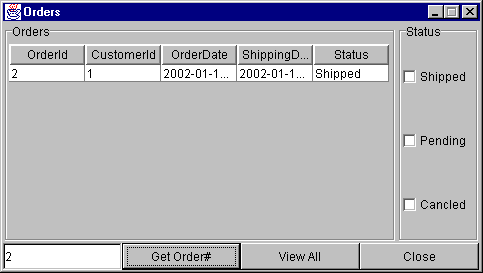
Search Order by ID
Valid ID:
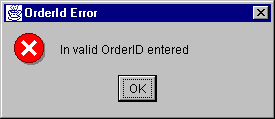
Invalid ID:
Display/Select/Edit Product:
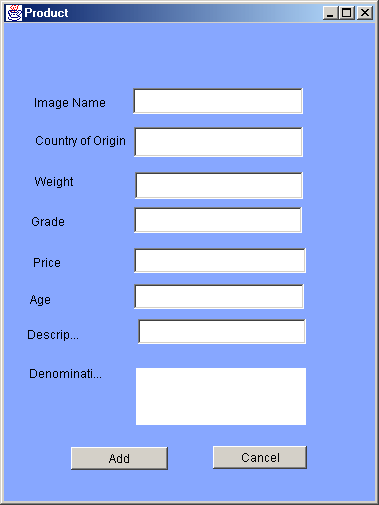
Display/Select/New Product:
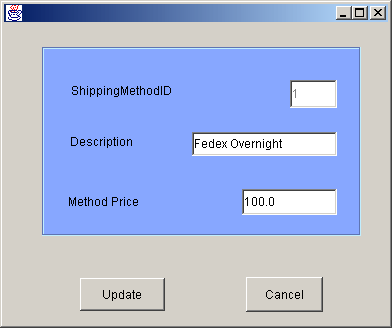
Display/Select/Edit Shipping Methods:
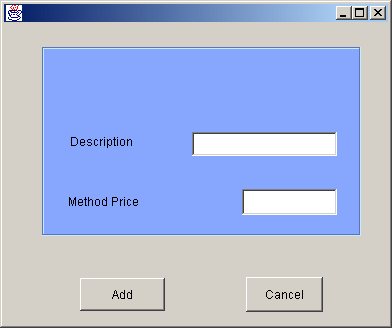
Display/Select/New Shipping Methods:
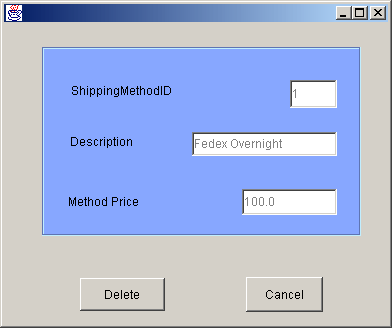
Display/Select/Delete Shipping Methods: