Open up you image and
choose Layers/New
Raster Layer. Using the color picker, pick a
color from your image. I used color #9A8AAF.
Using the bucket tool, flood fill your new layer.
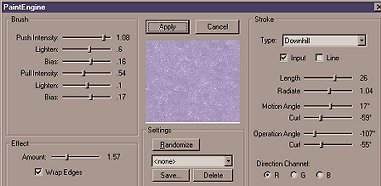
Next choose Effects/Plug-in Filters/Fantastic
Machine/Paint Engine and use the following
settings.
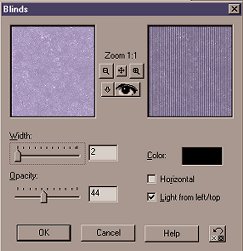
Next choose Effects/Texture
Effects/Blinds and
use the following settings.
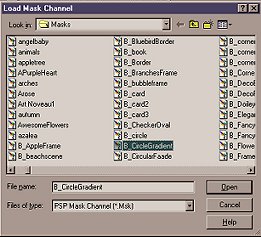
Now choose Masks/Load From
Disk and
choose the B_CircleGradient Mask.
Next choose Masks/Delete.
Layers/Merge All.
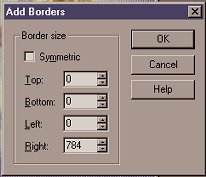
Now add a right border of 784(1024-width of your image).
I used color #9A8AAF for my border(same color
I used for the mask layer).
Using the magic wand, Match
Mode RGB, Tolerance-0,
Feather-0, select the border. Now apply the Paint
Engine filter with the same settings as before. Next
apply the blinds effect, same settings as before.
That's it. To see what the stationery looks like
click here.


Home
Tutorials
All graphics and tutorials
©haylerscreations2001