






www.homecomputers.za.net
Applications
Reviews Tutorials Wallpapers

Tutorial - Install TurboCASH on Windows.

1.) Download the installation files from www.sourceforge.net/projects/turbocash/ or www.turbocash.co.za.
2.) Double-click on the downloaded setup file.


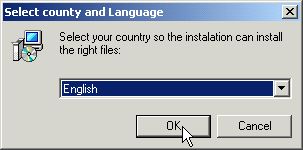
The window below will appear in a few seconds...

Select your Language and press "OK"...

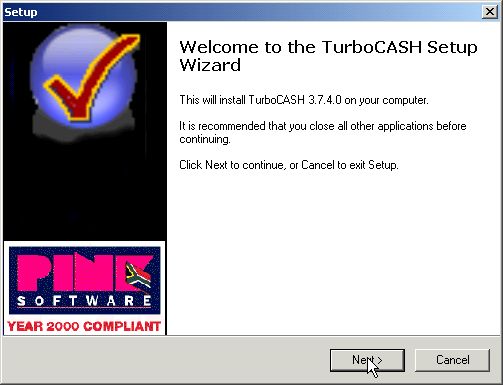
The Setup Wizard will start...

Click on "Next"...

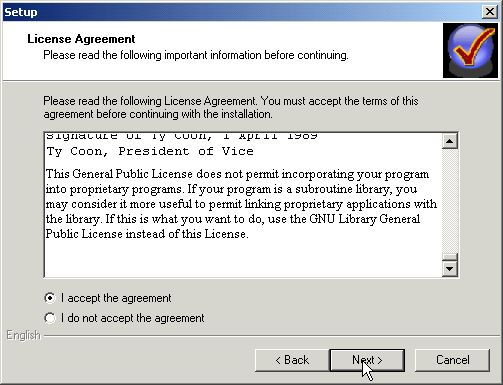
Read the License Agreement...

Select "I accept the agreement" and click on "Next"...

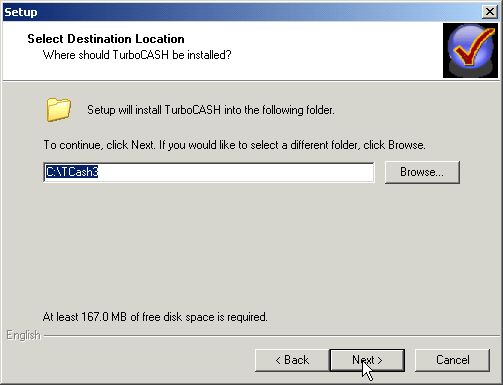
Select the destination directory install TurboCASH...

You should leave it as is unless you want to install it some ware else. Click on "Next"...

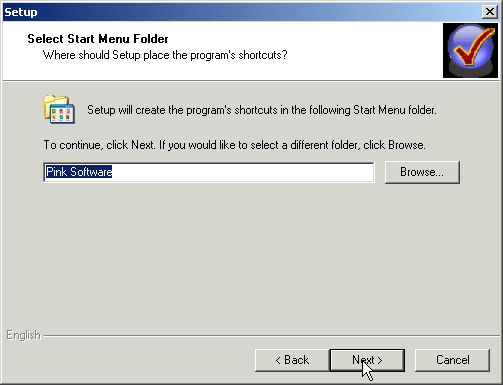
Select the Start Menu Shortcut folder. Once again you can leave it to the default selection...

Click on "Next"...

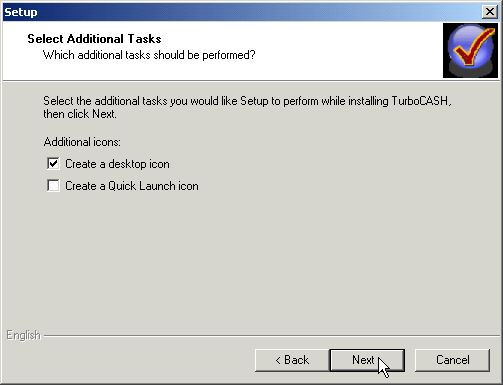
You can select "Create a desktop icon" so that you can easily start TurboCASH by double-clicking the shortcut on the desktop...

Click on "Next"...

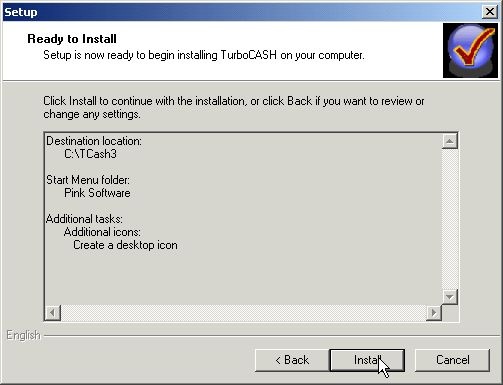
All the setup options are configured and the program ready to be installed...

Click on "Install"...

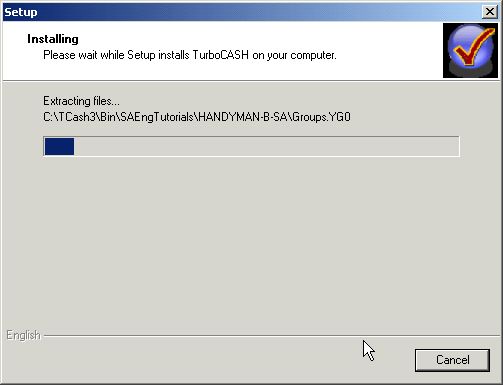
Be patient while the program installs...

Wait some more...

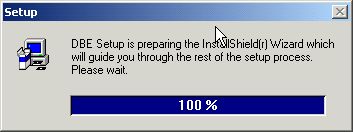
Wait while the Borland Database Engine installs...

This will take a few seconds...

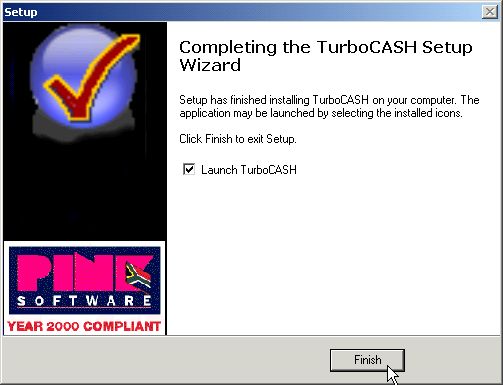
TurboCASH is installed...

Click on "Finish"...

The TurboCASH startup screen...

Please wait while the program loads...

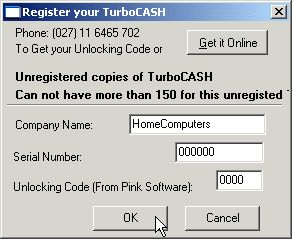
The registration screen...

Registration is free. Please phone or click on "Get it Online" to obtain your own registration information...
Click on "OK" once you have entered your registration information or click on "Cancel" to continue using the program anyway...

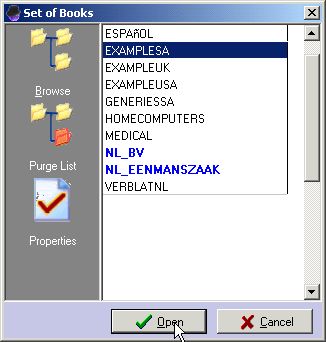
A sample of books...

Select any example set of books and click on "Open"...

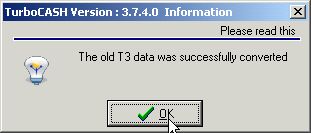
It will do some conversions and display this message...

Click on "OK"...

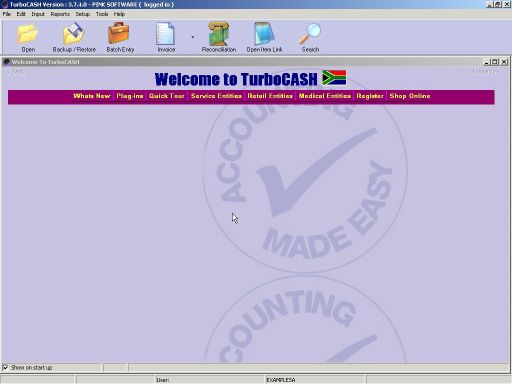
Welcome to TurboCASH...

This is what you'll see when it's all started...

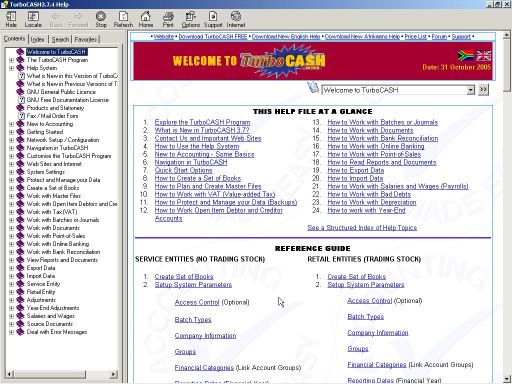
The help file...

You can access the Help File by pressing "F1" or by selecting it from the "Help" menu...
If you are new to the TurboCASH I suggest that you take some time and read through the Help File. Everything you need to know is there. Just read.

Thanks to everyone at Pink Software for making such a great program OpenSource!!!

 I hope you found this tutorial helpful. You can get additional help and updates on the TurboCASH website.
his tutorial show how to successfully install TurboCASH on your computer.Every effort has been made to provide correct information, if however, you find anything that is not correct, please contact me. Note that I do not claim to be an expert, so if you feel something should be done differently then go ahead and do what you feel comfortable with. I am only providing this information to help, not to dictate. Please consider to register TurboCASH (It's up to you). Although this tutorial are for Windows XP, it should still work the same on Windows 98/ME/2000. Visit the TurboCASH website for more details.
Hosted by www.Geocities.ws

1