






|
|
|||
|
|
|
|
|
 |
| This tutorial show how
to successfully install OpenOffice.org on
your computer.Every effort has been made to provide correct
information, if however,
you find anything that is not correct, please contact me. Note that I
do not claim to be an expert, so if you feel something should be done
differently then go ahead and do what you feel comfortable with. I am
only providing this information to help, not to dictate. If
your computer are connected to the internet, please
consider to register OpenOffice.org (It's up to you). Although this
tutorial are for Windows XP, it should still work the same on
Windows
98/ME/2000. Visit the OpenOffice.org website for more details. |
| Tutorial - Install
OpenOffice.org on Windows. 1.) Download the installation files from www.openoffice.org 2.) Double-click on the downloaded setup file. The window below will appear in a few seconds...  When the installer is done verifying the next window will appear... 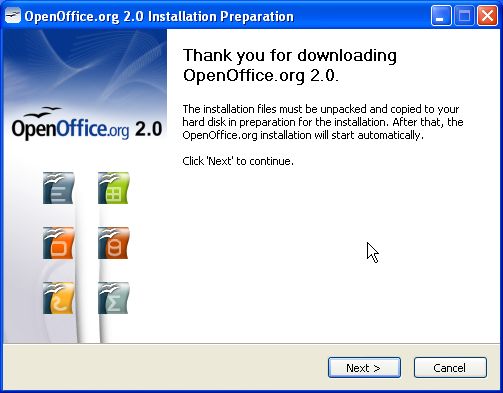 Click on next... It will then ask where the installation files should be copied to. This is only the installation files and not where the actual program will be installed, so leave it as is... 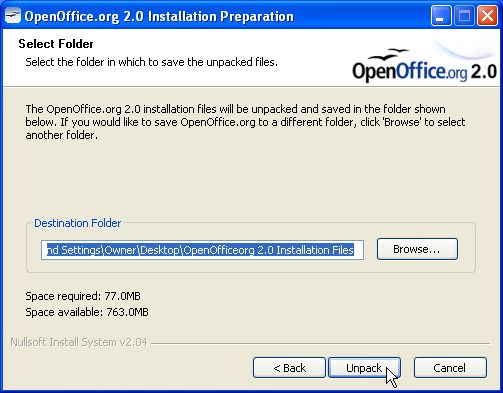 Click on unpack... The next window will appear while the installer unpacks all the files... 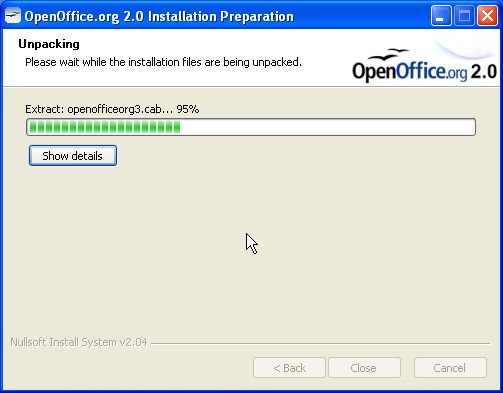 Be patient... Finally the actual installing can begin when the next window appear... 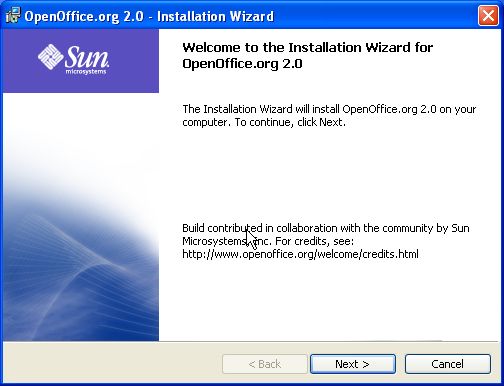 Click on next... Read and accept the license agreement... 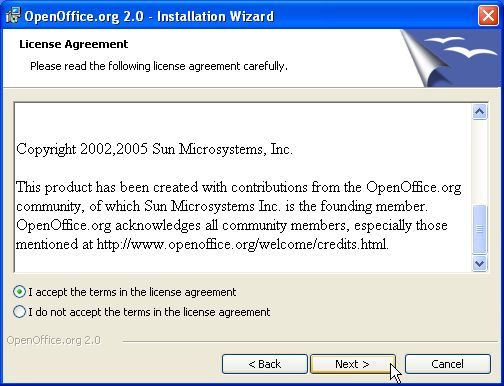 Click on next... Enter your name and organization... 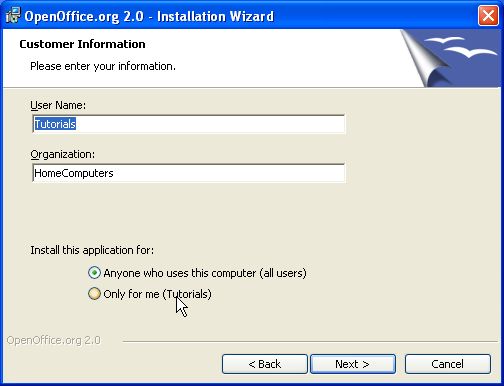 Click on next... Select the complete install option... 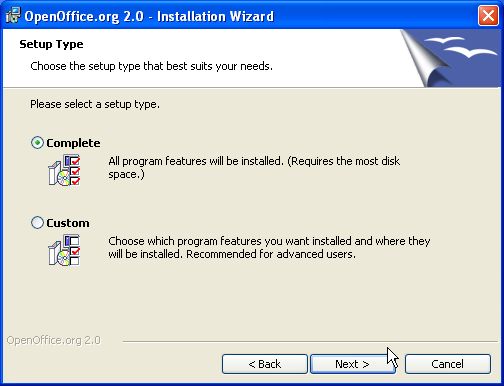 Click on next... Select all the files that OpenOffice.org should be associated with...  Click on next... Now all the questions are answered and the final installation steps can begin...  Click on install... Setup will then start copying all the files, set system settings, remove backup files and whatever else... 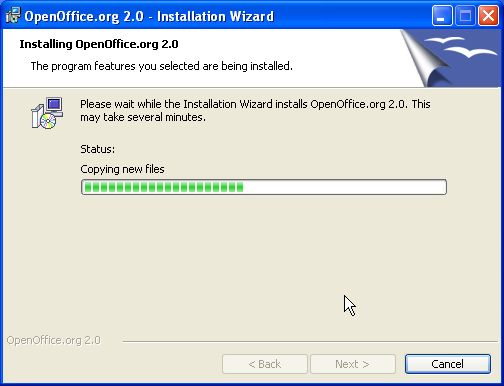 Be patient... And finish at last... 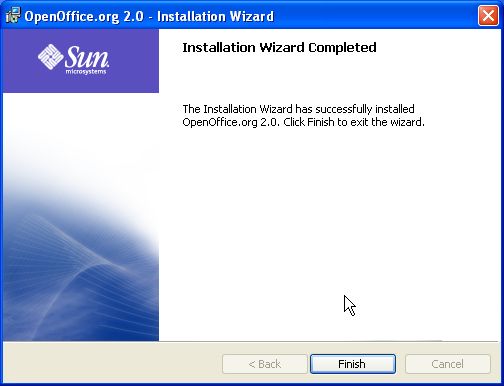 Click on finish... When you open OpenOffice.org the splash screen will show up...  Be patient... When OpenOffice.org starts for the first time the screen below will show... 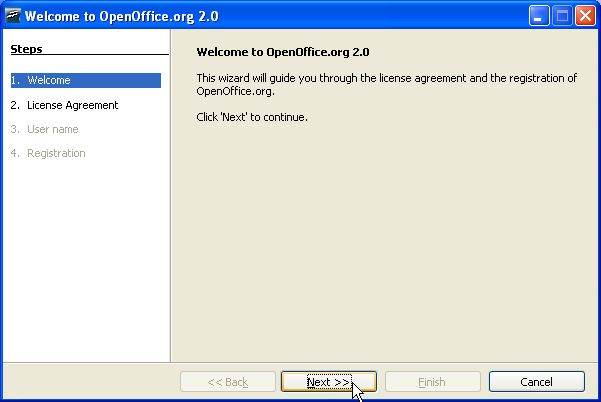 Click on next... Click on scroll down and read the license agreement... 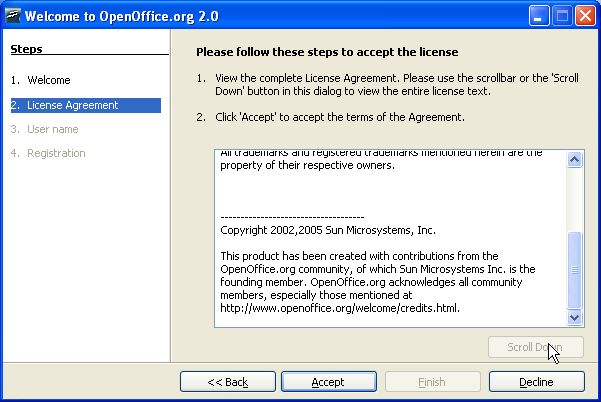 Click on accept... Fill in your first name, last name and initials... 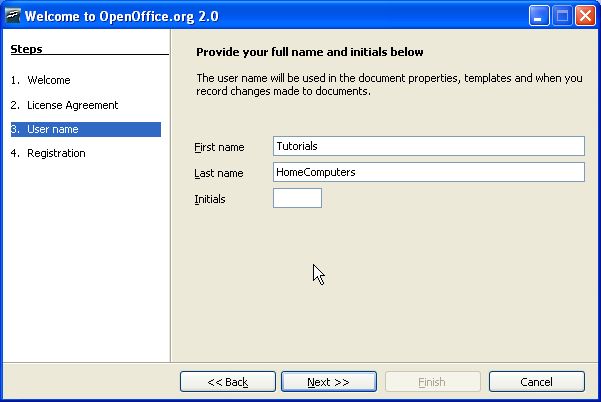 Click on next... The next window will ask you if you want to register... (It's up to you). 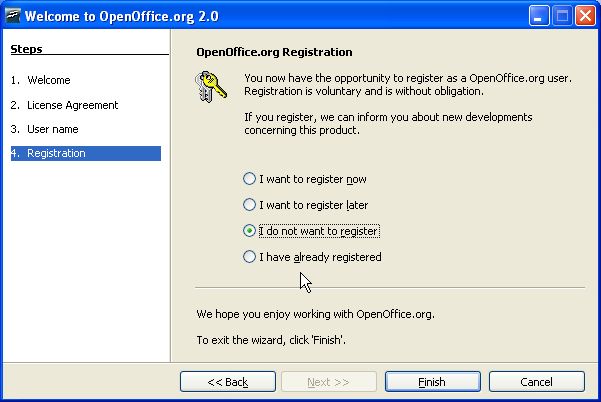 Click on finish... OpenOffice.org will continue to load...  Be patient... Create a OpenOffice.org database... 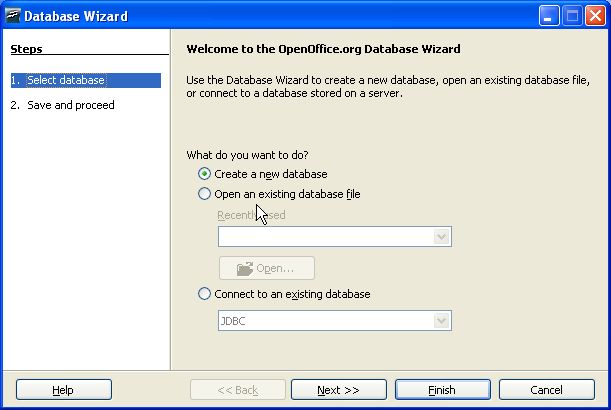 Click on next... Select a name for your database... 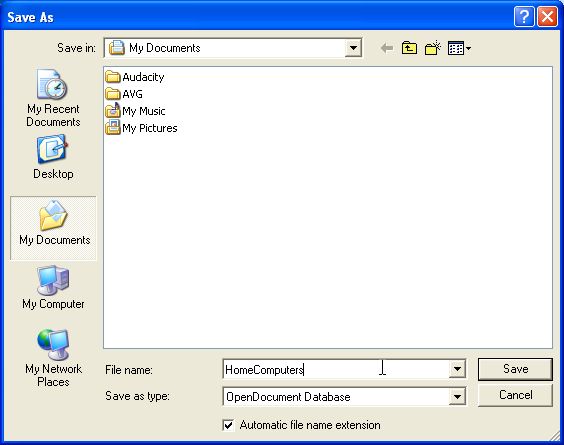 Click on save... Select "No, do not register the database" and deselect "Open the database for editing"... 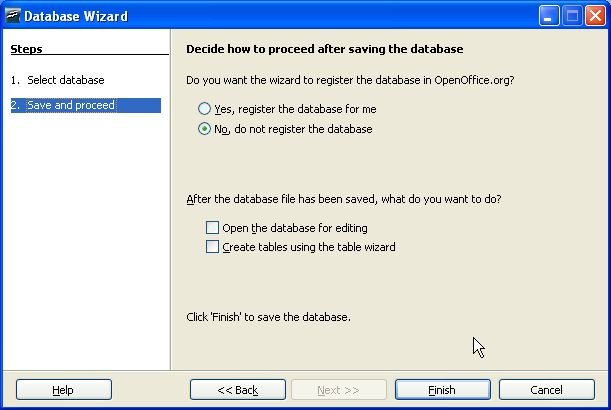 Click on finish... And its all done! 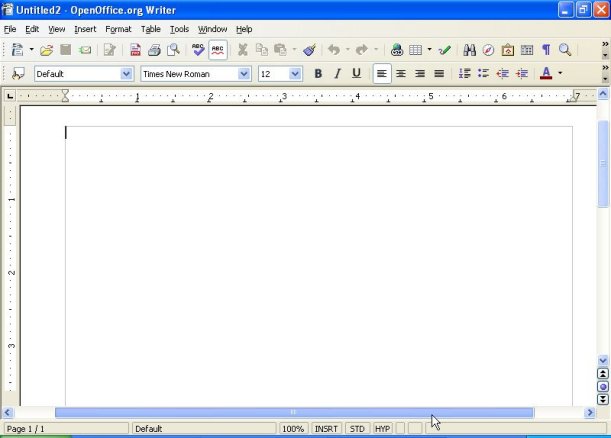 OpenOffice.org screen shot... You can also start OpenOffice.org from the system tray as shown below... 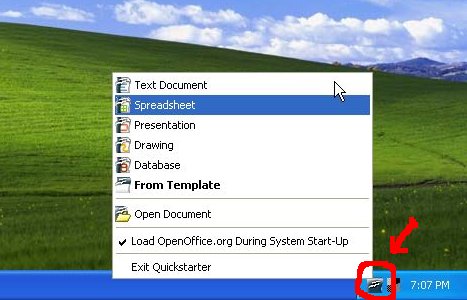 Create a new document from the OpenOffice.org icon in the system tray... I hope you found this tutorial helpful. For more OpenOffice.org information and updates visit www.openoffice.org. |