
First you will need some tools:
Echelons self boot tutorial and all included tools- Here
NewFile- Here (look down under "Needed Tools" and download "NewFile.zip" 14.2k)
NesterDC bin files- Here
First, unzip all contents of the echelon tutorial and the newfile to a directory on your hard drive called "HLdummy". I would suggest on C:\ so that its easyer to get to in dos prompt (C:\HLdummy). Then create a new directory in that one called "data" Now, look in the nesterDC zip file for "IP.BIN", it should be in the root directory, extract just the "IP.BIN" into your "HLdummy" folder on the C drive.
The first thing you will have to do is open up your dreamcast half-life CD in windows explorer and copy ALL files to the "data" folder you just made previously.
Next, open a dos prompt ("run\command" in win 98, "run\cmd" in win 2000 and XP) and go into your HLdummy directory. Then type the line
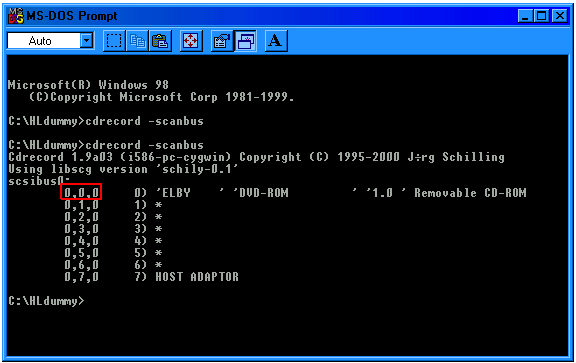
cdrecord -scanbus
It will display a list of all your CD drives with three numbers right next to them seperated by commas. Remember these numbers.
binhack.exe
First it will ask for the name of the binary, type "1ST_READ.bin" Then it will ask for the bootsector, type "ip.bin". If all goes correctly it will say "Found Windows CE, ip.bin successfuly created" After binhack has done its job copy the "1ST_READ.BIN" back into your "data" folder.
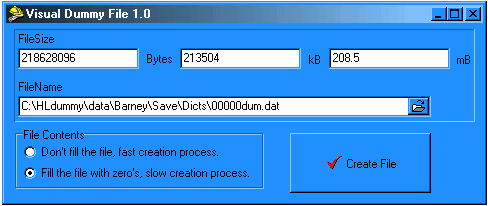
Now it is time to make the dummy file. Open the "DummyFile.exe" in your "HLdummy" folder. In the Bytes box, right below "FileSize" type the number 218628096. It should equal about 208.5 mb. This is the ablsolutly biggest it can be to fit on an 80min cd-r (i dont know what it would be on a 74 min cd-r so just use an 80 min). Next, in the file name box, click the folder icon to the right and locate your "HLdummy" directory, then navigate to "data / Barney / Save / Dicts" and click ok. Finaly, under "File Contents" make sure the button "fill the file with zero's" is PUSHED and click create file. After its finished you should have a 208 mb file in your data\barney\save\dicts folder called "00dummy.dat" If its not already, rename it to "00000dum.dat"
cdrecord dev=x,x,x -msinfo
the x,x,x are the three numbers you got earlyer from scanbus.
This will spit out two numbers in the form of x,y. Some common numbers are 0,11700 and 0,11702. Good, now type
mkisofs -C x,y -V HLDC -l -o HalfLife.iso data
The "x,y" are the two numbers you just got above (0,11700 for example)
Now you should have a decent sized (674mb) iso sitting in your "HLdummy" folder. Its time to burn it. Get out a blank 80 min cd-r and pop it into your CD burner.
(This next part is strieght from the Echelon selfboot tutorial.)
"Now, you have 2 ways of achieving the same thing for this step, I will
go over both ways and you can choose whichever you want. To start off
for both methods, insert a blank disk into your CD-Recorder.
1) CDRWIN Method:
a) Fire up CDRWIN.
Goto the first icon on the top left: "Record Disc"
b) Click the icon in the top right corner: "Load tracks"
c) Click add, then choose the file AUDIO.RAW in your "selfboot"
dir. This file was included in the E-SELFBT.ZIP archive.
d) Click the tab "Open New Session" near the bottom.
e) Burn this CD.
2) CDRECORD Method:
a) If your CD-Recorder cannot use the "Open New Session" option
in CDRWIN, You have one more way to do it, that may or may not
work.
b) In the "selfboot" directory you should have the cdrecord toolset
unzipped. You should see files such as cdrecord.exe, mkisofs.exe,
and cygwin1.dll.
c) Run the following command from a DOS Prompt:
cdrecord -scanbus
d) This should show you a list of CD-ROM and CD-Recorder units installed
in your system. Look for your CD-Recorder and find the SCSI Bus ID#.
It will be in format x,x,x. It will also be referred to as x,x,x for
the rest of this tutorial.
e) In your "selfboot" directory, run the following command to record
the 1st session of the disk:
cdrecord -dev=x,x,x -multi -audio audio.raw
You can optionally include "-speed=x" after -audio, Where x is the
maximum speed that your CD-Recorder can record at."
Now that the first session is burned its time to burn the second.
You should now have a fairly large sized data.iso file sitting in
your "selfboot" directory tree now. It is time to burn this file.
You should still have the disk you burned the audio session to
earlier inserted in your CD-Recorder. You can do this with
either CDRWIN or CDRECORD, Just as the Audio Session Burning.
1) CDRWIN Method
a) Fire up CDRWIN.
b) Click the 2nd Icon from the Top Left: "File Backup and Tools".
c) For Backup Tool/Operation: Select "Record an ISO9660 Image File".
d) For Image Filename, Choose data.iso in your "selfboot" directory.
e) Under Recording Options, Select your CD-Recorder. Check the
following options accordingly:
Disc Type: CDROM-XA
Track Mode: MODE2
SPEED: Whatever You Want
Finalize/Close Session: Yes
Write Postgap: Yes
Open New Session: No
Test Mode: No
Verify Recorded Image: No
f) Click the start button and you are burning.
2) CDRECORD Method
a) In the "selfboot" directory you should have the cdrecord toolset
unzipped. You should see files such as cdrecord.exe, mkisofs.exe,
and cygwin1.dll.
b) Run the following command from a DOS Prompt:
cdrecord -scanbus
c) This should show you a list of CD-ROM and CD-Recorder units installed
in your system. Look for your CD-Recorder and find the SCSI Bus ID#.
It will be in format x,x,x.
d) In your "selfboot" directory, run the following command to record
the 2nd session of the disk:
cdrecord -dev=x,x,x -xa1 data.iso
You can optionally include "-speed=x" after -xa1, Where x is the
maximum speed that your CD-Recorder can record at."