Hi again, this a page 2 of my site,which mainly teaches you about advanced HTML stuff that are more difficult than The Basics
 Advanced HTML Techniques
In this section, I will be going over hexadecimal color, tables, frames, and forms. If you haven't quite gotten the hang of text yet, this section is probably not for you. Don't worry if you don't understand these concepts at first; all it takes is a little time and some practice.
Color, the Hex Way
Well, in the section above, I outlined the basic process behind making colors with color-words. The down side to that is that you have to know the color words to use them, and not all of them are quite as obvious as "red".
Hexadecimal color is to word-based color as the computer is to the hand calculator. Word-based color is quick, easy to use, and works ok. Hex color is often confusing, but is much more powerful and works with more browsers. So what is hex color?
Hex color uses hexadecimal numbers to describe color. I know, I know, you're thinking "Numbers? What do numbers have to do with colors??" But it's true! You see, with hex colors, you are like an artist with three tubes of paint: red, green, and blue. Ever heard of RGB color? That's what it is; red, green, and blue. Anyone who has ever sat with their nose pressed to the television knows that each pixel on the television has three little bars inside of it... one red, one green, one blue. Those three colors are all you need to display any of the several million that your screen is capable of!
Each color has a mixing value, from 0 to 255. Putting together different combinations of numbers makes different colors. 255 red, 255 blue, and 0 green, for example, gives you bright purple. Playing with the numbers gives you different colors. It's like mixing paint, with one very very big exception. The reason you can make any colors on your screen with just red, green, and blue is that these are the primary colors of light. Now most of us are used to red, yellow, and blue as our primary colors. Red, yellow, and blue are the primary colors of pigment� that means they're only good for paint. So, here are some new color equations for our new primary colors.
RED + GREEN = YELLOW
RED + BLUE = PURPLE
GREEN + BLUE = CYAN
RED + GREEN + BLUE = WHITE
And of course, the absence of all color is black.
Okay, you say, but where does the hexadecimal come in? Right here. Hexadecimal is a way of counting that lets you go from zero to fifteen with only one digit. People got used to counting by tens, probably because we have ten fingers to count on... but we don't have to count in tens (There's a great Schoolhouse Rock song called Little Twelvetoes that explains this really well). The hexadecimal digits go from 1-F, like this:
1, 2, 3, 4, 5, 6, 7, 8, 9, A, B, C, D, E, F
Now, we use the hex numbers to express the numbers 0-255 in only two digits. How? Well, if you were to continue counting in hex, when you got to what we call 255, you would have FF. This two-digit system makes it a lot easier for your computer to store colors. If you have trouble counting in hex, there are a couple things you can do to get around it. First, if you know the normal numerical value you want for your color you can use Windows Calculator to convert it to hex. Make sure Calculator is displaying in Scientific format (this can be set in the Options menu, I think) and then select "Dec" from the round buttons at the top. This puts the calculator in base ten, our normal counting system. Type in your normal number, and then change your selection at the top to "Hex". This will change the number you typed to a hexadecimal number. If you do not know what number you want, and are just mixing colors to see if you can find a nice one, try to use mostly double-digit numbers. 00, 33, 66, 99, CC, and FF are all very good values that generally won't look funny no matter what browser they are viewed in. (Some colors can change a little depending on whether you look at them in Internet Explorer or Netscape).
Phew! Almost done! Now, to make a complete color, you must use a six-digit string to describe it. Why? Two digits for red, two digits for green, two digits for blue� and they always go in that order! So bright red, for example, is FF0000, and black is 000000. 333333 is a dark grey, and 660000 is a maroonish color, I think. To use this value inside of a tag, just plop it in where you would normally put a color word and precede it with the pound sign. (That's a #). So, if you want to change your font to bright blue, just use this tag:
<FONT COLOR="#0000FF">
Here's a Color Chart
(Source : www.lissaexplains.com)
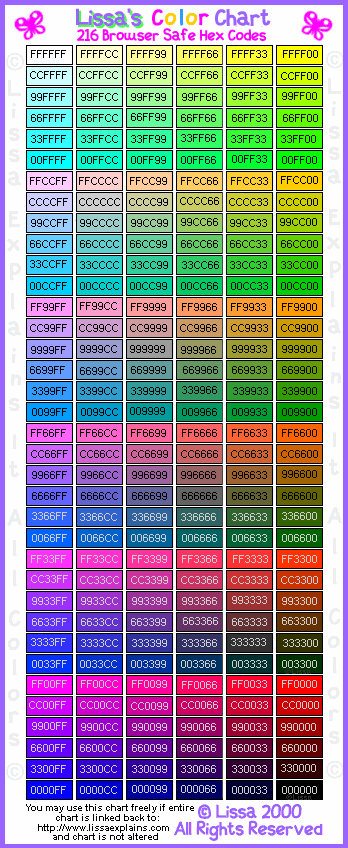
Got it? If you don't, just try practicing a little. You should get the hang of it. If not, feel free to email me with questions!

Tables
Tables are a really useful tool for making your images and text line up correctly. They can be really confusing, though, so be very careful! Right now, we're just going to go over some very basic Table information.
A table, in HTML, is divided up into rows and columns. The most basic tables will be more like grids. Take a look at the tags you'll need for tables below:
| Tag |
Usage |
| <TABLE> </TABLE> | This is VERY important. You will put your table inside of those tags. Without the first one, your browser won't start a table. Without a last one, it will leave everything in columns and rows all the way down the page. Don't forget either one of these! Common attributes for this one are BORDER, which sets the width of the border around the table and inbetween the cells (zero for none), and WIDTH, which tells the browser how wide the table should be. A percentage will be the portion of the screen width you want the table to take up (so 100% will be as wide as the whole screen). |
| <TR> </TR> | This defines a ROW in your table. Rows are ALWAYS defined before columns. You can adjust a row's height with the HEIGHT attribute. |
| <TD> </TD> | This defines a column. A column must always be defined INSIDE a row. You can adjust a column's width with the WIDTH attribute. BGCOLOR will change the background color. Also, inside of a table/column, all the font and color changes you made outside the table won't have any effect. So if the text outside the table is all red (yuck!), and you want it red inside the table too, you'll have to change it inside the table as well as outside. |
So let's start out simple. Let's make a table with two rows and two columns that is 25% as wide as the screen.
Here's the code:
<TABLE WIDTH="25%" BORDER="1">
<TR>
<TD> row one, column one </TD>
<TD> row one, column two </TD>
</TR>
<TR>
<TD> row two, column one </TD>
<TD> row two, column two </TD>
</TR>
</TABLE>
And here's the table:
| row one, column one | row one, column two |
| row two, column one | row two, column two |
So, you see, every TD sticks a new column in beside the last one in the SAME row. Each TR starts a new row, and columns will start back over at the left. You may not put a TR inside another TR, or inside a TD. TD may not go inside another TD, our outside of a TR. Also, each row (TR) must have at LEAST one column (TD) inside of it. It helps me to think about those old fashioned typewriters, because they move a lot like a table. They start on the first row, and go left through the columns. When they finish one row, they stop, move down, and go all the way back left to start over. Think of filling in your table like that. If you want more columns, just add TDs-- as many as you want. Now if you have uneven numbers of TDs, like three in the first row and two in the second row, you will have big holes in your table... the two on the second row will align with the first two on the first row... and in the space below the third colum on the first row, you'll have a big nothing. So try to keep the same number of columns on each row... once you have that down, then you can learn how to vary it.
Got the first part down? If not, practice until you're sure you know it! Don't go on to the next bit until you understand the first bit. Otherwise you'll get confused, I promise you.
Ok, if you've mastered those grid tables, you might be saying "Hey! I don't want a 2x2 table! I want it to look different!" If you'll notice, the tables on this page (the ones that I define the tags in) are a little bit different. I have one big row at the top, that is not split into columns, while the rest of the way down the table, there are two columns.
This is done using the attributes ROWSPAN and COLSPAN. ROWSPAN and COLSPAN go inside the TD. What these attributes tell the browser is that you want your column to be as tall or wide as a certain number of regular rows or columns. So, for example, if you want one column in the top row, and two columns underneath (like my tables for the tag definitions), you'll use code like this:
<TABLE WIDTH="50%" BORDER="1">
<TR>
<TD COLSPAN="2"> Big wide column </TD>
</TR>
<TR>
<TD> Skinny </TD>
<TD> Skinny </TD>
</TR>
<TR>
<TD> Skinny </TD>
<TD> Skinny </TD>
</TR>
</TABLE>
And the table for this code would look like:
| Big wide column |
| Skinny | Skinny |
| Skinny | Skinny |
ROWSPAN is used similarly... say you want one column that is tall and skinny, with another column separated into three rows next to it. You still can't define rows inside of columns, so you can't just start breaking the right column up. What you have to do is use ROWSPAN. That will tell the browser how many rows tall you want the left column to be. Try this code:
<TABLE WIDTH="50%" BORDER="1">
<TR>
<TD ROWSPAN="3"> Side column </TD>
<TD> Row </TD>
</TR>
<TR>
<TD> Row </TD>
</TR>
<TR>
<TD> Row </TD>
</TR>
</TABLE>
For this table:
Now the ROWSPAN code looks a little funny-- that's because you told the first column in the top row to take up the space for the first column in the second and third rows, too, so there's no room for a new column to start in those bottom two rows. Instead, the bottow two rows just have the second column... that's why they only have one defined, while the first row has two. Now I know it sounds very confusing, and it is... so do a lot of practice and a lot of experimentation. Try combining ROWSPAN and COLSPAN in the same table. You may get some screwy looking things, but you'll get the hang of it soon. And as always, try looking at other people's code (I have plenty of tables on this page for you to look at) to get new ideas.