1 - Text Area 


This is where your text, graphics, charts or tables will be displayed as you enter them.
Click below for a full-screen shot.

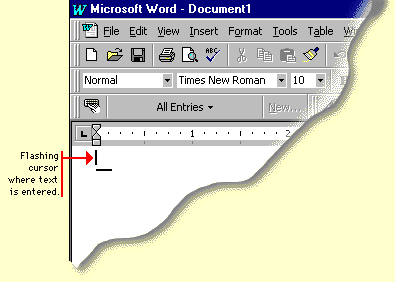
2 - Flashing Cursor of Insertion Point
This is a blinking vertical bar that indicates where text (or a graphic, etc.) will be inserted as you type.
3 - Scroll Bars
The scroll bars allow you to view or display different parts of your document in the document window by scrolling up or down, left to right.
Click below for a full-screen shot.

4 - Menu Bar
The menu bar displays the Word menu names. As you click on any of the menu bar items, you should see a window showing what you can do under that particular menu (To close any menu window, click anywhere on your document).

5 - Toolbars
Toolbars contain buttons and boxes that allow you to perform tasks without using the menu bar. If you place the pointer on one of the Toolbar icons and wait for a few seconds, you will see that icon's function.

6 - Status Bar
The status bar is located at the bottom of the screen. This displays from left to right the page number, the section number, the page currently visible in the document window, and the number of pages in the document.


