



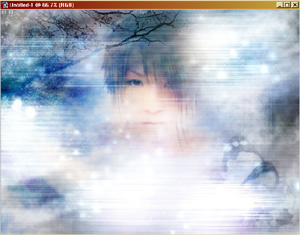
ETHEREAL STYLE WALLPAPER
Welcome to a very exciting lesson using Photoshop 7.0! Let us have our materials ready.
- Have your Photoshop 7.0 opened and create a new document with the dimensions
of (your screen resolution- we will be using mine for default preference) 1024 by
768 pixels. Open up the image you want to use as your base. We will have to resize
the image's length to fit the blank document better. Use the Rectangle Marquee
to select what you want to stay and go to Image>>Crop.
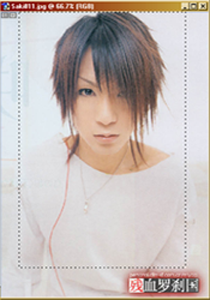
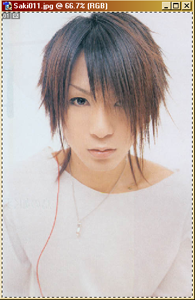
- After you have cropped the image, go to Image>>Image Size. You will need to
resize the image's length once again to fit the blank canvas better. Resize the
length to the next hundreds (e.g.: My image was 718 pixels in length- I will resize
it to 800 pixels).
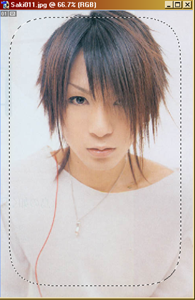
- Take the Rectangle Marquee once again and this time, select inside the image.
Then right click and choose Feather. Feather the image by 50 pixels. The marquee's
border should look like this.
- After that is done, hit Ctrl+C together and go to your blank document. Hit Ctrl+V on it. The image should be pasted onto the document. Now you can position your image anywhere before we go any further.
- Once your image has been positioned, take the image layer on the Layers palette
and right click to Duplicate the layer. Change the "Normal" setting to Overlay.
Then go to Filter>>Blur>>Motion Blur. Make sure your Angle setting is 0, and the
distance is 150 degrees. Hit Ok.
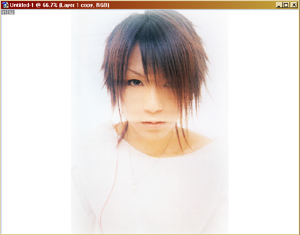
- Now create a New Layer on top of all the other layers. Take a cloudy brush
(you can find them aethereality or other
digital graphic sites) at around 170-180 pixels, and start creating clouds
all over the new layer. Stop when you think you've drawn enough on.
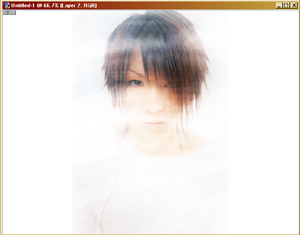
- Now go to Layer 1 on the Layers pallete. Right click and Duplicate the layer.
Take the Eye Dropper tool and begin clicking on the image for various colors. Use
the cloudy brush once again along with the colors and cover the whole layer.
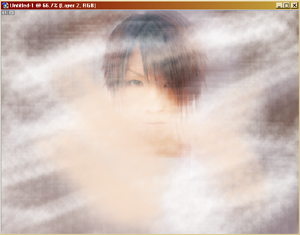
- Now go to your digital graphics site and find textures. Take 2 of them and paste
both at the very top of the other layers. Set both settings to Overlay (or play
around with the settings if you wish).
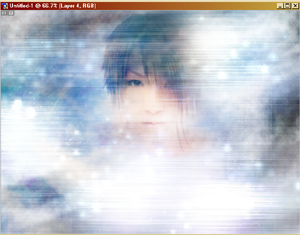
- Now you add text, grunges, etc. For grunges and other brush details, create
a new layer on top of the textures. Use black for any brush you are using. When
done, change the setting to Overlay. Now go to Layer>>Merge Visible. You are now
done with your Ethereal Style Wallpaper.
About
Name: Lisa L.
Birthdate: February 4, 1991
Horoscope: Aquarius
Birthstone: Amethyst
Element: Wind
FEATURING...
NAVIGATION
Credits
Copyrights & Credits
THE OTHER WORLD © Lisa L.
Brushes & Textures © Ivy Tran
Designed by Aethereality.net