Desktop Captures of i-Keys Tray Menu (images in 1024x768x16M Resolution)
Click on the image to enlarge it (or) Right click & Open in New Window
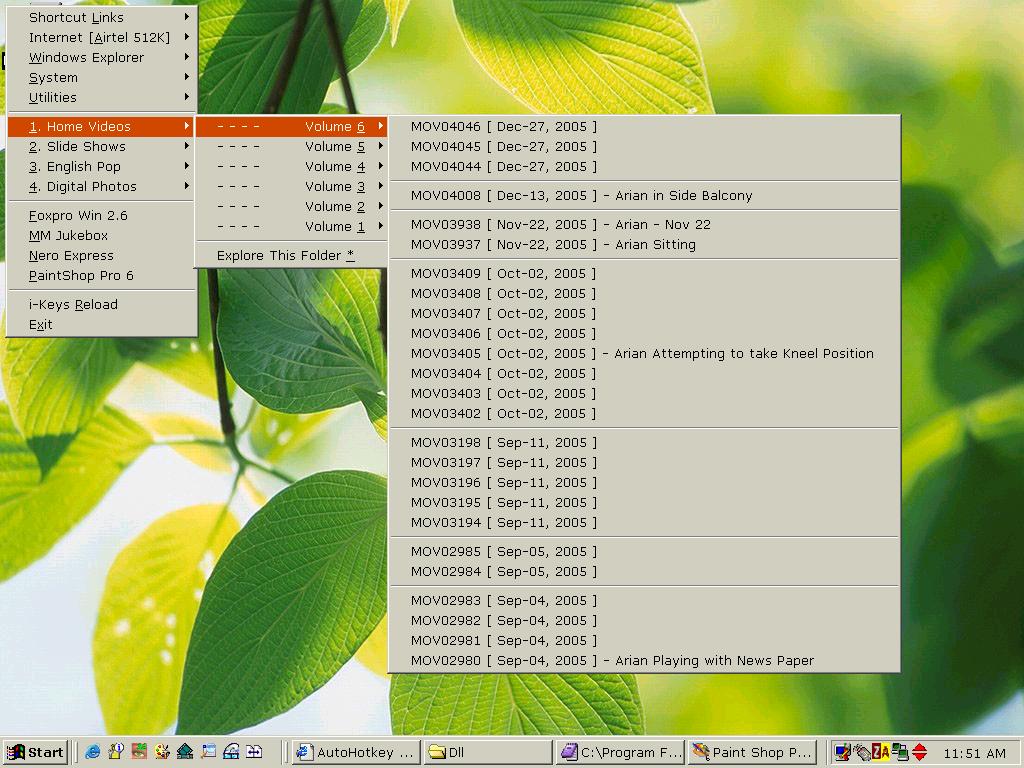
The above Desktop Capture shows the listing
of E:\Home Videos\*.MPG (MPEG downloaded from my Digital Camera).
It had 125+ Files which has been broken down to submenus (Volumes)
containing 25 files each. It was a bit tough scripting (for me!) to
arrange the list in descending order and inserting a seperator for different
dates. The Script checks its "Settings.ini" file for a Keyvalue
"RELOAD" from a timer and when found reloads the Script.
I have a seperate compiled exe for Moving the files from Digital camera
which (on its exit) writes to "Settings.ini" the Keyvalue "RELOAD".
Thereby it reloads the Main Script immediately whenever new files are
dumped into E:\Digital Photos\ or E:\Home Videos\ Folder.
So I dont have the neccessity of checking the Folder Contents for
this SubMenu.
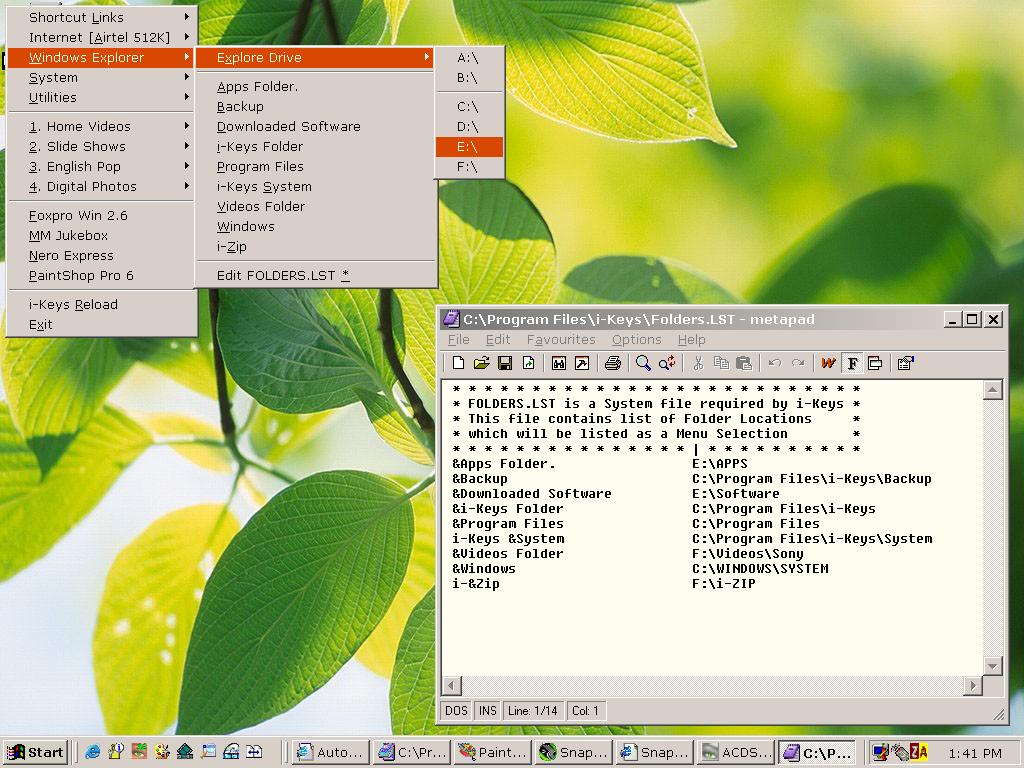
A Different Kind of Dynamic Submenu: The Sub Menu Items between the two seperators (Windows Explorer Menu) has been generated from FOLDERS.LST (The contents of the file can also be seen). The Submenu Explore Drive lists the Available Drives. This is generated from a Timer which uses the following lines of code
schr=67
loop,24 ; Check available Drive from C-Z
{ TDrive:=chr(schr)
ifexist,%TDRIVE%:\
menu, DriveL, add,%TDRIVE%:\,ExpDRx
else
menu, DriveL, delete,%TDRIVE%:\
schr+=1
}
The Drives A:\ and B:\ are
static items because accessing it from a Timer keeps the drive light always
flickering (and slows down the script). The Drive Y:\ (DVD ROM)
and Z:\ (CD-Writer) does not show on the list because it does not
contain Media. Also Drive G:\ (Digital Camera - Removable Drive Shows
Instantly when it is plugged and switched on)
I hate using WIN+E. Most of the time it is slow to show up owing to the media in CD/DVD drives.But opening a "CabinetWClass" (Single Pane) Explorer Window is much faster. Also the following lines in my script gives me instant access to the drives. I had to include the shift modifier because of Windows reserves hotkeys (#D #E #F #M #R)
+#A::Gosub,ExploreDrive
; Explore Drive A:
+#B::Gosub,ExploreDrive ; Explore Drive B:
+#C::Gosub,ExploreDrive ; Explore Drive C:
+#D::Gosub,ExploreDrive ; Explore Drive D:
+#E::Gosub,ExploreDrive ; Explore Drive E:
+#F::Gosub,ExploreDrive ; Explore Drive F:
+#G::Gosub,ExploreDrive ; Explore Drive G:
+#H::Gosub,ExploreDrive ; Explore Drive H:
+#I::Gosub,ExploreDrive ; Explore Drive I:
+#J::Gosub,ExploreDrive ; Explore Drive J:
+#K::Gosub,ExploreDrive ; Explore Drive K:
+#L::Gosub,ExploreDrive ; Explore Drive L:
+#M::Gosub,ExploreDrive ; Explore Drive M:
+#N::Gosub,ExploreDrive ; Explore Drive N:
+#O::Gosub,ExploreDrive ; Explore Drive O:
+#P::Gosub,ExploreDrive ; Explore Drive P:
+#Q::Gosub,ExploreDrive ; Explore Drive Q:
+#R::Gosub,ExploreDrive ; Explore Drive R:
+#S::Gosub,ExploreDrive ; Explore Drive S:
+#T::Gosub,ExploreDrive ; Explore Drive T:
+#U::Gosub,ExploreDrive ; Explore Drive U:
+#V::Gosub,ExploreDrive ; Explore Drive V:
+#W::Gosub,ExploreDrive ; Explore Drive W:
+#X::Gosub,ExploreDrive ; Explore Drive X:
+#Y::Gosub,ExploreDrive ; Explore Drive Y:
+#Z::Gosub,ExploreDrive ; Explore Drive Z:
ExploreDrive:
lastkey=%A_THISHOTKEY%
StringRight,Drv,LastKey,1
Driv=%DRV%:\
ifExist,%Driv%
Run,%Driv%
else
{
Msgbox,16,[HotKey for Drive %Driv%],%Driv% is NOT Accessible!,5
}
Download the above script as a Zip file (or) copy/paste and save the code to .AHK file
I will post a Working example of Listing folder Contents (in AutoHotkey
forum) once I figure out an efficient way of refreshing the submenu (When
the Folder Contents have changed)
Arian N Suresh Kumar
[email protected]
Chennai - INDIA