Programs needed:
TMPGEnc (Blue Download icon)
OTReader (Click QTReader.vfp to download)
Divx Codec (Free version, I think it has the option to not install the ads)
Virtual Dub (Click one of the red/white icons in the Download Column)
1. Unzip TMPGEnc, and QTReader (if you can extract them to a folder on your desktop)
2. Movie QTReader.vfp to the TMPGEnc folder.
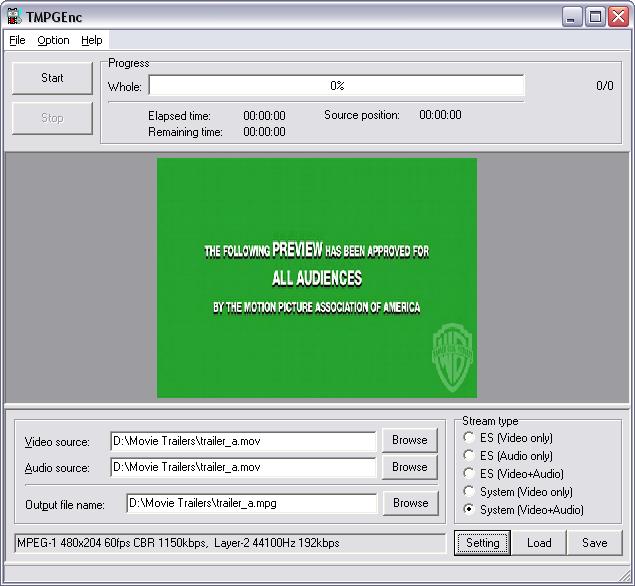
3. Start TMPGEnc, select your video source (i.e. the movie trailer).
Audio Source should be filled in automatically after you load the video source.
Then select where you want to output the file, Like so:
4. Click Settings
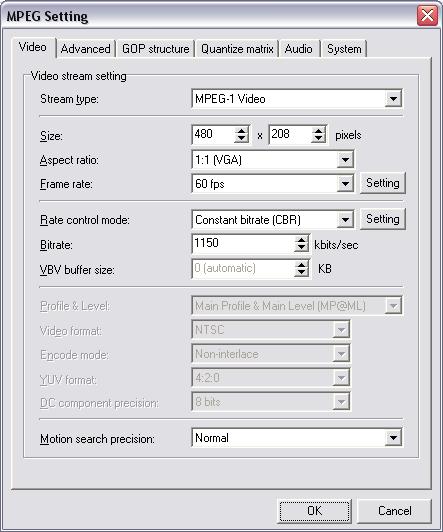
Size should already be set by the program. Make sure the numbers are multiples of 8, if not you will get an error later on.
Change framerate to 30 FPS
No changes necessary to any other settings, click ok to exit.
5. When back at the main window, click start, let the program convert the video. When finished close the program.
6. Extract VirtualDub to a folder that's convenient to you. (you could put it on your desktop for now for easy access)
7. Double Click the virtual dub icon, inside the virtualdub folder just created
8. Click File > Open > Video File; select the MPEG file you just created with TMPGEnc.
9. Click Video > Compression.
To use Divx you have to have installed it earlier.
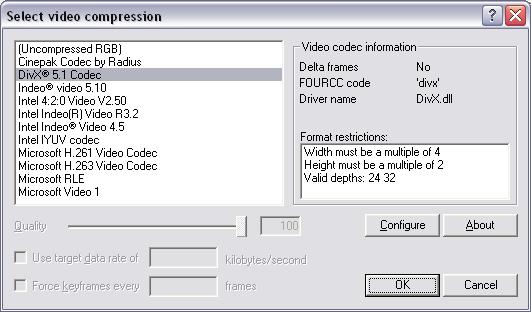
Select "Divx 5.x Codec"
Then Click configure.
10.
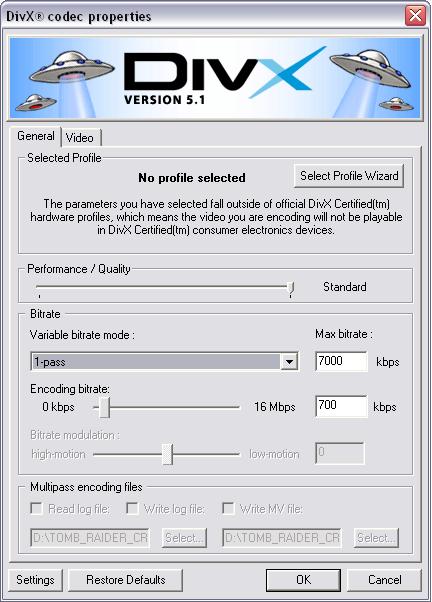
Performace/Quality should be set to standard
Variable bitrate mode set to 1-pass with a Max bitrate of 7000 kbps
Encoding Bitrate should be set to 700 kbps. I tried 600, it was a bit grainy, 700 was very good. I tried 800, but the video quality didn't increase much over 700 so I just used 700. If you need an explanation about the bitrate let me know.
Click ok, then click ok again.
11. Back at the main window, click audio > full processing mode. Click audio again, now click compression.
The following box pops up:
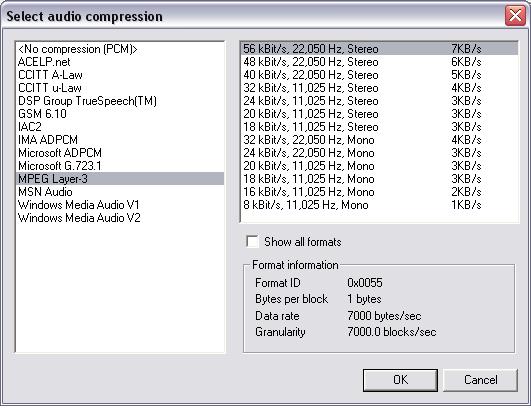
Microsoft ADPCM is good, but it produces a larger file than necessary.
MPEG Layer-3 is better in terms of file size. Highlight it, then in the side pane, click "56kBit/s 22,050, Stereo."
You may have higher bitrates on your computer, you can pick and choose to see which work better for you, but it seems to have worked fine for this trailer.
Click OK to exit.
13. Back at the main window, click File > Save as AVI. Name the file, and the compression should take place. Like so:
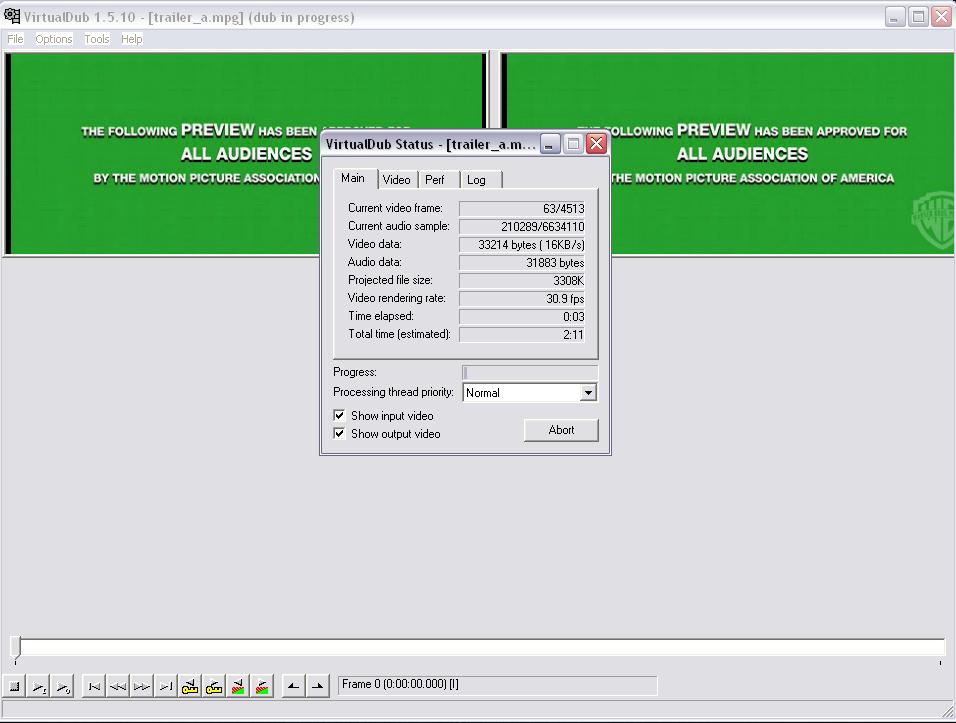
And finally you should have your video! Contact me if you have problems.