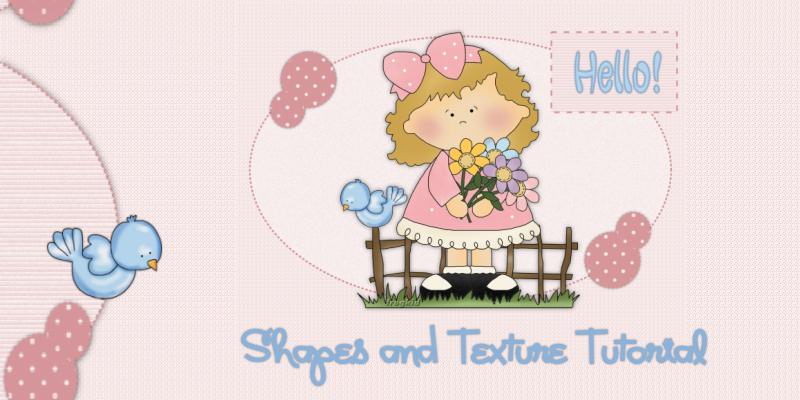
Settings:
Resample using Smart
Size
Lock aspect ratio =
checked
Resize all layers =
checked
Resize to no more
than 400 pixels in both
width and height
*
Optional> Adjust>
Sharpness> Sharpen
3.
Dropper Tool
Left click to select
a medium/dark color for
your foreground
Right click to select a
light color of the same
hue for your background
4.
File> New 650 x 550
Raster Background
5.
Flood fill with your
light background color
6.
Effects> Texture
Effects> Weave
Settings:
Gap Size 2
Width 1
Opacity 35
Weave color - foreground
/ dark
Gap color - background /
light
Fill gaps Checked
7. Effects>
Image Effects> Seamless
Tiling
Settings:
Mirror/Bidirectional
(Default)
8.
Presets Shapes> Ellipse
Settings:
Line Style Dot
Width 3.00
Create on Vector>
Checked
9.
Draw out an ellipse to
fill your header image
about three quarters
10. Objects> Align>
Center in Canvas
11. Layers> Convert to
Raster Layer
12. Adjust> Add/Remove
Noise
Gaussian 5%
Monochrome Checked
13. File> New 50x50
pixels
Flood fill with your
dark color
14. Zoom in to see what
you are doing
15. Paint Brush (B)
Settings:
Shape = Round
Size = 10
Hardness = 50
Step = 10
Density/Thickness/Opacity
= 100
Rotation = 0
Blend Mode = Normal
Continuous and Wet Look
Paint Unchecked
16. Right click three
times in the center of
your new image (25x25)
17. Effects> Image
Effects> Seamless Tiling
Settings:
Default
18. Place this pattern
in your background
Settings:
Angle = 0
Size = 50
19. Ellipse Tool> Circle
Draw out a small circle
on the edge of your
ellipse
20. Layers> Convert to
Raster Layer
21. Layers> Duplicate
Image> Flip
Image> Mirror
22. Layers> Merge Down
23. Repeat steps 19 - 22
making the circles
slightly smaller and
arrange to your liking.
24. Layers> Merge Down
25. Effects> 3D Effects>
Drop Shadow
Settings:
Offset V/H = 0
Opacity = 45
Blur = 5.00
Color Black
Shadow on new layer Not
Checked
26. Layers> Merge> Merge
Down
27. Custom Selection
Top 60
Left 500
Right 640
Bottom 500
27. Edit> Copy
28. Paste as a New Image
and minimize for your
background
29. Maximize your tube
and copy
30. Back to your header
image -
Selections> Select None
Edit> Paste as a New
Layer on your header
image
Arrange to your liking
31. Effects> 3D Effects>
Drop Shadow
Blur = 10.00
33. Rectangle
Tool
Settings:
Line Style Small
Dash
34. Draw out a
small rectangle on your
header where
you would like
to add your text
35. Layers>
Convert to Raster Layer
You may move
this layer below your
tube if you like.
Add text of
choice and drop shadow
36. Layers> New Raster
Layer
Add your Watermark
37. Layers> Merge
Visible> Flatten
38. Export at 20-25%
JPEG Optimiser and save
BACKGROUND
1.
Open the image you
pasted for your side
border
2.
Image> Resize> Height
400 pixels
All layers
checked
(Width will
self-adjust)
3.
Effects> Texture
Effects> Blinds
Settings:
Width 4
Opacity 25
Color - Dark
Horizontal and Light
from Left/Top Checked
4.
Resize Canvas: 1700 (or
your preferred width) x
400 pixels
Placement> Center Left
5.
Effects> 3D Effects>
Drop Shadow
Blur 5.00
6. Effects> Image
Effects> Seamless Tiling
Settings:
Edge/Vertical (Default)
7.
Layers> New Raster Layer
8.
Layers> Arrange> Send to
Bottom
9.
Change your background
back to your light color
10. Flood fill the new
layer with the light
color
11. Effects> Texture
Effects> Weave
(same as before)
12. Effects> Image
Effects> Seamless Tiling
Settings:
Mirror/Bidirectional
(default)
13. Layers> Merge All>
Flatten
14. Export 20-25% JPEG
Optimizer and save
Run through Letter
Creator and you have a
new stationery.
http://tech.groups.yahoo.com/group/FrogkidCreations
and
http://tech.groups.yahoo.com/group/KrayolaDoodles
Thank you for trying my
tutorial.
I
would love to see your
results.
A
very special thank you
to my testers: