|
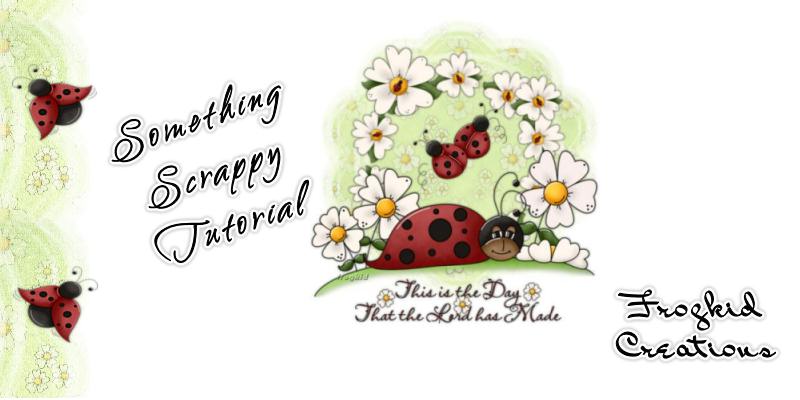
SOMETHING SCRAPPY
Tutorial written by
Cheryl of Frogkid Creations 13 May 2009
This tutorial is from my
own ideas while playing in PSP.
Any similarity to another
tutorial is purely by coincidence, and no copyright
infringement is intended.
Please do not remove this
tutorial from my website, or upload to any other site or
group without my written permission.
This tutorial was written
in PSP9, but could easily be done in any other version
of PSP.
You will need to have a knowledge of the program
and its tools.
Supplies:
Tube and Accents of choice
Mask - zuzzana_mask02.jpg
I have used the awesome images
created by Trina Clark and purchased from
Digiscrapkits
These images are included in the zip of supplies
Filters:
Mura Meister: Copies
**All settings will remain
the same unless stated otherwise
HEADER
1. File> New> 550x550 Raster Background
2. Edit> Copy your paper
3. Select All > Paste into selection > Select None
4. Layers> Mask from Image > zuzanna_mask02.jpg
Settings: Source Luminance and Invert Mask Data
Checked
5. Layers> Merge Group
6. Custom Selection
Top 170; Left 480; Right 520; Bottom 420
Edit> Copy
7. Paste as a new image and minimize for your background
8. Back to main image
Image> Canvas size 600x600> placement center
9. Layers> New Raster Layer > Flood fill with white
Layers> Arrange> Send to bottom
10. File> New Image 650x650
11. Copy and Paste flower1 accent into center
12. Effects> Mura Meister> Copies
Encircle – Circle-(Tile Mode)-Behind
Number 11
Shift X and Shift Y 50
Angle 0
Rotation 100
Phase –25
Cycle 100
Attenuation 0
Scale 100
a
13. Edit> Copy
You can now close out this image as you are finished
with it.
14. Back to main canvas
Edit> Paste as a new layer
15. Layers> Arrange> Bring to top
16. Effects> 3D Effects> Drop Shadow H/V 0 Opacity 40
Blur 5.00
17. Copy ladybug1 and paste as a new layer.
Move to the bottom of your header image
18. Effects> 3D Effects> Drop Shadow
19. Copy flower2 and paste as a new layer
Move to the top left of your flower circle
20. Effects> 3D Effects> Drop Shadow
21. Close off Raster 1
Layers> merge visible
22. Image> Resize> 90%
Weighted Average selected
Lock Aspect Ratio Checked
Resize All Layers Unchecked
23. Open all layers
24. Copy wordart and paste as a new layer
Move to the bottom center of your canvas
25. Copy ladybugs2 and paste as a new layer
26. Layers> Merge Visible
27. New Raster Layer
Apply your watermark
Merge All > Flatten
28. File> Export at 20-25% jpg
compression and save.
You can now close your header out
as we are finished with it.
BACKGROUND
1. Open the custom selection image
we pasted before
2. Image> Canvas Size> 1700 (or
your width) x 260
3. Layers> New Raster Layer
4. Layers> Arrange> Send to Bottom
5. Flood fill with White
6. Layers> Merge Visible
7. Effects> Image Effects>
Seamless Tiling
Edge/Vertical 0
Width 51
Transition 50
8. Layers> New Raster Layer
Apply your watermark.
** You can apply any accents of
your choice at this time
9. File> Export at 20-25%
jpg compression and save
Run through Letter
Creator and you have a new stationery
Please link this tutorial
back to
http://tech.groups.yahoo.com/group/FrogkidCreations/
Thank you for trying my
tutorial.
HOME
TUTORIALS
Page written by Frogkid Creations
13 May 2009 |