
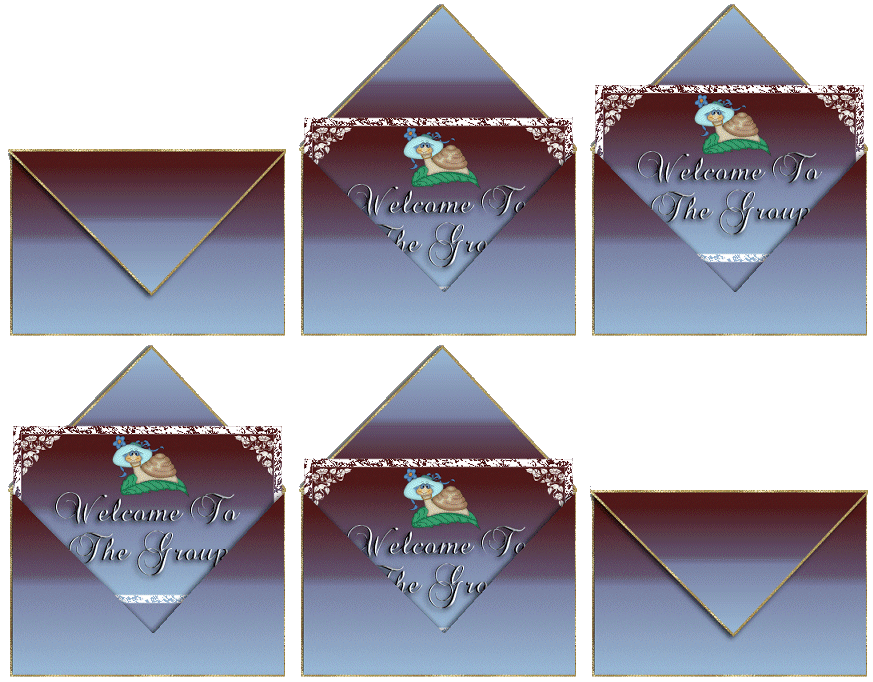
This tutorial was written by
me on October 30, 2003,
any resemblance to another is purely coincidental.
Disclaimer: This
tutorial is not to be duplicated, copied or mirrored to another site,
you may link to it only or print it out for doing the tutorial. The
envelope and
card were made by me, the snail tube is from the net I dont remember the
site.
Open the popup card image
that you unzipped in paint shop pro, don't worry with it being blank all layers
are in the Alpha Channel.
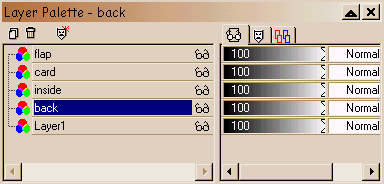
The back layer on the layer
palette should be hightlighted
as like my example below...
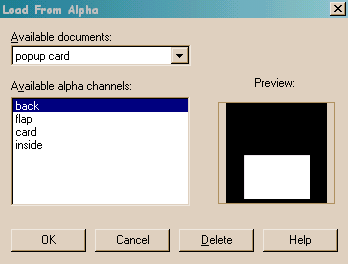
Selections/Load from Alpha
Channel and click on back and click ok this will load the back. Click on
the paint can and flood fill with a gold pattern or use the one I included in
the zip file. While still selected go to Selections/Modify/Contract and
put in 3 then click ok. Flood fill with a color, gradient or pattern
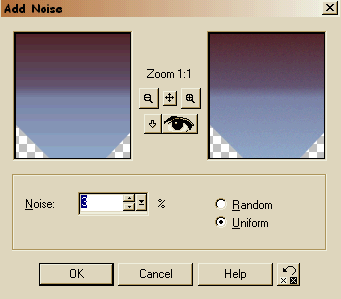
of choice then deselect. If you use a gradient you need to add noise by
choosing Effects/Noise and enter 3% uniform then click ok, if your using 8 or 9 then Adjust/Noise. Deselect
On the layer palette click
on the inside layer once go to Selections/Load from Alpha Channel and load the
inside then click ok. Flood fill with the same color, gradient or pattern
that you used for the back, if you used a gradient then add 3% noise uniform. Selections/Invert and add a drop shadow using the settings below..Deselect
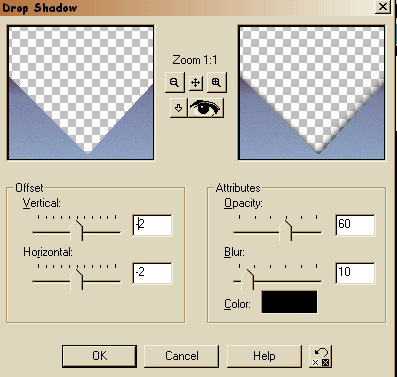
Click on the flap layer on
the layer palette, Selections/Load from Alpha Channel and load the flap then
click ok. Flood fill with the gold then Selections/Modify/Contract using
the same setting of 3 then click ok, flood fill with the same color, gradient or
pattern you used...don't forget the noise if you used a gradient. Selections/Invert and add the same drop shadow using
the settings below.
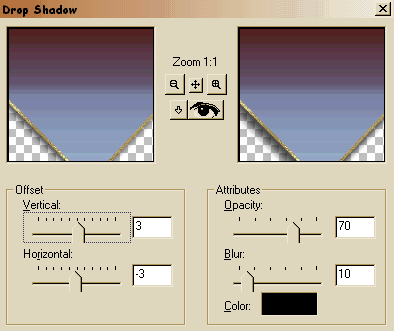
Make the card layer active
on the layer palette and load the card from the Alpha Channel, flood fill with
white, Selections/contract by 10 click ok then flood fill with your color,
gradient or pattern you used. While still selected add a new Raster Layer
choose Selections/Invert then Selections/Float, flood fill with your color then
add Eye Candy...jiggle using my settings below then deselect...
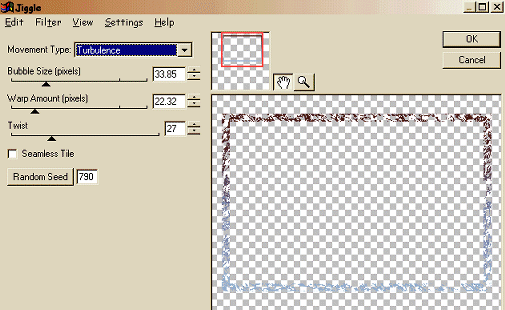
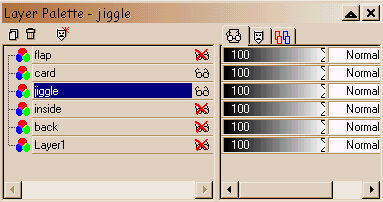
Close off all layers but the
card and jiggle layer then merge visible and rename it card, this is what you
should have.....merge the card & jiggle layer then rename this layer card.
While on the card layer add a new layer and add text, tubes or anything you want to your card, when done close off all layers except the card and text layer and merge them visible and rename it.
Make a duplicate...hold the shift key and hit the D minimize the copy for now. On the first image right click on the card layer and delete it, we wont need it as you wont see it within the card. Merge/Merge Visible and save it as card 1, you can close this image.
On the layer palette click
once on the flap layer to make it active then choose Image/Flip and move the
flap so it sits on top of the envelope. On the first image move the card down so it looks like its
inside the envelope, your layer palette should look like this....
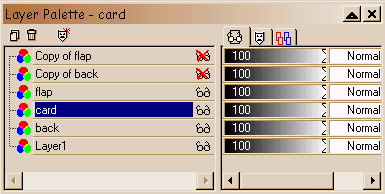
Merge/Merge visible, save it and name it card 2.
On the next image we are
going to move the card up some so move the flap layer just above the back layer
see mine below...
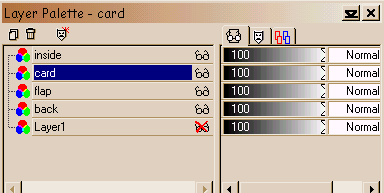
Merge/Merge Visible and save it as card 3.
Keep moving the card up on the remaining cards and merge them visible and save them as card 4 and card 5. One tip to make sure the card is even in all the images is to close off the inside layer then place the card in the same spot as your moving it up for each image.
Open animation shop and
click on the wizard and use these settings...
Same size as the first image
Transparent
Upper left corner of the frame
With the canvas color
Yes, repeat the animation indefinitely
How long do you want each fram to be displayed...out in 30
Click add image and load them in this order
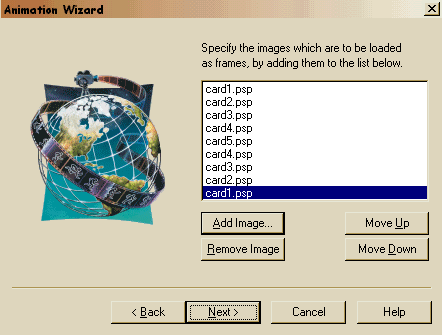
Click next then finish.
CLick on frame 1 then right click, choose frame properties and change it from 30
to 150...do the same for frame 5. Crop the image down using frame 5 as
your guide then resize it and your done...save it as welcome_card.gif.
I hope you enjoyed doing this tutorial.
©2003 Foxy"s Creations
All Right Reserved