 |
| When putting this tutorial together I made the above cutout using PSP 8. Open a new transparent image, 300 x 300. Flood fill with whatever color you like. Light colors usually work better for the cutout effect. Now open your text box, pick a font. Fatter fonts will show allow the cutout to show up a little better. Don't worry about the colors, they won't matter... use these settings.... |
 |
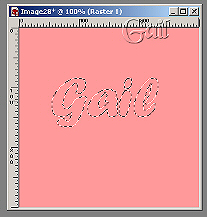
| This is what you should have once you hit ok... |
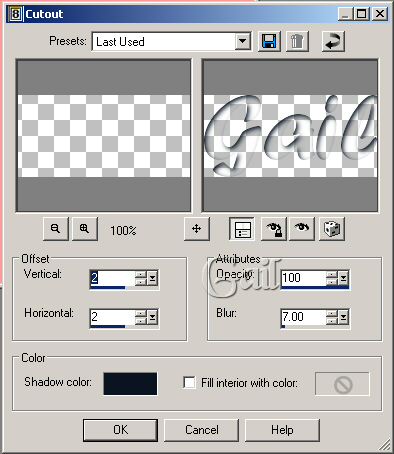
| DO NOT DESELECT! Now we are going to add a layer. This will be layer 2. Once the layer is added go to Effects/3D Effects/Cutout use these settings... |
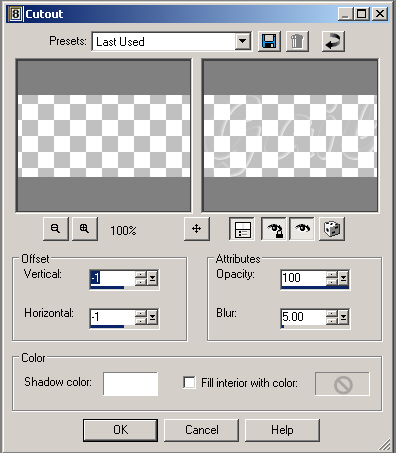
| We are now going to add another layer. This will be layer 3. Once the layer is added, go to Effects/3D Effects/Cutout again this time using these settings... |
 |
| Now hit select none, crop your image and you're done! |
 |
 |
| If you have any comments or questions about this tutorial, please feel free to contact me |

|