| Tuning my Stang |
 |
 |
 |
 |
 |
| The focus of this page is basic info on the experience of tuning my 95GT Stang. I don't claim to be a "Tuning Guru" and I've still got lots to learn. Here is the part where I tell you .......... this info is not all inclusive. My self tuning interface of choice is the Tweecer RT and all info on this page will be flavored, so to speak, by its influence on me. The EECIV Computer which is in control of the tune is called many different things such as Computer, EEC, PCM. etc. I call it Powertrain Control Module or PCM. When you see that acronym, you will know I'm talking about that little silver box in the kick panel. |
 |
 |
 |
 |
| Mechanical Method You can twist the distributor, adjust the fuel pressure, turn the idle screw, etc. to make changes. This method works to some extent but there is a down side. You don't have much flexibility of adjustment with this method. Have a Pro Tuner burn a Custom Chip You install a chip on the service port of your pcm that has been custom made for your car's combo that can work great for drivability issues and finding more power. One of the down sides of this method is the chip can become obsolete if things change with the combo which means more money spent to update the chip. The thing about this method I dislike the most is my tune is based on another person's knowledge about my pcm which was only a two year run from Ford. Self Tuning Interface This method involves an interface being installed on the service port of your pcm which allows you to manipulate the values in the pcm. You can make adjustments based on your car's needs for any condition at any given time. You are in complete control of your tune. The down side to self tuning is some knowledge about the basic working of the pcm is needed to be an effective self tuner. |
| Methods of Tuning |
| Reasons to Tune |
| Drivability In the quest for more power, all of those hot rod parts we've installed make the pcm freak out because it is expecting the conditions that a stock Stang will provide and we are now far from those conditions. One of the most dreaded drivability gremlins is the surging idle. Another drivability issue is bucking or surging during cruising conditions. A skinking smell from an over rich fuel mixture is present during idle conditions. The are others but by now .......... you get the idea. A Self Tuner can do wonders for these issues. |
| Maximum Power This is what everybody thinks about first and for the most part, requires the least amount of knowledge or skill to make happen. The combo is made from many different parts and some of the time, all of those parts don't work together as well as they could. A Self Tuner allows you to custom tailor your combo's fuel and spark needs. |
| Tweecer Basics |
| Tweecer Hardware I use the Tweecer RT hardware interface which allows two basic functions: 1 PCM value adjustments 2 Datalogging Tweecer Software I use the Version 1.20 software |
| 1 Tweecer RT 2 Lap Top Computer a) usb port is a must b) can use older os like win98se, etc c) can use Stangs power port for power d) doesn't have to be a power house pc 3 Wide Band Oxygen Sensor a) a must have for correct wot fuel ratio adjustments These items allow YOU to be in COMPLETE CONTROL of your Stang's tune. Optional Items A couple of optional items I recommend that can be very helpful are: 1 EECAnalyzer software Clint Garrity is the author of this software. It can really help you as it analyzes and makes tuning adjustment recommendations from your datalog values. Clint's Site 2 LogAnalyst software Daren Woodall is the author of this software. This program is great for allowing you to see trends in large volumes of data from your datalogs. Daren's Site Be sure to visit both of these sites for their take on self tuning. Both of these men are ...... "all around good guys" ...... who have helped me in the past. |
 |
|
|
|
|
|
| At this point I'm gonna move away from general tuning info and get more specific with a few details of self tuning my combo by using the Tweecer tuning interface. |
|
| Tweecer Hardware & Software |
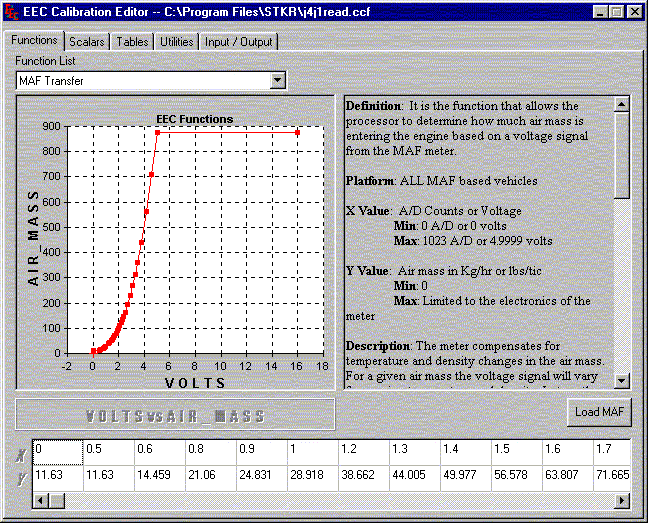
| The whole purpose of mods is to cause more air and fuel to pass through the motor thus creating more horsepower. The various after-market mafs in one way or the other, fool or trick the pcm about the true amount of air the motor is taking in. In some cases, this little lie will not effect the pcm too much but in others, the lie is just gonna cause trouble. Larger fuel injectors are needed to supply fuel to go along with the additional air flow of the more powerful combo. The lie to the pcm is that less air is flowing so that the larger injectors won't be pulsed as much which keeps, or is supposed to keep, the fuel ratio at the correct value. Here is where the TWEECER'S ACCESS to the pcm values comes into play. You tell the pcm the truth about how much air is flowing through the motor. You tell the pcm the truth about how large the fuel injectors are. This is a more accurate way of tuning and it is the method Ford used in the first place. What we are talking about is called the MAF Transfer and it is one of the most critical things in the whole tune so accuracy is important. The maf transfer is located in the Functions section of CalEdit so we will move to that section. I have provided a CalEdit FUNCTION screen shot that shows part of a stock 94 Cobra 30 point maf curve for you to see. |
| After-Market Mafs & Fuel Injectors |
| The Tweecer has two different software programs 1 CalEdit......used for tuning adjustments 2 CalCon......used for datalogging CalEdit has five sections of input/output, utilities, functions, scalars, & tables 1) input/output.....used for uploading and saving tunes 2) utilities............used for building datalogging payload 3) functions.........used for maf transfer, injector offsets, load control, etc 4) scalars.............used for idle speed, cubic inch size, injector size, etc 5) tables..............used for spark, fuel, injector timing, etc CalCon has two RealTime display options and can save the data stream to file 1) Digital ..............data is displayed in many different digital windows 2) Dashboard.........data is displayed on dashboard type gauges I have provided some screen shots of each program and will give a few details about each of them as this page developes. |
| CalEdit input/output section |
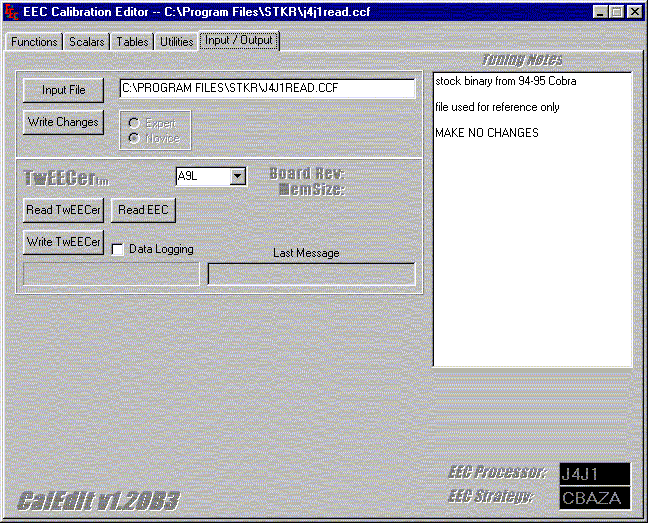
| This is the main or start page in CalEdit. You can see the other three sections on the tabs. We will use a stock or unchanged calibration file from a 94 Cobra that was obtained from a fellow Tweecer tuner who used the READ EEC button to download the original Ford pcm file to his laptop. After his file was put in the correct folder, I used the INPUT FILE button to call up that file for use. You could raise the idle to say, 900 rpm and use the WRITE CHANGES button to save that file to a name like J4J1900. You now have the original file and the modified file. You can save as many files as you want and you can go back to an older tune by simply calling it up. To upload your idle speed change you use the WRITE TWEECER button. The READ TWEECER button will download the current file in the interface to your file window. |
| Complete minimum Tweecer requirements |
| CalEdit function section |
| The LOAD MAF button will call up many different maf curves within the program for you to use. Notice the definition window explains the x & y cell values. The curve is made from 30 points which is min to max air flow. Lets use an idle condition for a brief example of how this stuff works. The typical naturally aspirated modified heads/cam/intake combo will idle at about 1.00 maf volts. That voltage is seen by the pcm to understand that 28.918 Kg/hr of air is flowing through the motor. The fuel injectors are pulsed by the correct amount to provide the optimum fuel ratio. Lets say your combo is 10% too rich. Lower the 28.918 air flow value cell by 10% and the pcm will pulse the injector 10% less because it thinks 10% less air flow is present. The idle is now 10% leaner! Many Functions other than the maf curve are present in the Functions section but this example will give you an idea of how it is to work with them. |
| CalEdit utilities section |
|
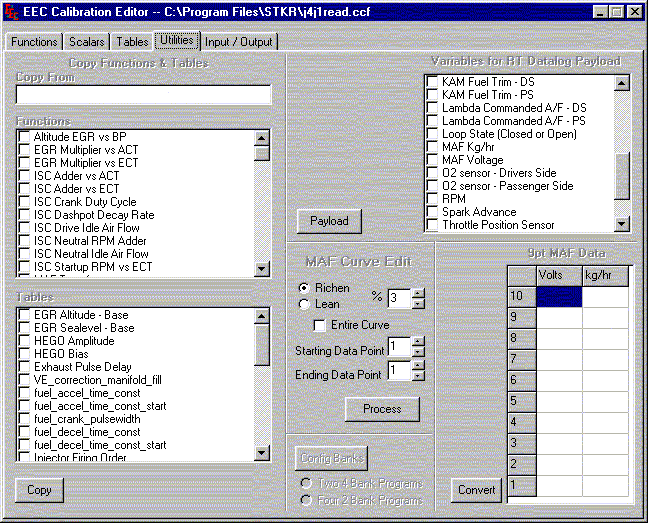
| The most used item by me in this section is the Variables for RT Datalog Payload. You build a Payload from as many as 16 different items such as rpm, spark, tps, and the like. This Payload determines what is shown in your data logs. The maf curve edit feature will adjust one, several, or all 30 points of the maf curve. The 9 point maf data feature will take values from a ProM air flow cal sheet and convert them to a 30 point curve. I have not used this feature as I am more familar with a different maf conversion program. The copy Functions & Tables feature is something I have no knowledge or experience about as I've had no need to use it. The config banks is a NA item with this version of CalEdit. |
|
| CalEdit scalars section |
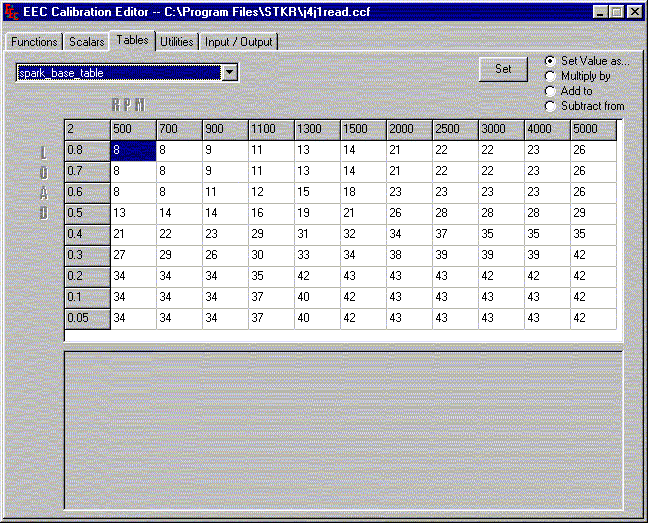
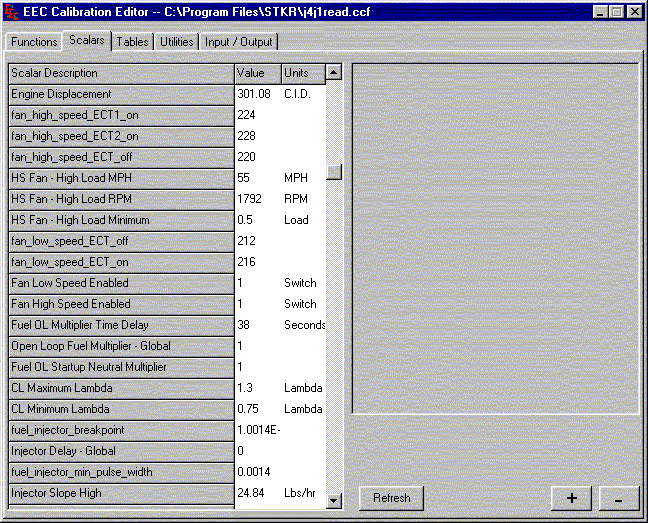
| The Scalar section is pretty much a value change only kind of thing. In this shot you can see fan temps, cubic inch size, injector size, etc. You just change the value to meet your needs. Easy enough for things like idle speed (not seen in this shot) where you change the default value of 672 to say 800 rpm to help steady the idle of an after-market cam. Here is a brief example to show that a little understanding about the basic working of the pcm is necessary. Everybody has heard and complains about the "Shift Retard" that is present in the 94-95 pcm but not in the eariler Fox Body pcm. A Scalar called spark_min_for_tip-in_retard (not shown in the above shot) is in fact that evil villain all of those people want to kill. The default value from Ford is 5. To kill it, do you change that value to 0 or 1 or 55 or 555? You have no idea what-so-ever usless you understand how that Scalar works. The value of that Scalar is the amount of retard that the pcm will use if the throttle is tipped in from say a closed position or a slight opening position like a cruise condition to a wot position. Moving from one gear to the next at wot would indeed be conditions for the Scalar to be in effect. Now that you know how the Scalar works, how do you kill it? For the most part, this is gonna happen when the load is high due to the wot conditions. You match this Scalar value to the Base Spark Table highest load row total amount value. The Scalar is still in effect but now the values match so there is no retard. Speaking of the Spark Table ........... lets move on to the Tables section. |
|
| CalEdit tables section |
| The Set button allows you to high-light several cells in the table and make one change to the same value as opposed to making that change for each cell. The left side of the table shows load and a way to relate is, idle conditions are low load rows, a gentle acceleration would use mid load rows, and wot conditons would use the top load rows. The top of the table is rpm and it is just that. You should be able to see that you have a much more flexible approach to Spark adustment control with this method compared to twisting the dizzy. Fuel tables are present in this section as well and have a similar look to the Base Spark Table with load and rpm fixed values. |
|
| That is about it for CalEdit. Hopefully, this info will give you an idea about using it to self tune your Stang. We are gonna move on to CalCon which is the datalogging software. |
| CalCon software |
| CalCon is the datalogging program of the Tweecer. I've been asked many times why would you want to data log? Simply put, datalogging is hard proof to show the result of a tuning change. A brief example: You see it all the time ...... I made a change and I could really FEEL the difference it made. Some of the time, those statements are nothing more than wishful thinking. The tip in retard we talked about above. I had a datalog (dl from this point on) that showed I was in 2nd gear at a light and steady cruise driving condition with the throttle just barely open to maintain that condition. I went to the floor with the skinny pedal and killed the dl at about 4500 rpm in 2nd gear. The dl showed 2 to 3 data events with a spark value of 5* just after the throttle started to go to a full open position. This dl clearly showed the tip in retard was in effect and it did not have anything to do with shifting gears or the clutch as some peeps have thought. This dl is what you refer to as the baseline dl and you use it as a referenc for other dl's. I made the change to the tip in Scalar and made another test run duplicating exactly the same driving conditions. The dl after the change clearly showed the retard was gone. Positive Proof ...... Hard Data ...... no FEEL to it ...... the change was effective! |
| There are many other uses for dl's but I guess verification of data just about sums it up. I have provided a couple of screen shots showing the two display options that are provided with CalCon. The last two shots show one of the methods I prefer to use rather than the CalCon default displays to view my dl's. |
|
| CalCon Digital Display |
|
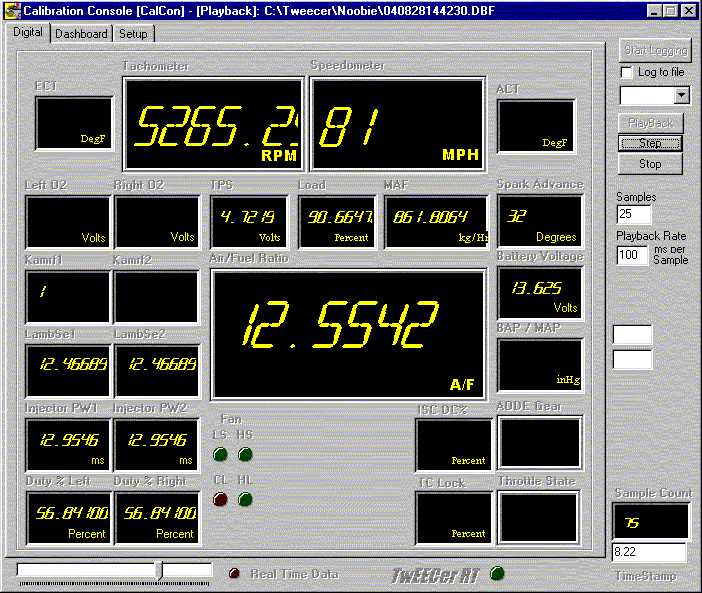
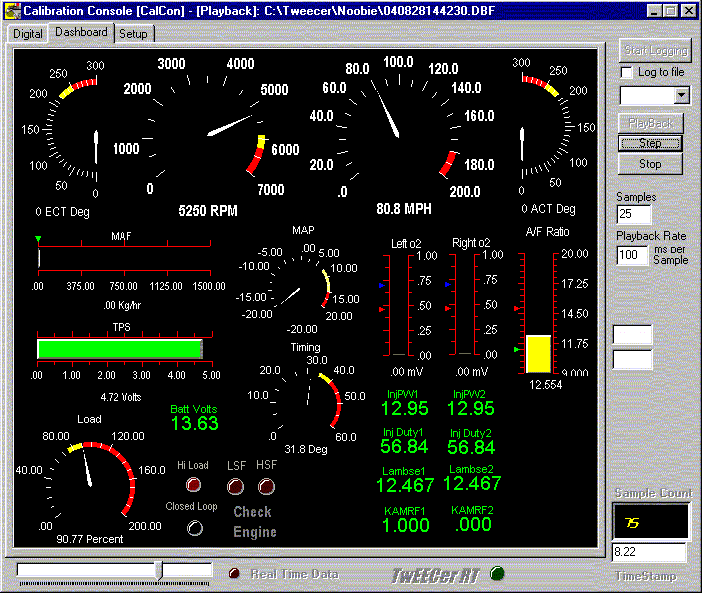
| All of these shots are from the same dl. I use the last 4 numbers in the file name as a reference so this shot is from dl 4230. The run this dl came from was a 3rd gear wot blast from about 1500 to 6K RPM. It was done when I was doing some final wot af ratio tweecing to the maf curve. I guess I should point out that the Noobie folder is not part of the Tweecer CalCon software, lol. The folder is some stuff I can easily gather up and use to help folks. I just used the same stuff to build this site. The data is delivered in RealTime at the rate of about 10 samples per second. The shot you see above above shows the data event or Sample Count, as CalCon calls it, of number 75. Most of the windows are self expalanatory but I'll point out a few. lambse = the commanded af ratio from the pcm a/f ratio = the output from my wind band oxygen sensor tps = the throttle opening This display is what I use on the lap top when I am gathering data as it is much easier to see than the other display. For this shot I used the PlayBack feature so I could get a screen shot. You can set the number of samples, (25 in this case) Playback Rate or speed of samples (100 in this case) or if you set the number of samples to a value of 1, the events will forward one at a time with each click of the Step button. The Playback feature is kind of cool and all but for me, it just doesn't tell me a whole lot. You only see one event at a time or several if you allow it to play them back, but still, as the data streams by, I can't get much from it. I prefer to use the Log to file feature and look at the raw data for a much bigger picture than what the little CalCon displays show you. More about this later. The top right, large button is a dual Start/Stop datalogging button which starts or stops the data stream to the laptop or laptop/file stored on the hard drive. |
| CalCon Dashboard Display |
|
| The Dashboard works the same as the Digital Display. Just a different look. Notice the Sample Count is the same which may help some to compare to the other display if they wish. |
|
|
| I'm now gonna move to one of the ways I see a bigger and more clear picture of what is going on with the the data from the dl's that have been captured to file on the lap top's hard drive. |
| LogAnalyst software - raw data view |
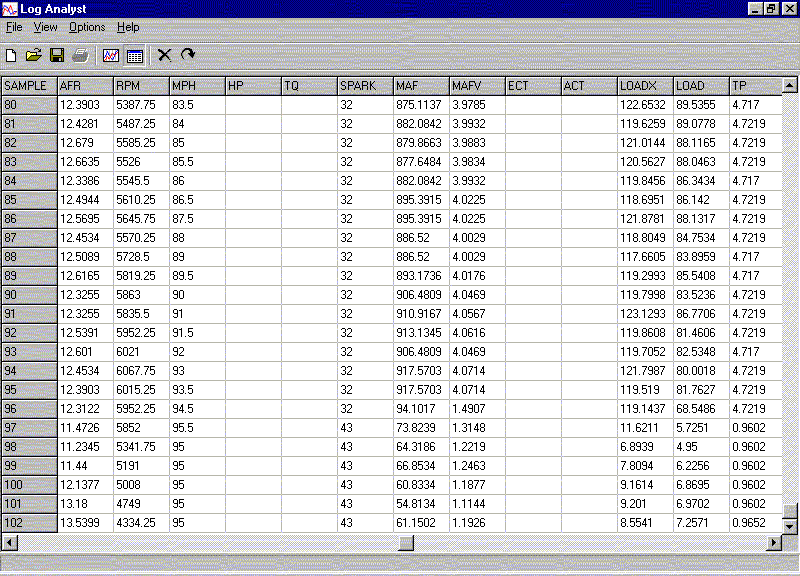
| A few things about viewing raw data from your dl's. The shot above shows as much of the raw data as a screen shot will allow. Nine of the sixteen items can be seen in the columns of data. You are seeing the data events from numbers 80 to 102 or about the last 20% of the same dl shown in the CalCon displays above. If you remember, this was a 3rd gear wot run. This is very similar to how the data appears in MS Excell which is the default file viewer for raw data if you click on a .dbf dl file from say Windows Explorer. For this shot and the next, the dl was loaded into the LogAnalyst program. Looking at the top task bar you can see the files icon is in use which shows this view. For me, I can see so much more using this method. With one glance you can see the rpm range of about 5400 and above as well as the other eight columns of data. This program will also allow you to compare two or more dl's. There are other nice features this program allows but the next shot shows the best feature. |
| LogAnalyst software - chart view |
|
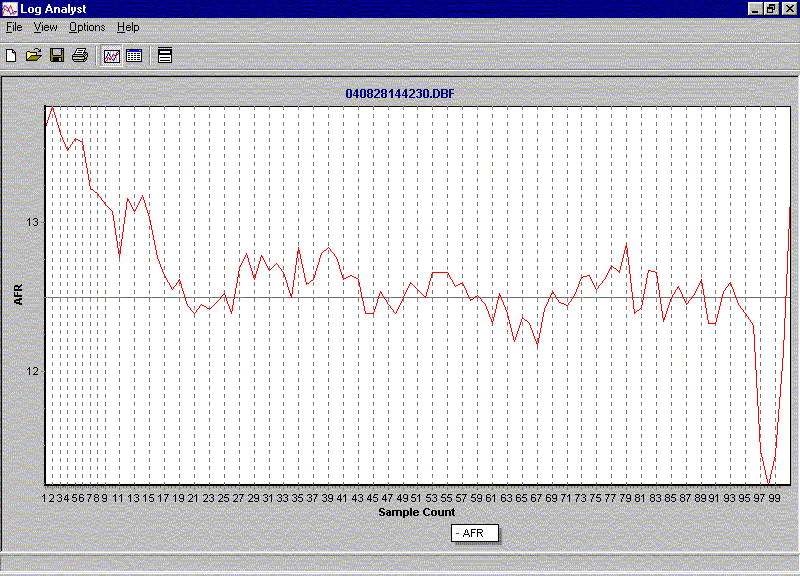
| The above shot shows the complete 3rd gear run with the payload item of air/fuel ratio from the wide band displayed. You can add rpm to this chart or any other data you wish. One or more items of data can be displayed. The program allows for easy switching back and forth between the raw data view and this chart view. Notice the data events from 80 to 102 and you will see the same range as displayed in the raw data show above. This view clearly shows the wot af ratio to be 12.50 to 1.00 at a single glance. See what I mean about how this method allows you to .............................. See the bigger picture. |
|
| Thats about it for my take on self tuning a 94 or 95 Stang and I hope this info has been a help to others who are, or might be considering self tuning. I will take another opportunity to give you a link to You can find a lot of knowledge on that site and the guys are willing to help. |
| Basic Maf Theory & ProM's "Cheat" Method Explained Assumptions for this document are that you own a TwEECer or EEC-TUNER and that you are running larger than stock injectors and/or Mass Air Flow meter (MAF). First lets start with a little theory. The way the ford EEC series processors determine the amount of fuel and calculate load values is by measuring the amount of air that is flowing into the engine via the Mass Air Flow (MAF) sensor. The MAF sensor works by heating a wire inside the sensor. As air flows past the wire it cools the wire. Depending on how much the wire cools and the radius of the MAF sensor you can calculate the physical volume of air flowing through the sensor. This measurement is sent to the EEC processor as a voltage reading between 0 and 5 volts. The EEC has a 30 point table pre-programmed into it that references a voltage reading to an amount of air in kilograms per hour (KG/HR). For simplicity lets pretend it is only a 5 point table and use simple round numbers to make calculations easier. For example: 5 volts = 1000kg/hr 4 volts = 700kg/hr 3 volts = 500kg/hr 2 volts = 350kg/hr 1 volts = 250kg/hr The way the EEC works is to reference the voltage signal to a row in the table. If the voltage falls between two readings it calculates a value using the surrounding numbers. So if the MAF was sending a signal of 3 volts you would have 500 kg/hr of air flowing into the engine. If the MAF was sending a signal of 2.5 volts you may expect 440 kg/hr (the scale is weighted with larger increments in the higher voltage range). The EEC then uses this table to calculate the pulse width for each injector to supply the proper amount of fuel to feed the measured air. This calculation is based on the values in LOW_INJECTOR_SLOPE and HIGH_INJECTOR_SLOPE (more on these settings later). For now assume that both are set to 20 to represent a 20lb injector. Now lets assume you ordered a new MAF meter from Pro-M and had it calibrated for 40lb injectors (remember, these are all made up numbers). You installed a fresh set of 40lb injectors and bolt on the meter. How does the meter make the 40# injectors work with the stock programming? It does this by reducing the voltage from the MAF meter to represent a physical volume of air equal to the factory injector size divided by the new injector size (in this example 20/40 or �). NOTE: It is NOT reducing the voltage by this percentage, this is very important to understand. The reduction in voltage is precisely engineered to make the EEC believe it is receiving intake air - reduced by this percentage. This means that if 1000 kg/hr of air is actually flowing through the meter it will signal the EEC with 3 volts (from our table above). This tells the EEC that 500 kg/hr of air is flowing into the engine and the EEC opens the injectors (that it still thinks are 20# injectors) for long enough to feed 500 kg/hr of air. Since the injectors are actually bigger (twice in this case) the amount of fuel injected is actually proper for the 1000 kg/hr that is flowing through the meter. You can also do the math in reverse. At the same voltage reading from the stock MAF and the new MAF your actual airflow will be new injectors size/old injector size (in our example 40/20 or 2). So, if the voltage is 3 volts from the new MAF which corresponds to 500 kg/hr of airflow when you look at the stock transfer table at 3 volts you would see 250 kg/hr of airflow. This works fine for most tuning needs but does mess with other calculations in the EEC like load values. You also don�t have the ability to accurately scale fuel unless your MAF table accurately represents the meter and if you plan on data logging it is nice to have the log show you actual airflow. For all these reasons and more it is recommended you tell your EEC what is actually going on by entering actual flow numbers and actual injector sizes using the TwEECer or EEC-Tuner. |
| Miscellaneous Additional Info |
|
| Tuning Updates |
| I'm gonna split these updates in either Drivability or WOT. I have talked about EEC Analyzer (EA) on this site before and will point you to that program for the details as it does a very good job of explaining things. Drivability Drivability issues make up the bulk of questions I get most often. With more horse power you get more air flow and the stock values in the pcm need some tweecing to help with idle, stalling, bucking, and the like. With my ProM maf I used the curve that came with it as a starting point but I did have to tweec the points around the idle part of the curve some for best operation. You can use the KAMRF's to get those points close or a wide band if you have one. The throttle body airflow Scalar will help idle issues. The value I used was 0.9585 See EA for details. The ISC Neutral Idle Air Flow Function will help idle issues. X 0 0 0 704 800 992 1296 2000 1048560 Y 0 0 0 0.89 0.96 1.03 1.63 2.48 2.48 These are the values I came up with. See EA for details. Fuel pressure ...... stock pressure only and never change it again. Dialing in your Injectors See EA for details. You will get a more stable Closed Loop tune if your various injector values are tweeced a bit. Here are some of the things that helped me: Low Slope ............................................... my value 32.71 High Slope ............................................... my value 35.799 Break Point .............................................. my value 1.9878E-5 Minimum Pulse Width ............................... my value 0.0006485 Injector Offset vrs Battery Voltage .............. my values below X 0 5.5 6 7 8 9 10 11 12 13 14 15.938 Y 7.5 7.5 5.75 3.75 2.813 2.0 1.563 1.125 0.969 0.781 0.625 0.688 What you do is cruise around in Closed Loop driving conditions while datalogging. You then throw the dlog in EA and look at the KAMRF's (K's). You tweec the above list of values until you see the K's stay close to a line value of 1.00 which means the adaptive strategy of the pcm is not adding or removing fuel during those driving conditions. You may have to tweec a few points in the maf curve by a small amount. With the dialing in of my 30lb injectors, maf curve, and the air flow Scalar values my drivability was vastly improved. Another trick for a stable idle but use it as a last resort if other methods fail. I did notice over long periods of time, my idle would deteriorate and did not seem as stable as I wished. After much research and trying various tweecs I felt my long tube headers may be causing some issues due to the O2's in the collectors cooling off at idle. To combat that issue, others who were running LT's had moved to a tuning method of idle in Open Loop. I did the same ... all was well ... and I never looked back. To Force Open Loop at idle X 0 1000 1500 3000 3300 5000 1638.75 Y 0 0 0.85 0.7 0.45 0 0 The above info is what I used for values in the Function load_limit_open_loop_vs_RPM This is on my J4J1 cal file btw and it forces open loop conditions at idle only which then allows me me to adjust my af ratio at idle without the adaptive strategy hosing around with my tweecs. Bucking or Surging issues during cruising or low load driving conditons. I found backing off the spark values a few degrees in the low load rows in the spark table gave a much smoother operation. |
| Fuel tweecs without a wide band is something I have never done so everything I speak of here is about using one for accurate fuel ratio verification. You need to have your Closed Loop driving conditions all dialed in before you tune for max power so you don't end up doing double work. Lets start with the final air to fuel ratio using the J4J1 cal file. For safety reasons, its always a good idea to dial your spark back during wot tuning. First kill the Function Fuel Enrichment for High Speed by matching the last few cells to the first cells. This will keep things from changing at 90 mph and above. When you were dialing in your inj's you should have been able to see the highest point in the maf curve that was still in Closed Loop driving conditions. You don't wanna hose any more with that point and below in the curve or all your previous efforts for Closed Loop tuning will be effected. You wanna focus on the part of the curve starting with the very next point and above for wot fuel tuning. I made a few wot blasts in 3rd gear from say 1200 to 6K rpm for baseline data. You can use 2nd gear to keep the speed down but it won't be as accurate as the amount of data events will be much smaller. I then picked the value of 12.5 to 1.00 as a safe starting point for my NA combo final af ratio. The Table fuel_table_stabilized_OL is used for Open Loop or WOT conditions. I used the 12.5 value for the two highest load rows and in all cells from 1K rpm and above. The objective is to make the wide band and commanded af ratio (lambse) match. You simply lean or fatten the maf curve points to make the values match. IMHO, for a first time WOT fuel ratio tuning effort, the most comfortable and safe way is to only tune to about 60 mph. After you get that part of the curve set you can focus on the rest of the curve. After this is done, you really don't need the wide band any more if you wanna make a change as you can simply change the two top load rows in the fuel table to say 12.75 to 1.00 and that is the ratio your gonna get. The question of why I don't get the spark values I call for comes up a lot. The final spark value can be effected by lots of things in a + or - way. Scalars can + or - the value but usually, you have to be at an extreme such as very high ECT's for an example. There are four main Spark Tables and they are Base, Altitude, MBT, & BDLN (borderline). They all work together and can effect the final spark value by a + or - amount. To explain how they work is beyond this effort but very good write ups can be found on the various tuner sites if you wish to research. My method for stable spark values by Spark Table manipulation. Kill the Altitude, BDLN, & MBT Tables by using the value of 55 in all cells. Use only the Base Table for tuning. For the final values in the Base Table you will have to play with them a bit to see what your combo likes as each one can be different. I know I have to back down the spark a bit for hot Texas summers or I can hear a slight amount of ping. Here is a rule of thumb for best WOT performance. This is for na NOT forced induction combos. Have all spark in by 2000 to 2500 rpm and a total amount in the range of 32 to 38. You will be at max load for wot conditions and most peeps use the highest 1 or 2 load rows for WOT Tuning tweecing. I use the top two load rows myself. Before we go any farther *** CAUTION *** Just as we dialed the spark back a bit for safety when tuning for fuel you wanna ensure your NOT lean when working with WOT spark tuning. DO NOT set your value to say 36 to 38 and let it rip with a WOT blast. If you don't have a wide band then you are not really sure where your final fuel ratio is so you are even more at risk for motor damage. An old drag racers trick is to bump the total value up a couple of degrees at a time while all the time having a keen ear to hear ping. After the slightest amount of ping is heard the value is usually dropped back by a couple of degrees. Remember my mantra for safety! BIG FUEL ...... little spark My Base Spark Table top two load row values are below. 500 700 900 1100 1300 1500 2000 2500 3000 4000 5000 10 12 14 18 22 26 32 34 34 34 34 The Scalar Spark_Adder_Global should be a value of 0 If you are gonna use this scalar to tune you might as well use the mechanical method of twisting the dizzy for spark tuning which gives no flexability at all. DIZZY SETTING ...... stock setting of 10 and never change it again. Killing the Shift Retard We talked about this eariler but briefly, the Scalar spark_min_for_tip-in_retard value needs to match your total amount of advance in your Base Spark Table which will cause no retard when you tip in the throttle to WOT. |
|
| Hot & Cold Start Issues With Large Injectors Here is some info that I posted on StangNet when I was asked about this issue. Three fixed parameters in the pcm fuel tables come into play when talking about startup. 1) Time 2) Load 3) ECT We are dealing with two fuel tables. 1) fuel_table_base_OL 2) fuel_table_startup_OL The base table is where you see the commanded ratio and it is used during warm up conditions. The startup table is where you see values that are subtracted from the base table to give you a fatter ratio and time comes into play here. You asked about hot start conditions so lets use that as an example. btw, we're gonna use an unmodified j4j1 file for our little example. Say you've been driving around and go in the house for a while and decide to go somewhere else. When you start the car for the second time, the ECT is 180* Most NA h/c/i combos will idle at a load of say about .20 to .30 so we will use that load factor. Looking at the base table you see the pcm is commanding a ratio of 14.302 at that load value and ECT. Looking at the startup table in the 180* temp column at 0 to 6 seconds you see the value of 1.716. Notice as the time increases, the value decreases until finally at 40 seconds, the values in the table are no longer used. Here are the commanded, startup, and final ratio values 00-06 seconds commanded 14.302 startup 1.716 final ratio of 12.586 07-10 seconds commanded 14.302 startup 1.487 final ratio of 12.815 11-20 seconds commanded 14.302 startup 1.259 final ratio of 13.043 21-40 seconds commanded 14.302 startup 0.572 final ratio of 13.73 At this point in time, you most likely go from Open Loop to Closed Loop conditions and the O2's are calling the shots to achieve the pcm's goal of 14.7 CL happiness. The Fix is to go to the 210 & 240 ECT columns in the startup table and zero out those entire columns. If need be, you could always play with the values in the 180* column as well. Grady |
| Tuning Updates - various topics |
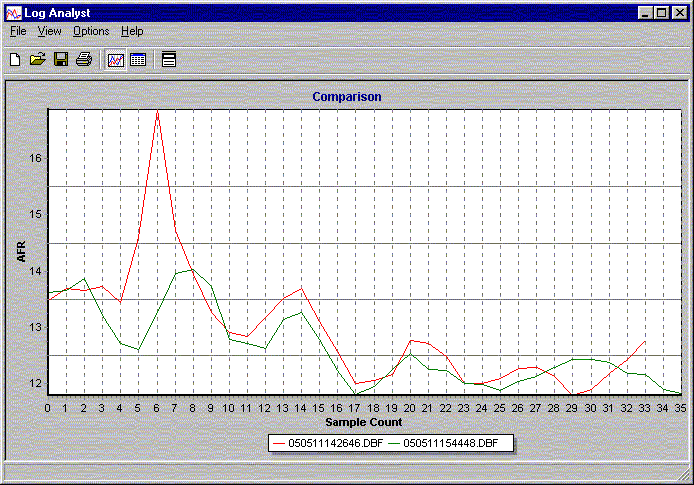 |
| LEAN SPIKE at throttle transition from Cruise to WOT A problem I had for quite some time was a nasty lean spike that at times, would go as high as 18.0 to 1.0 when I would mat the skinny pedal from a cruise driving condition. Back in the old school days when we had carbs, you had an adjustment you could make to the accelerator pump to give a larger squirt of fuel to take care of any lean problems like we speak about here. Over time, I found the same thing in the pcm values as the old carb accelerator pump. It is a Scalar called manifold_volume. This Scalar is used to describe the size or volume of the upper intake plenum. The stock value is 5.5 liters. For my combo, the fix was to change that value to 3.0 Below is a screen shot that shows two datalogs in comparison mode. The 2646 log is the baseline data and the 4448 log is the result of the Scalar change. The driving conditions of both logs were 3rd gear cruise at about 1500 rpm. I then went to WOT and climbed to about 4K rpm. Not much need to explain anything as you can clearly see the lean spike is gone in the newer log. Notice the drop in ratio around the start of data events 17 and beyond. That is the break point in the maf transfer of Close Loop/Open Loop conditions. |
| I will be adding info to the site as I see the need. It will most likely be based on the questions peeps ask about using their Tweecer to self tune. If you have a question or find something here you want to talk about you can find me on StangNet in the 94-95 forum. |
| I had a bit of corruption in my latest file and I just used screen shots to find the corrupted values. The files for download are side by side screen shots between an unmodified J4J1 Tweecer CalEdit cal file and my current file. I guess one could say this is my complete tune in ... non Tweecer format! These files are in a j- peg format which means .............. Tweecer Software or any other special software is not needed to view them. Before flushing all the files down the tubes, I got to thinking this data might be of some benefit for a couple different groups of peeps ................... 1) those who have never had the opportunity to look at any of this kind of data 2) those who have Tweecers can now see some of the things in my file as this j-peg format will not cause any of the issues like it does with me using V1.20 software and the masses of Tweecer users that use newer 1.30 software. The files represent only the changes I've made from the unmodified J4J1 cal file to my current file and are made up of 23 files for a total size of about 2.5 meg which are zipped up in one file for easy download. Those of you who have self tuner interfaces and wish to try some of the things you see in these files need to remember this ............................. This file was specifically made for my combo and may or may not work to your liking with your combo, and I'm in no way responsible for ...........well .......... you know, lol. To download the zipped file of my complete current tune in Screen Shot Format, simply use the link below ............................ Screen Shots of My Tune. Screen Shots of My Tune |
| My Tune in Screen Shot Format |
| WOT Tuning |