 |
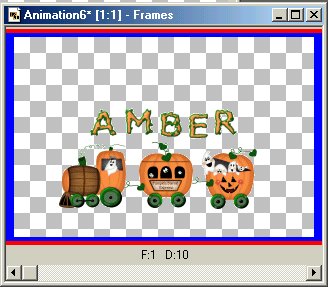
| Open your train image in Animation Shop. Open the alphabet files you will be using for your name. One by one, drag each letter over to the train image and drop it where you want it to be placed. Once you have all your letters in place, duplicate this frame at least 15 times. You will probably not need all these frames, but it is better to have too many than not enough. Open a new image 300 x 200 transparent. Duplicate this frame at least 15 times as well. Now for the fun! Click on the first frame of your new image. Click on the last frame of your train image. Put your mouse on the tip of the engine's nose and drag it over to the first frame, placing it to the far right, where only about 1/3 of the engine will actually be in that frame. While you are there, go ahead and click on Frame 2. Go back to your train image, click on the last frame. Again, put your mouse on the tip of the engine's nose and drag it over to Frame 2 of your new image, placing it a little farther into the frame, where more of the engine will show. The point here is, with each frame, you drag your train image a little farther into the frame. You will do this, frame by frame, taking the train all the way across. You will need to adjust where you place your mouse to drag and drop as you move the train across. If you make a mistake, no problem. Go to Edit/Undo Drag and start that step over. You will probably use at least 12 frames. Leave a blank one at the end. At this point you might need to crop the animation a bit. This will cut down on your file size and make it faster loading. Once you have finished these steps, go back to Frame 1 of your new image. Click on it, then go to Edit/Select All. Then go to Animation/Frame Properties. Set the frame speed at 20. Click on the very last frame, the blank frame. Go to Animation/Frame Properties. Set the frame speed at 100. Go back again to the first frame, click on it, go to Edit/Select All. Then go to Animation/Animation Properties. Click on Looping. Be sure the animation is set to repeat indefinately. Go to File/Save As. Name your image and click OK. The Optimization Wizard will then start. |
 |
| FGM2002 |