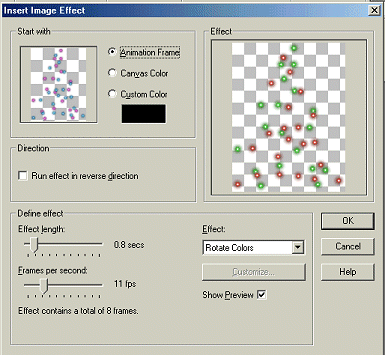
December 1, 2002 This tutorial assumes that you have a good knowledge of Paint Shop Pro, Animation Shop, working with tubes and layers. ...... For this tutorial you will need a tree tube, decorations for your tree, and sparkles/twinkles/flares. The fun thing about this is that you can use tubes you already have or seek out new ones on the web. You have the freedom to decorate your tree however you please to make it unique and "yours". I am including some zipped files here if you want to use them. I have collected them over a period of time and have no idea where they all came from. If one of them is yours, please let me know and I'll either remove it or give you credit. Sample Trees HERE Flares HERE Sparkles HERE Twinkles HERE If you would like the font used in the siggy at the end of the tutorial, I have the zipped file HERE You can be very creative with this effect, using the same methods for wreaths, etc. So let's get started! Open a new image in Paint Shop Pro, 250 x 250. Place your tree tube in the center of the image. You can adjust the placement later in case you want to add a name. Decorate your tree using various other tubes you may have. I use lots of layers when decorating the tree so I can go back and move everything around until I am pleased with it. Do not include any lights at this point. Once you have decorated your tree, merge all layers. You might also have to sharpen the image at this point, depending on how you used your tubes, if you resized them, etc. You want the image to be clear, not blurry. Add a new layer. This will be the lights layer. Randomly begin to apply your sparkle tubes to the tree. Use several different ones for the best effect. If you have resized the sparkle tubes, remember to sharpen when you have finished. I do not use other layers when adding the sparkles. If you happen to get one in a bad place, just go to edit/undo. Now you should have only 2 layers. The tree layer and the lights layer. Turn off the tree layer. Be sure the lights layer is selected. Edit/Copy. Open Animation Shop. Edit/paste as new animation. Go back to Paint Shop Pro and repeat the process, this time turning off the lights layer, selecting the tree layer, copying, then pasting as new animation in Animation Shop. You should have 2 separate images open in Animation shop. The tree and the lights. Make your lights frame active. Go to effects/Insert image effect. Choose Rotate Colors. Use the following settings: ........ You now have 9 frames. Go back to Frame 1 and select it. We'll set that aside for a moment while we get the tree ready. Click on your tree image. Duplicate 8 times. You now have 9 frames. Go back to Frame 1 of your tree and select it. Go to edit/select all. Click on Frame 1 of your lights. Go to edit/select all. Carefully drag your lights over to the tree. Don't unclick until you have them placed to your satisfaction. Go to Animation/Frame Properties. Set the frame speed at 10. Go to Animation/Animation Properties. Click on the looping tab and be sure you have the animation set to repeat indefinately. Now go to View Animation. Voila! Go through your usual save/optimization process and you are all done! Here's a sample siggy I made for a very special friend: ... |
 |
 |
 |
|
 |
|
 |
 |