 |
| Continued~ |
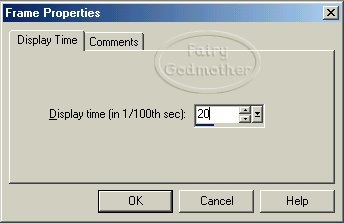
| Now that you have all the letters of your name moved and positioned in the new animation, we will set the frame and animation properties. Be sure that all frames are still highlighted in blue (EDIT>SELECT ALL). Go to ANIMATION>FRAME PROPERTIES. Set the speed for all frames at 20. Then Click OK. |
 |
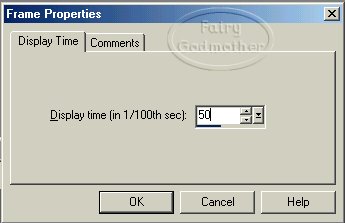
| Click on Frame #1. This will highlight only Frame #1 in blue. Go to ANIMATION>FRAME PROPERTIES. Set the speed for this frame at 50. Then Click OK. |
 |
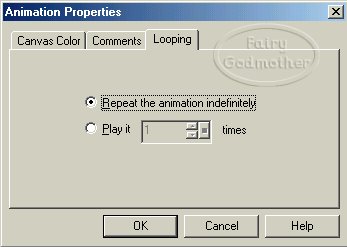
| Now we will set the Animation Properties. Once again, go to EDIT>SELECT ALL. Then go to ANIMATION>ANIMATION PROPERTIES. Set the canvas color to TRANSPARENT. Then click on Looping. You want the animation to play indefinately, so use the setting below. |
 |
| Ok, we are almost finished! View your animation before you save it by clicking on VIEW>ANIMATION. Then go to FILE>SAVE AS. Name your animation and specify the file you want to store it in. Click SAVE. When you do this, the Optimization Wizard will start. |