Setting up an FTP Server on Windows XP Professional
Have you ever tried to share a large number of files but have noticed it isn't the easiest thing on the Internet? Sure.... you can send files over MSN and AIM but only one at a time, you could email but mailboxes have a limited amount of storage space. Create a website just to be able to share files? Doesn't seem worth the effort, besides what if you want to receive files as well as sharing them? What if you want to make several directory's worth of your files available to yourself over the Internet while you are traveling? You could use remote desktop software, but that typically has slow performance. What's the solution? Why FTP of course!
One good way to picture an FTP site is as a section of files and directories on your computer that you choose to publish like a web page, so that anyone with the correct username and password can access the directories and transfer files to and from them. In fact, with the Windows XP FTP client, accessing an FTP server is done through explorer, so the contents of the server appears like just another folder on your system.
The main advantage of FTP is the ease with which it can transfer files over the Internet or your network. Individual files or whole directories can be made available, allowing clients to choose what they wish to access.
Controlling Anonymous Access
FTP can also use DNS (Domain Naming System) addresses, as seen on the World Wide Web. For example: ftp://ftp.google.com would make Internet Explorer attempt to connect to port 21 of the computer 'ftp' in the domain google.com.
If you are connecting to an FTP site that has anonymous access disabled, meaning that you will have to enter a username and password to connect successfully, you must put your username into the address. For example: ftp://[email protected] or ftp://[email protected]
Assuming the username is correct, a password window will open so you can authenticate yourself and then enter the FTP site.
If the FTP site you are trying to connect to uses an alternate port instead of the default port 21, you will also have to specify this. For example, if the server were using port 1056 you would enter: FTP://67.68.255.65:1056 or ftp://[email protected]:1056
Essentially, FTP addresses can be entered into the IE address bar just as you would WWW addresses, with the only catch being that you must put the ftp:// before the rest of the address, otherwise Internet Explorer will assume that you are trying to connect to a website and not an FTP server. Websites use port 80 by default.
Once you have connected to the FTP site, you are presented with a directory window of its contents, which you can manipulate as if it was a directory on your local computer (subject to the permissions you have in the FTP site, of course). You can open files, copy and paste into your other directories, and copy from your computer to the FTP site if you have write permission. Very simple.
Setting up an FTP site using Windows XP Professional
Windows XP professional (as well as Windows 2000) includes Microsoft's IIS (Internet Information Server) which can be used to create an FTP site on your computer. It's a fair bit less complicated and less flexible than using some third-party FTP server software packages, so we will give you guides for setting up both. If you are using XP Home you will need to use third-party software. There is no way to publish an FTP site with the Home Edition of XP.
The first step is to check that IIS (Internet Information Services, Microsoft's web-server application) is configured properly.
Go to start\'control panel'\'add/remove programs'\ choose the 'add/remove windows components' button from the bar on the left. Highlight the item 'Internet information services (IIS)' If it is unchecked, check it, then click 'details.'
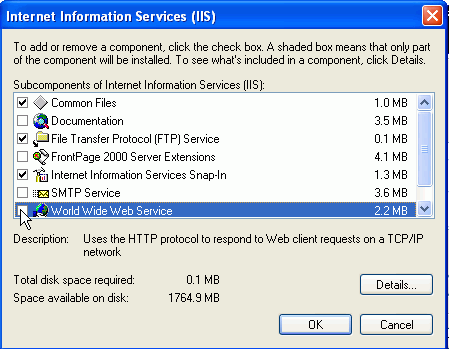
The components you will need are: 'common files,' 'file transfer protocol (FTP) service' and 'internet information services snap-in.' Uncheck any others then click next. IIS will configure itself, and you may be prompted for the XP CD.
Configuring FTP site controls
After IIS has been installed, an FTP site is automatically created for the directory 'c:\inetpub\ftproot.' Of course, this directory is currently empty. It is also completely unsecured, allowing anyone who enters ftp://(your IP address) in their browser or FTP client to connect to your computer. Next step is to configure your new site.
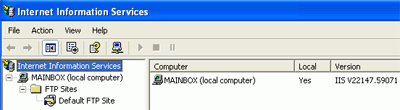 Go to start\control panel and select the ' switch to classic view' option in the upper left corner. From the classic control panel window, select 'administrative tools,' then 'internet information services.'
From here, expand '(local computer)' and 'FTP sites' until you have 'default FTP site' in the left hand pane. Right click on 'default FTP site' and select rename if you would like it to be called something a bit more catchy. After all, it's your site now.
Now, right click on your site and select 'properties.'
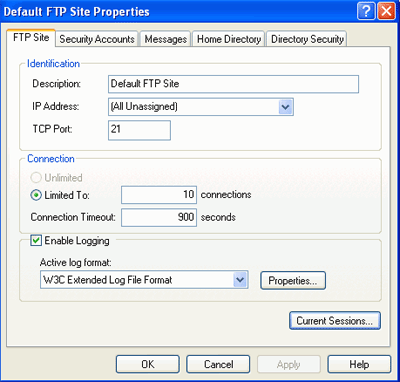
This window is the heart of your FTP site. Let's get familiar with it. The first tab, 'FTP site,' allows you to rename the site, set the port through which users can connect (leave it at 21 for now), set connection and logging information and view who is currently connected to your FTP site.
The connection section of this tab has two parts, the 'limited to:' box sets the maximum amount of users that can connect to you FTP site at the same time. Note that with XP Professional, the maximum is always 10 concurrent users. You can set this to less if you'd like.
WinXP FTP Security Controls
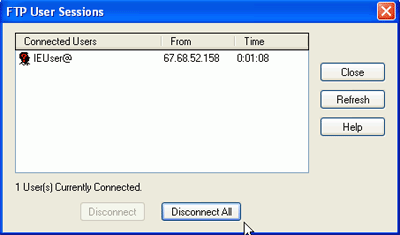
The 'connection timeout' box shows the amount of time a connected user will be allowed to remain idle before being disconnected. By clicking the 'current sessions' button at the bottom, you can view who is currently connected to your FTP site, and if you wish, disconnect them.
The next tab 'security accounts,' controls whether anonymous users (that means everyone) are allowed to access your FTP site or not. As mentioned above, by default anyone can access your FTP site without a username or password. IIS uses a built-in user account with a defined set of restrictions to authenticate anyone who connects. This user account, the 'IUSR_(computername) account, is created when IIS is installed, and is also used to allow access to websites you may publish. It is restricted from accessing non-IIS parts of your Windows system.
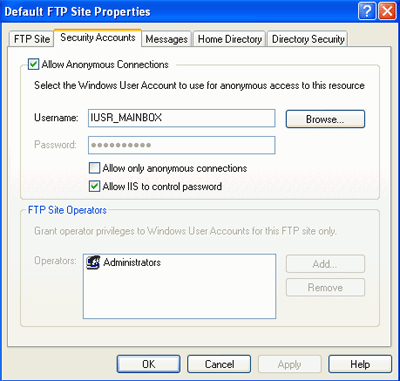
To be honest, there is not really a correct choice for this setting. If you allow anonymous access, anyone can connect to your FTP site and view any files that you place there. Disabling anonymous access has its own set of risks, however, which we will cover in the 'FTP security' section below. For now, leave anonymous access enabled. The next section, 'messages,' simply allows you to set various text messages which users connecting to your site will see. Fairly self-explanatory.
FTP and firewalls
If you use some form of hardware or software firewall to protect your computer, you will probably need to do a little more work to get FTP to operate correctly.
Software firewalls and FTP
The two most common software firewalls are the built-in Windows XP firewall and Zonealarm by Zone Labs. To configure the Windows XP firewall to allow FTP access: Go to start\control panel\ network connections, right click on the icon for your Internet connection and select 'properties.'
Go to the 'advanced' tab and click the 'settings' button to configure your firewall (ensure that the firewall is enabled first; if it is enabled there will be a check in the 'protect my computer�' box).
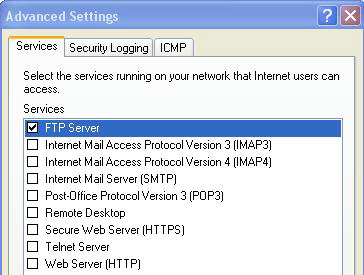
From the 'services' tab, simply place a checkmark in the 'FTP server' box. This will allow FTP traffic on port 21 to enter your computer. Press 'ok.'
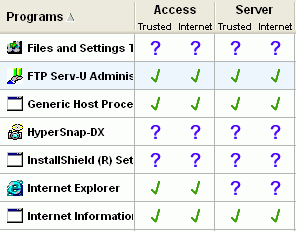
To configure Zonealarm to allow FTP access
From the main Zonealarm window, select 'program control.'
If you are using Window's built in FTP server, you need find the entry for 'internet information services' and place checkmarks next to 'access\internet' and 'server\internet.'
If you are using a third party program, locate the program on the list (if it is not present, click 'add' and browse to the program's executable file to add it to the list) and again place checkmarks next to 'access\internet' and 'server\internet.'
This will allow your FTP site to send and receive information through the Zonealarm firewall.
Configuring hardware firewalls for FTP
Home Internet sharing devices like Cable/DSL routers are very common, and almost all come with some form of firewall that is enabled by default. To successfully pass FTP traffic through these devices, you will need to create a 'virtual server' entry in the setup of your Internet sharing device. Pictured below is an example of this from an SMC Barricade home DSL/cable router.
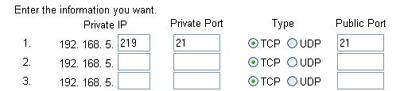
A virtual server is an instruction to your Internet sharing device telling it to forward any traffic it receives on a specified port to a specific computer inside your network. For example, if you create a virtual server for port 21, IP address 192.168.5.220, your internet sharing device will listen for traffic coming in on port 21, then pass that traffic through the firewall to the computer with that IP address.
Though the instructions will vary depending on the brand of your device, what you will need to do is find the 'virtual server' setup section (or equivalent), and specify the IP address of the computer that is running the FTP server (to find this, go to start\run and type 'cmd' then 'ipconfig.'). You will need to enter port 21 for data coming into and out of the router.
Once this is saved, FTP information will be able to pass through your firewall.
FTP security
Important topic. The problem with FTP is that, by default, it is an extremely insecure protocol. Usernames and passwords are not encrypted in any way when they are sent from the client to the server, and so are prime targets for anyone intercepting network packets between your server and your clients.
This is the reason that the Windows FTP server software recommends that you use only anonymous access for your FTP site, as the alternative is to use valid user accounts from your XP installation.
If these credentials are intercepted, they could be used to severely compromise the security of your entire system, never mind your FTP site. Hence the recommended practice for home users is to allow anonymous access to the FTP site directory and simply not place sensitive files there. Obviously, this is not going to meet everyone's needs, so there are alternative methods of securing FTP transactions.
Generally speaking, these involve using SSL (Secure Socket Layer) or some other encryption method to encrypt the plain FTP information, creating a secure channel between the client and server.
Most third-party FTP server software packages support encryption as part of the FTP program itself, but using IIS for Windows XP, the only possible method of security is to use a method that encrypts all traffic between the server and a specific client, such as a VPN (Virtual Private Network).
So to sum up, unless you have specifically placed security measures, assume that all FTP traffic is inherently insecure. Therefore, don't put data in your FTP site that you would not want seen by the general public. Don't be scared away from it though, since the fact that anyone can access your FTP site does not affect the security of the rest of your system unless you are using your Windows user accounts with IIS.
Back to Main