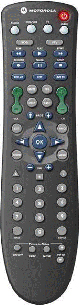
Programming Devices into the Motorola DRC800 Remote:
Note: These instructions assume you have already selected the proper device code(s).1. Press and hold the appropriate device key for at least 6 seconds. Each key
will light up and the selected device key will stay lit.
2. Enter the 4 digit code.
3. If the remote recognizes the code, the mode key will blink 3 times. If the light
goes off, the code was not recognized.
4. Test the remote by pressing POWER. If the device responds the correct code was found.
If not, repeat steps 1-4 with the next code in the list.
Programming Volume Lock:
Note: The Audio device key always controls volume regardless of which deviceis locked into volume control, even if the Audio key is assigned to another device.
To Lock Volume Control:
1. Press the device key for the device you want to control volume on for 6 seconds.
2. Press Volume +.
3. The device key's LED blinks 3 times. The key is now locked to control volume.
To Unlock Volume Control:
1. Press the device key for the device currently locked for 6 seconds.
2. Press Volume -.
3. The device key's LED blinks 3 times. All keys are now unlocked to control volume.
Searching for codes:
Note: If none of the codes listed work for your device, you can search for codes that work.The remote will sample all of its codes to find one that will allow you to control your device.
1. Press and hold the appropriate device key for at least 6 seconds. Each key
will light up and the selected device key will stay lit.
2. Press a function key listed below. The device key will blink 3 times and go off.
Valid function keys (POWER is recommended):3. Press the up arrow key (above the OK button). The remote will send the IR command for the
- POWER
- MUTE
- PLAY
- CH +
- STOP
function you pressed in Step 2.
4. If the device performed the function you pressed, press OK. The remote is now programmed for
the device you selected in Step 1.
5. If the device did not perform the function you pressed, repeat Step 3. Press the down arrow to
try the previous code.
It is recommended that when doing this you record the code that worked for your device. See "Checking Codes" for more information.
Checking Codes:
1. Press and hold the appropriate device key for at least 6 seconds. Each key will light up and the selected device key will stay lit.
2. Enter 9 9 0 to tell the remote you are verifying the device code. The LED blinks twice.
3. Press 1, then count the number of LED flashes and write down the number. If the LED
does not blink, the number is 0. This is the first digit of the device code.
4. Repeat Step 3 substituting 2, 3 and 4 to obtain the other 4 code digits.
Reassigning device keys:
Note: The Cable button cannot be reassigned.1. Press and hold the device key pertaining to the device you want to control for at least 6
seconds. Each key will light up and the selected device key will stay lit.
2. Enter 9 9 2.
3. Press the device mode key you want to reassign. The LED blinks 3 times and turns off to indicate
that it has been reassigned. The reassigned key uses the same code as the key selected in Step 1.
You may program it for the new code using the instructions above for the device to be controlled.
Restoring a device key to its original device:
1. Press and hold the device key pertaining to the device you want to control for at least 6 seconds. Each key will light up and the selected device key will stay lit.
2. Enter 9 9 2.
3. Press the same mode key again. The mode key's LED blinks 3 times and turns off.
4. Program the restored key to control a device if desired. See instructions above.