Hard copy is hard copy.You can read it , experiment it , prepare notes and
lot. So why read online samples when you can own a full copy for less than 4$
.Email [email protected] to buy hard copy
of the same. If you think the excel book can be improved please email the author
at [email protected]
Home
Many times you receive text files with data from third
party and you would like to import the same in to EXCEL and do calculations on
the same. EXCEL can import two types of files:-
- Separator marked files: - Separator types of
files are those which have data separated by some marker. For instance
below figure ‘Command separated marked files’ shows how the name, surname
and city is separated by comma. The first row is the head column.
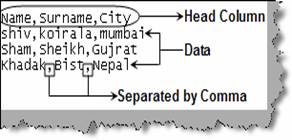
Figure: -
Comma separated marked files
To import separator marked files follow the below steps :-
- Click on File à
Open and select files of types ‘Text Files’ as shown in figure ‘File open
dialog box’. We have also shown a snapshot of the comma separated file in
the same figure.
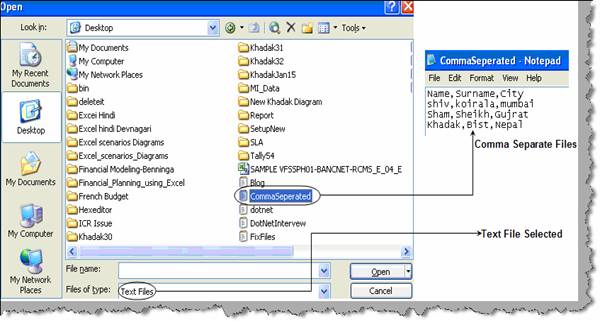
Figure: - File Open dialog box
- Once you click open you will shown a dialog box as
shown in figure ‘Import wizard for comma separated’. You can also see the
preview of the data in the import wizard itself. You need to select
delimited file type in case it is not selected and click next.
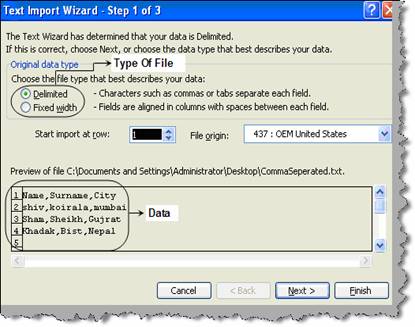
Figure: -
Import wizard for comma separated
- In this import wizard dialog box we need to specify
the separator by which data fields are separated. This test file has data
separated by “,” (Comma), so we have checked the ‘comma’ check box. Once you
have specified the separator you click next.
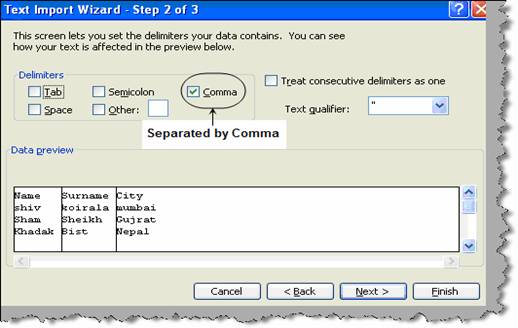
Figure: -
Select comma
- In this dialog you can specify what is the data type
and columns which you want to skip. If you want to skip any of the columns
you can select the column and then check the option ‘Do not import column
(skip)’.
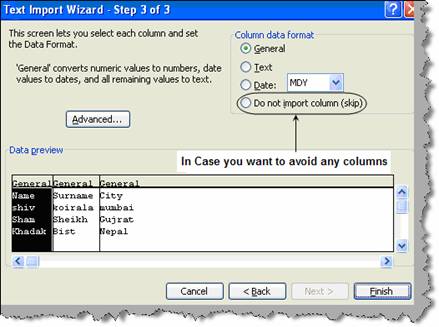
Figure: - Data
format and skip columns
Once you click on finish you should see the data imported
in the EXCEL as shown in figure ‘Final data imported’.
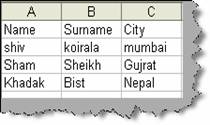
Figure: -
Final data imported
- Fixed length: - The other type of file which
can be imported is the fixed length file. Fixed length files do not have
separator rather they have fixed length in which the field should be
accommodated. Below figure ‘Fixed length file’ shows how the file looks
like. It has three fields. The first field name will occupy 8 characters
from position 1 to position 8. Surname field occupies from position 9 to
position 16 i.e. 8 characters again. City occupies from 17 to 22 i.e. 6
characters. In case the length is less than specified spaces are inserted.

Figure: -
Fixed length file
- Click on File à
Open à select ‘text files’ and
select the fixed file which needs to be opened.
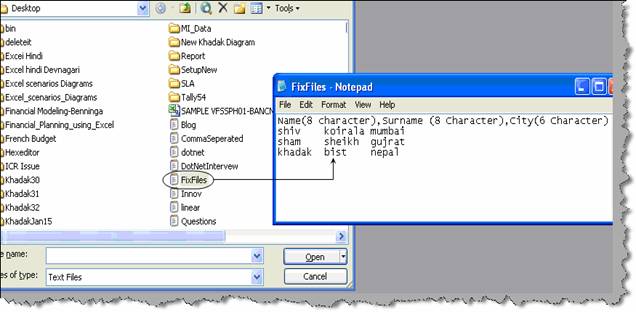
Figure: -
Fixed files
- Once you click on open you will be shown an import
wizard as shown in figure ‘Import wizard for fixed files’. Check the ‘Fixed
width’ and specify the import at row 2. The first row has the column
heading which we do not want to import so we have specified the import to
start from row 2.
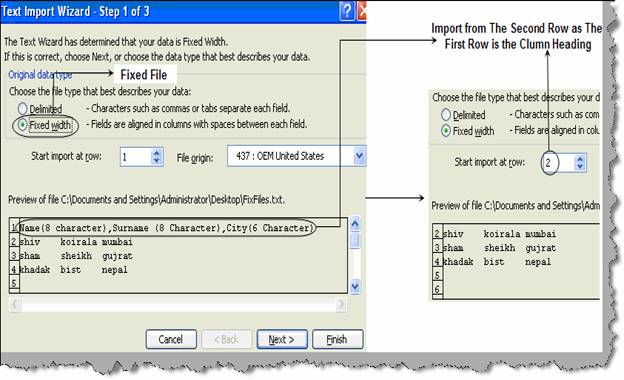
Figure: -
Import wizard for fixed files
- Once you click on next you will be popped with a
dialog box as shown in figure ‘Marking the fixed file’. You can also move
the marker to mark the start and end of each field.
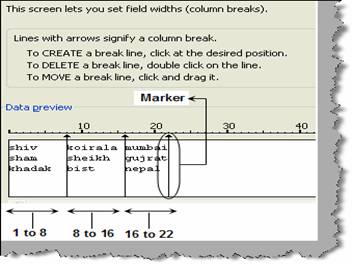
Figure: -
Marking the fixed file
- Once you have marked the field start and end position
click finish and you should see the output as shown in figure ‘Fixed file
final output’.
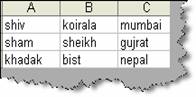
Figure: -
Fixed file output
Hard copy is hard copy.You can read it , experiment it , prepare notes and
lot. So why read online samples when you can own a full copy for less than 4$
.Email [email protected] to buy hard copy
of the same. If you think the excel book can be improved please email the author
at [email protected]
Home