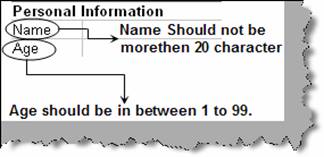
Many a times we come across scenarios where we want to validation on individual EXCEL cell. For instance consider the below figure ‘Personal information’. We want to implement the following validations:-
Figure :- Personal information
The above validation can be implemented in EXCEL using ‘Validation’ dialog box. So click on Data à Validation menu you should be popped up with a dialog box as shown in figure ‘Data validation dialog box’. There are three tabs ‘Settings’,’ Input message’ and ‘Error Alert’. So first let’s start entering validation rules for ‘name’. We have numbered the ‘data validation dialog box’ so lets understand the same according to numbers.
1 à As mentioned previously we need to restrict the text length of the name to 20, so in order to achieve the same we have selected ‘Allow’ as ‘text length’.
2 à We also want that blanks should not be entered. So uncheck the ‘ignore blank’ check box.
3 à In this section we have specified what will be the maximum and minimum length of text.

Figure: - Data validation dialog box
The second tab i.e. ‘Input Message’ provides text which will be highlighted when you select the name column. We have combined two snapshots in ‘Input message dialog box’. One is the input message dialog box and second is the how the text will be displayed when the cell is selected in EXCEL.
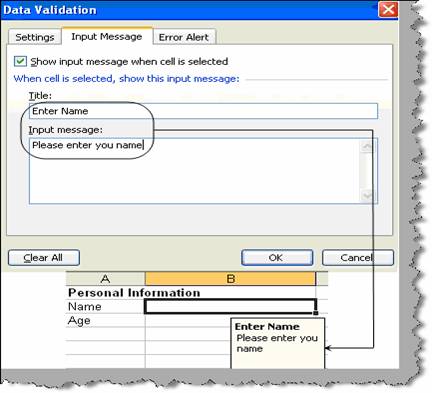
Figure :- Input message dialog box
The third tab is for the error message. If the user enters more than 20 characters what error should be displayed. In the figure below we have also shown how the error message looks like when the user enters more than 20 characters.
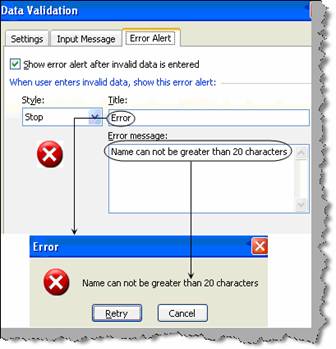
Figure: - Data error
In the same manner we need to implement validations for ‘Age’ also. In the below figure ‘Age validation’ we have displayed the snapshot of all the three tabs.
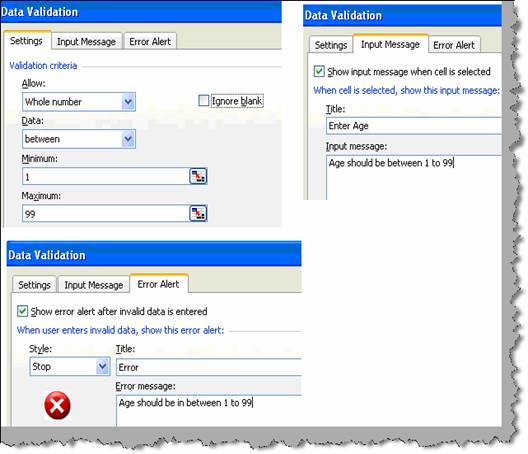
Figure :- Age validation
Below figure ‘Validation errors’ shows how the error dialog boxes look like.
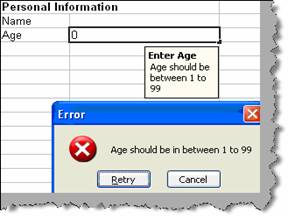
Figure :- Validation errors