Hard copy is hard copy.You can read it , experiment it , prepare notes and
lot. So why read online samples when you can own a full copy for less than 4$
.Email [email protected] to buy hard copy
of the same. If you think the excel book can be improved please email the author
at [email protected]
Home
Many times we want to extract unique records from duplicate
record list like the one shown in figure ‘Extracting unique records’.
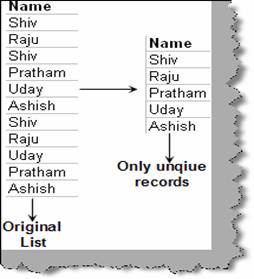
Figure: -
Extracting unique records
The above situation can be tacked by using ‘Advanced
filter’ option. So click on data – advanced filter, you will be popped with an
‘advanced filter’ dialog box as shown in figure ‘advanced filter in action’.
There are five steps by which you can extract unique records:-
- Check the option button ‘Copy to another location’.
- In the list range provide the original list of values
which has duplicate values. Currently for this scenario we have provided the
column A.
- Second we need to specify the criteria range. This
should be same as the list range.
- In the Copy to we need to provide where we want the
unique records to be copied. For this scenario we have selected the column
C.
- The most important one check the ‘Unique records only’
check box.
Once you are done with the above
steps click ok and you should see the unique records copied in column C.
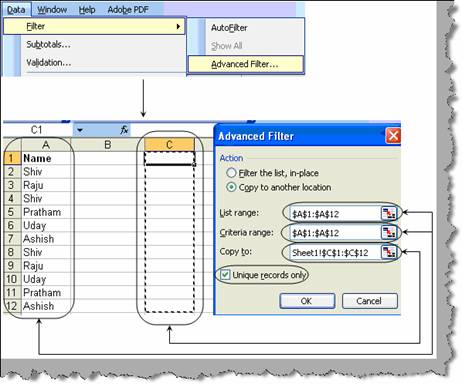
Figure: -
Advanced filter in action
Hard copy is hard copy.You can read it , experiment it , prepare notes and
lot. So why read online samples when you can own a full copy for less than 4$
.Email [email protected] to buy hard copy
of the same. If you think the excel book can be improved please email the author
at [email protected]
Home