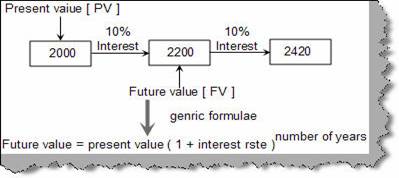
Before we get in to how to calculate compound interest in excel. We need to understand three important concepts present value (PV), future value (FV) and compounding. Let’s say you have 2000 INR and you give it to a bank for fixed deposit with rate of interest of 10%. So this 2000 INR is your present value. Now after one year with 10 % interest you will get 2200. So 2200 is your future value. Now lets say you again put 2200 for the next year with 10% rate of interest you will get 2420, this is termed as compounding. Below figure ‘Compounding in action’ shows how the compounding fundamentals work. In the same figure we have also give the formulae which is used to calculate compounding interest.
Figure: - Compounding in action
Excel provides ‘FV’ formula to calculate compounding interest. Using formula ‘FV’ the compounding interest calculation becomes a cool breeze. Below figure ‘FV in action’ shows how it can be used. It has five parameters. ‘PMT’ and ‘Type’ is zero we will get in to details of both these parameters in the coming questions. ‘Rate’ is the rate of interest, ‘nper’ is the number of years for which interest has to be calculated and ‘pv’ is the present value. So with ‘present value’ equal to 2000, interest rate of 10% for two years gives us 2420 by applying compounding formula.
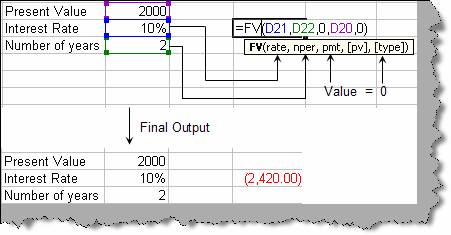
Figure: - FV in action
Now let’s give a simple twist to the above example, what if we want to calculate present value depending on future value and rate of interest. So let’s consider the same example. Below figure ‘PV in action’ shows how we can do the reverse calculation if we are given the future value and interest rate. PV formula is the exact opposite of FV formula.
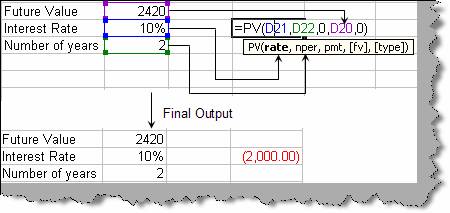
Figure: - PV in action
Note: - Type parameter tells at which preiod the transaction occurs. If it happens at the start of period ( i.e. at 1st Jan of the year) then type = 1 and if it occurs at the end of the period ( i.e. 31st December) then type =0.